Edit Your Account Information
After login, you can edit your account information of the current account and change password if required.
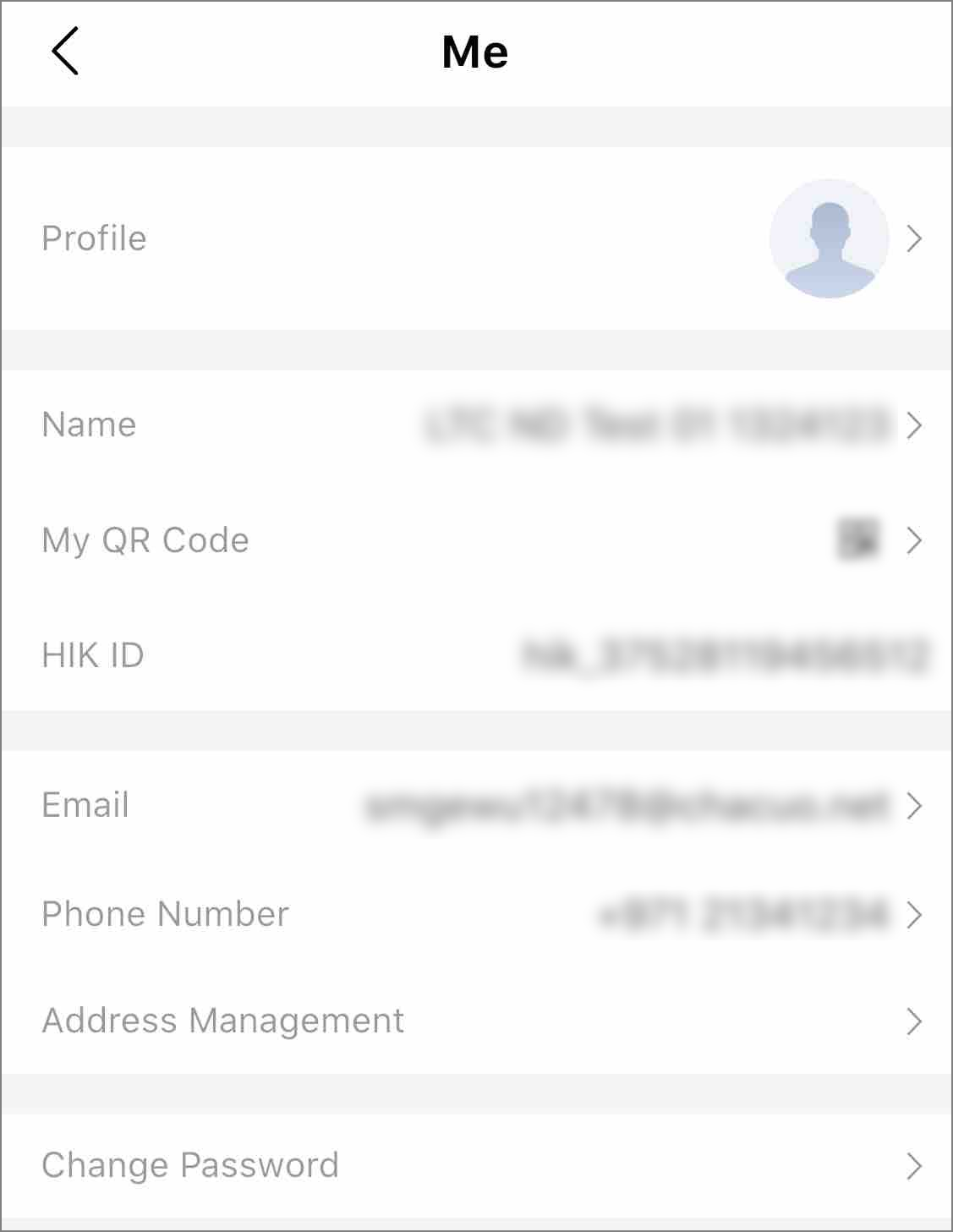
Tap Me at the bottom and then tap the profile photo on the top-left corner to enter Me page. You can view and edit your account information of the current account, including the profile photo, name, email, phone number, etc. You can also view your HIK ID on this page, but you cannot edit it.
For accounts registered in countries which support registration with phone number, the phone number information cannot be edited.
Change Profile Photo
You can change your profile photo to another one if required.
-
Tap the profile photo.
-
Choose a photo from the photo albums on your phone.
-
Optional: Drag, crop and rotate the photo to change the position and size of your profile photo.
-
Tap OK.
Edit Name
You can edit the name if required.
-
Tap the name to enter Edit Name page.
-
Enter the first name and last name.
Note:The last name and first name should contain 1 to 32 characters, excluding emoji and special characters including : * ? " < > |.
-
Tap Save.
Manage My QR Code
Tap  to show My QR Code, which your
customers can scan to add you as the service provider and authorize you to manage
devices.
to show My QR Code, which your
customers can scan to add you as the service provider and authorize you to manage
devices.
If you have uploaded your company logo, your company logo will be displayed in the center of the QR code. Or you can tap Add Your Company Logo to the QR Code to upload your company logo.
Tap  to download the QR code.
Change Email
You can change the current bound email address of the account to another one if required.
If the current bound account has been upgraded to OneHikID account, the page for editing OneHikID account information will be displayed. You can follow the instructions to change the email.
-
Tap the email to enter Change Email page.
-
Enter the password for the current account and tap Confirm to verify your identity.
-
Enter a new email address in the Email field.
-
Tap Verify.
An email with a verification code will be sent to your new email address.
-
Enter the received verification code in the Verification Code field.
-
Enter the password of the current account.
-
Tap Confirm.
Edit Phone Number
You can edit the phone number if required.
-
Tap the phone number.
-
Choose the area code of your country/region, and enter a phone number.
-
Tap Save.
Change Password
Change the password of the current account.
If your account has been upgraded to OneHikID account, the page for changing the password of your OneHikID account will be displayed. You can follow the instructions to finish change the password.
We highly recommend you to create a strong password of your own choosing (using a minimum of 8 characters, including at least three kinds of following categories: upper case letters, lower case letters, numbers, and special characters) in order to increase the security of your product. And we recommend you change your password regularly, especially in the high security system, changing the password monthly or weekly can better protect your product.
Add New Shipping Address
You can add, edit, and delete your shipping addresses, and set the default shipping address.
This function is only supported in certain countries and regions.
Tap , fill in all required information (contact person, country/state, address, postal code, etc.), enable Set as Default? if you are to set it as the default shipping address, and tap Save to add a new shipping address.
You can also edit and delete your shipping addresses, and set another shipping address as default.
Upgrade Account
If your Hik-ProConnect account has not been upgraded to the OneHikID account, you can upgrade your account according to the instructions on the interface as needed. Whether you can upgrade the account or not is determined by the country and the region of your account.
Delete Installer Admin Account
For Installer Admin, if the account is no longer used, you can delete it on the Settings page.
-
Deleting Installer Admin account is irreversible. The company information and accounts CANNOT be restored once deleted. Back up the required data before deleting the account.
-
If there are authorized site(s) or employee account(s) under the current account, you cannot delete it.
-
If the current bound account has been upgraded to OneHikID account, the login page for OneHikID account will be displayed. You can follow the instructions to delete the account.
-
Tap Me >
 .
. -
Tap Delete Installer Admin Account.
-
Tap Delete Account.
-
Enter the password of your Installer Admin account, and tap Verify.
-
Tap Confirm to confirm deleting.