Move Devices
You can use the Device Movement feature to move devices from one site to another. By distributing devices to different Sites, you can manage both the sites and devices more efficiently.
-
The feature is only supported by a device matches the following conditions:
-
The original Site where the device belongs needs to have been authorized to you.
-
The device needs to be added by serial No. The devices added by IP address / domain name are not supported.
-
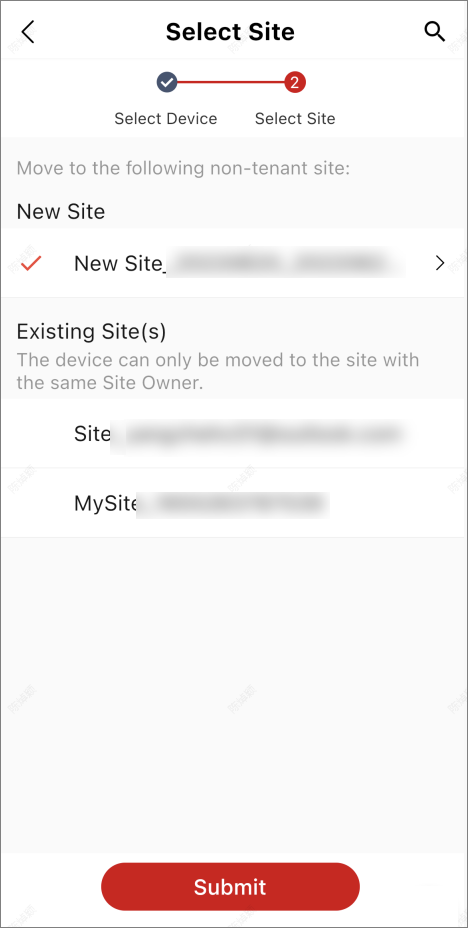
The original Site and the target Site should belong to the same Site Owner.
-
-
Once a device is moved from its original Site, you need to configure the device again because all the original device configurations will be invalid. In addition, device related configurations including the linkage rules, exception rules, ARC settings, network switch settings, people counting service, temperature screening service, cloud storage service, and cloud attendance service, etc., will be affected. You also need to configure these related configurations again.
-
Tap
 in the upper right corner, and
then tap Move Device to open the following pane.
in the upper right corner, and
then tap Move Device to open the following pane.
-
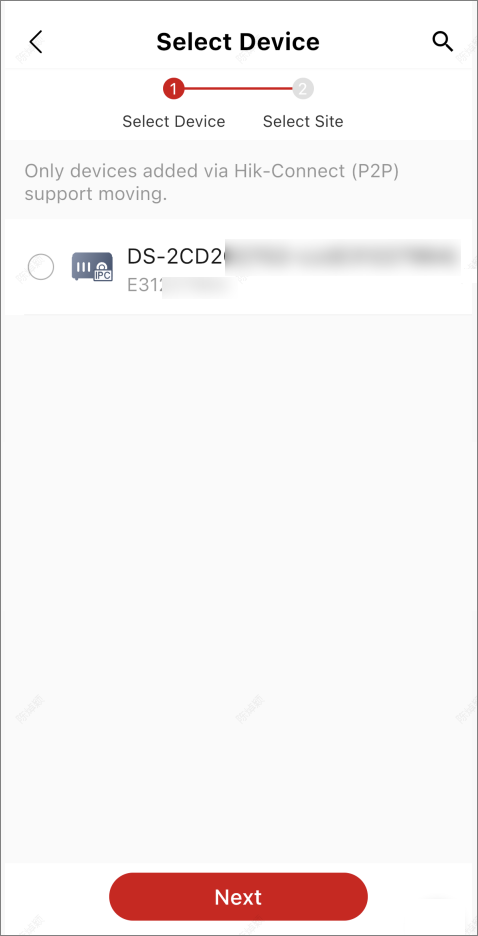
Tap Select Device to enter the Select Device page.
Figure 1 Select Device
-
Select device(s) and tap Next to enter the Select Site
page.
Figure 2 Select Site
- Optional:
Tap View Device Movement Records and perform the
following operation(s).
Option Description Apply Again
Tap an expired (
 ) or rejected (
 ) application to
enter its details page, and then tap Apply
Again to send the application again.
) application to
enter its details page, and then tap Apply
Again to send the application again.View Details
Tap an application record to enter its details page to see the details.
Move More
Tap an approved (
 ) or sent (
 ) application to
enter its details page, and then tap Move
More to move more devices.
) application to
enter its details page, and then tap Move
More to move more devices.