Exception Center
If you have enabled device exception detection, real-time notifications will be sent to the Mobile Client or email when device exception occurs. The Exception Center shows all the history notifications of device exceptions and channel exceptions.
-
This feature is available only when you have activated the Health Monitoring Service.
-
For Installer Admin, you can view all the exceptions of the devices in all the added sites. For Installers, you can view the exceptions of the devices on the site which has been assigned to you.
-
You need to set the exception rule first. For details, refer to Add Exception Rule.
You can enter the Exception Center page by the following ways:
-
On the Home page, tap
 > Exception Center.
 -
On the Home page, tap .
-
On the Home page, tap .
-
Tap to enter the Exception Center page.
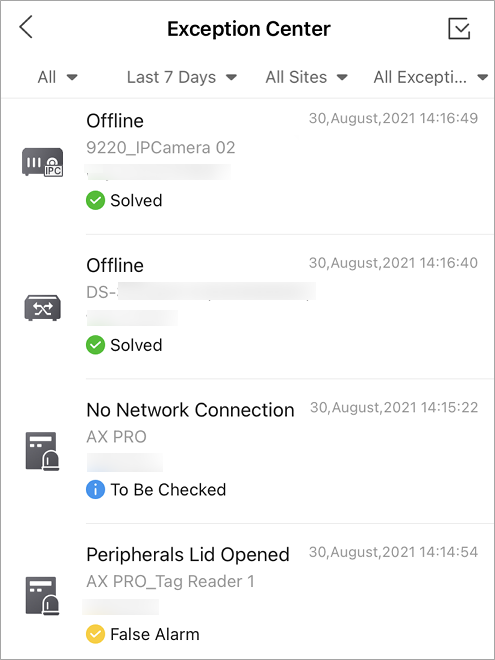
You can perform the following operations for Exception Center.
Filter the Exceptions
You can filter the exceptions according to your actual needs.
-
Set the handling result from all, unhandled, solved, to be checked, and false alarm.
-
Set the time period as Today, Last 7 days, Last 30 Days, Last 60 Days, or Last 90 Days, or customize a specific one. The exceptions received during the set time period will be displayed.
-
Select a source (including site, device, and channel) from the drop-down list to view the corresponding exceptions.
-
Select the exception types that you want to check. The exception types include device exception and channel exception.
Figure 2 Exception Types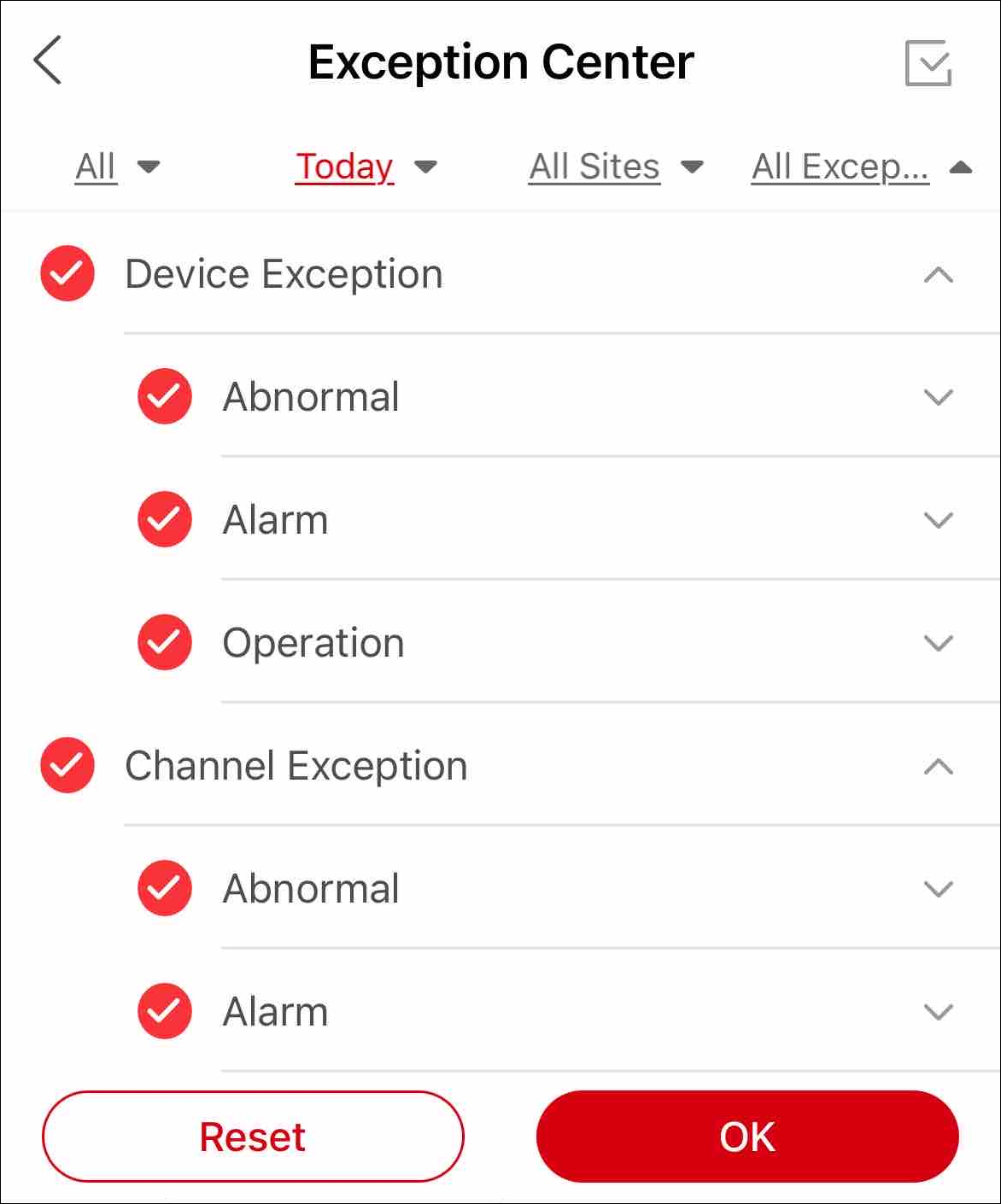
Handle an Exception
When you have solved an exception or you want to mark it for further examinations, you can select the handling result on Hik-Partner Pro. By handling the exceptions, you can better sort the exception list and avoid leaving some exceptions unattended. Your customer (the Site Owner) will also be informed of the handling result on Hik-Connect.
Follow the steps below to handle an exception.
-
Tap on the exception to show the Handle Exception page.
Figure 3 Handle Exception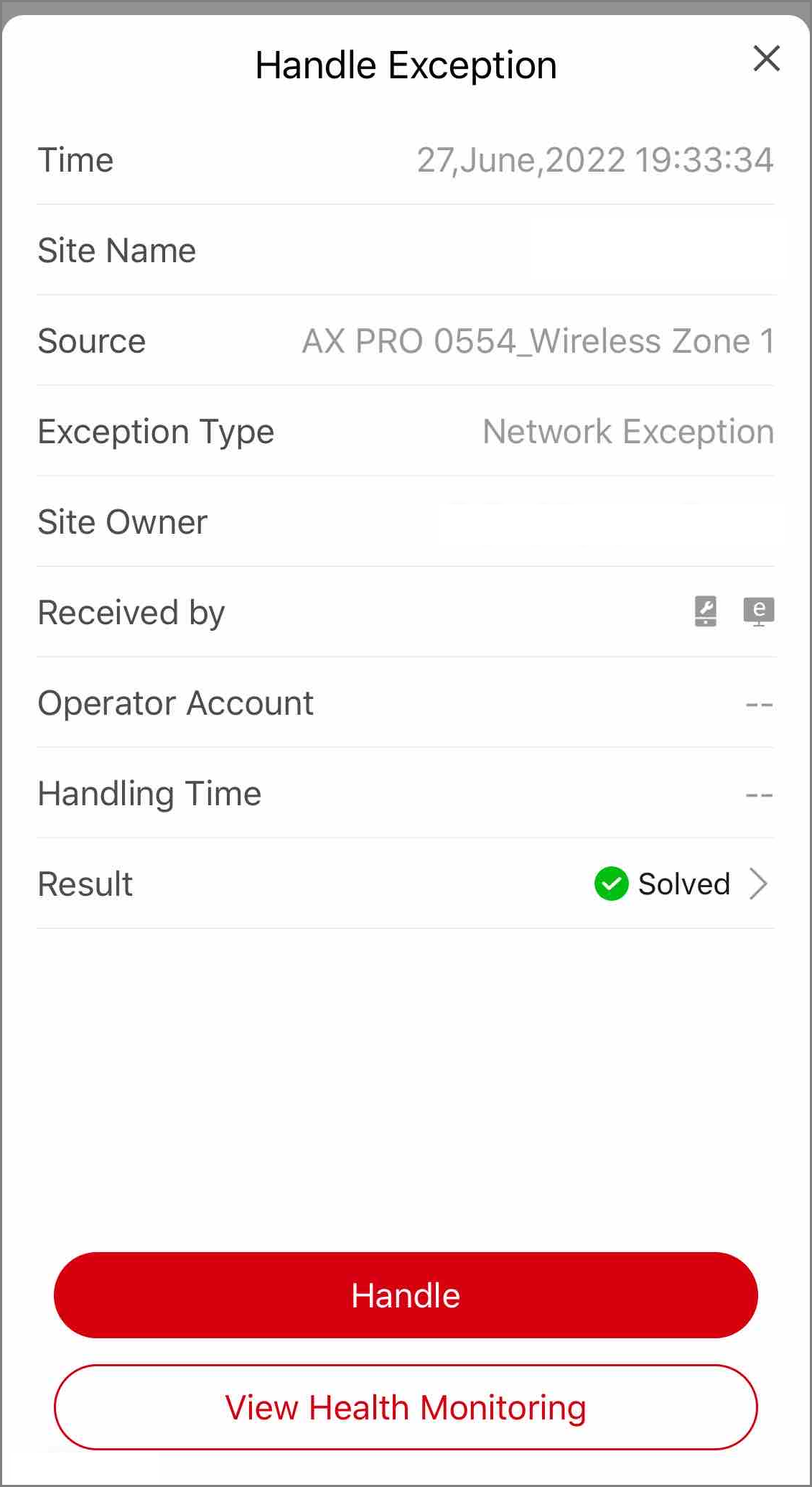
-
Select a handling result in Result. You can select from Solved, To Be Checked, and False Alarm.
-
Tap Handle to save the changes.
Jump to Device Health Monitoring
On the Handle Exception page, you can tap View Health Monitoring to jump to the device's health monitoring page to troubleshoot the exceptions.