Hik-Partner Pro Mobile Client Overview

The Hik-Partner Pro Mobile Client provides access to Hik-Partner Pro from your smart phone.

After logging in to Hik-Partner Pro via the Mobile Client, the Home page will show.

Main Modules

The Hik-Partner Pro Mobile Client is divided into the following main modules. You can access these modules via the tab bar on the bottom.

Table 1 Main Modules of Hik-Partner Pro Mobile Client

Module

Description

Home

On the Home page, you can view the overview of your sites and devices, and other quick entries for health monitoring, SADP tool, on-site config, account linking, tools, recently visited sites, etc. You can also view feeds, hot products, how-to guides, videos, and events.

Note:

Feeds, products, how to, videos, and events are not supported in some countries/regions.

Products

In the Products module, you can view, search for, download, and share the product information, including the product description, parameters, and documents.

Note:

For countries/regions that do not support products, this module is not displayed.

Site

In the Site module, the site list will show. A site represents a physical location where devices are installed and through which the Installer Admin / Installer can manage the devices.

Explore

You can view feeds about Hikvision products and solutions, guides in TechZone, videos, and events.

Note:

For countries/regions that do not support explore, this module is not displayed.

Health

Note:

For countries/regions that support the Explore and Products modules, this module cannot be accessed via the Health tab at the bottom, but can be accessed via Health Monitoring or More > Health Monitoring on the Home page, or via Site > Health Monitoring.

Includes the following sub-modules:

  • Health Status: Provides near-real-time information about the status of devices (including the encoding device, alarm device, access control device, etc.,) added to the sites. You can view device status of a specific site or all sites.

  • Exception Center: Shows all the history notifications of device exceptions and channel exceptions.

  • Scheduled Report: Sends the health check reports of encoding devices and AX PRO devices to target recipients regularly.

Me

View and Edit Account Information: You can view the information of the current account, including name, authentication status (Authenticated and Not Authenticated), and your QR code. You can also tap the profile photo to view or edit the profile photo, name, email, phone number, QR code, password, etc.

Note:

We highly recommend you to create a strong password of your own choosing (using a minimum of 8 characters, including at least three kinds of following categories: upper case letters, lower case letters, numbers, and special characters) in order to increase the security of your product. And we recommend you change your password regularly, especially in the high security system, changing the password monthly or weekly can better protect your product.

Switch Company: If you have completed company merging and your account still exists in more than one company, or if the companies in which your account exists are all kept on Hik-Partner Pro, you can tap Switch Company to switch to another company.

For details, refer to Become a Hik-Partner Pro User After Product Upgrade.

: Tap in the top right corner to enter the Support page.

Note:

Case, RMA, and How To are only available to some users in some countries/regions. For details, contact Hikvision.

  • Case: A center for you to report any issues generated when using Hik-Partner Pro. And our technical support will receive your issues and help you resolve them as soon as possible.

    For more about Case, refer to Submit Support Cases and Case Management.

  • RMA: You can submit RMA requests to return products for exchanges or repairs, and view and handle your RMA requests. For details, refer to Return Material Authorization.

  • Feedback: If you have any suggestions about the platform, you can submit your suggestions to us.

    1. Select a type for your suggestion and then enter your suggestions and upload pictures if necessary.

    2. Tap Submit.

  • How To: You can enter the How To page in the Explore module and view how-to guides (documents and videos) for helping you solve problems you encounter when using our products. You can also enter keywords in the search bar on the top of the Explore page to search for how-to articles.

  • Contact Us: You can contact us by calling or sending emails to us, and our address is also shown in Contact Us.

  • Chatbot: You can seek online help if you have any questions about using the Mobile Client.

: Tap to enter Settings page.

  • Upgrade Account: When you logged in by the Hik-ProConnect account, you can tap Upgrade Account and tap Register or tap Login to register an OneHikID account or log in by an existing OneHikID account.

  • About: You can view the version of the current platform, unsubscribe from marketing communications, and read the agreements including legal terms, privacy policy, and open source license.

  • Logout: Log out of the current account and return to the login page.

  • Delete Installer Admin Account: If you are the Installer Admin and the account is no longer used, you can delete the Installer Admin account.

My Points: You can view your reward points or get more points to redeem for gifts.

For more information about the reward point system, see Rewards Store.

  • Service Market: You can view services in the Service Market. You can tap a specific service package to view its details and purchase by service key.

    Note:

    You should purchase the service package online (not by service key) via the Hik-Partner Pro Portal. For details, refer to User Manual of Hik-Partner Pro Portal.

  • My Service: View and manage all services you purchased and their details, including free packages.

  • Company Management: Tap Company Management to enter the Company page.

    • Company Information: View company information, including company ID, country/region, address, email, etc. Tap in the upper-right corner to edit company information if needed.

    • Co-Branding: This function helps to enhance brand awareness. Once enabled, your customers can view your company logo, address, and phone number via the Hik-Connect Mobile Client. For details about how to get the co-branding service for free and enable the service, refer to Co-Branding.

    • Employee: Each company has only one Installer Admin but can have multiple Installers. The Installer Admin can invite the company's employees to register Installer accounts and assign different permissions to employees according to actual needs. Installer whose role contains permission Manage Account and Role can also invite other employees to be Installers by registering Installer accounts.

    • Role and Permission: A role defines one employee's rights to the functions in the system. After creating a role and specifying the role's permission, you can assign it to the employees according to actual needs.

    Note:

    For countries and regions only with support for free functions, Employee and Role and Permission are not supported.

  • My Intention: Edit, duplicate, and delete your purchase intentions that are not confirmed. If your purchase intention is confirmed by the provider (supplier), you can only duplicate it.

    Note:

    This function is only available to some users in some countries/regions.

  • My Promotion: View and confirm the purchase intentions you received from others. You can also export the confirmed intentions.

    Note:

    This function is only available to some users in some countries/regions.

My Favorites: You can view the news, how-to, and products which you added to your favorites.

My Comments: You can view your comments on the news, how-to, and products.

My Events: You can view all the events that you have registered and their detailed information.

Verify Gifts: Distributors can verify the gifts redeemed offline and export the records.

Note:

This function is available only to some users in some countries/regions. For details, contact Hikvision.

Questionnaire: You can tap a questionnaire to jump to the website and answer the corresponding questions, which is important for better user experience and services.

Help Center:

  • Help: Open the user manual of the Hik-Partner Pro Mobile Client. You can enter keywords to search the information you want in the user manual for help.

  • Display Demo: Displays brief introductions to the five features of the Mobile Client such as "What is Site?" and "What is Exception?".

  • Wizard: You can view the detailed explanations and operation guidance of some important functions of the Hik-Partner Pro Mobile Client. Follow the guidance as prompted to add a site, add a device, configure a device remotely, view live view of the device, etc.

  • Tutorial Center: You can view videos, solutions, technical guidance, user manuals, and so on to learn more about Hik-Partner Pro and the proper ways of using the product.

  • After-Sales Authorization Code: The after-sales authorization code is exclusive to the technical support staff for troubleshooting only. You can give your authorization code to the staff when it is necessary to log in to your account for troubleshooting. The staff can log in to your account via the authorization code to view or edit the information about the company (including name, type, etc.), manage sites, remotely devices (including AX PRO, etc.), perform health monitoring, etc.

    You can tap Extend to extend the validity period for the current authorization code or tap Invalidate to invalidate the code right away.

  • FAQ: Refer to FAQ to find the answers to your questions about Hik-Partner Pro quickly.

Link with Hik-Connect Account: Link your account with Hik-Connect accounts to synchronize devices automatically from the linked Hik-Connect accounts.

Hik-ePartner: If you have linked your account with your Hik-ePartner account, this section will be displayed for you to unlink from the Hik-ePartner account.

Marketing Communications: For Installer Admin, if you did not subscribe to marketing communications when registering the account, you can subscribe here. After subscription, we will send emails about the latest product introduction, service introduction, questionnaires, and special offers, to the email address which is used for your account registration. After unsubscription, you will not receive any emails about marketing communications from us.

Distributor: You can view the distributor to which your account is linked. You can contact the distributor to get support if you encounter issues on Hik-Partner Pro. For details, see Link Your Account to a Distributor.

Home Page Introduction

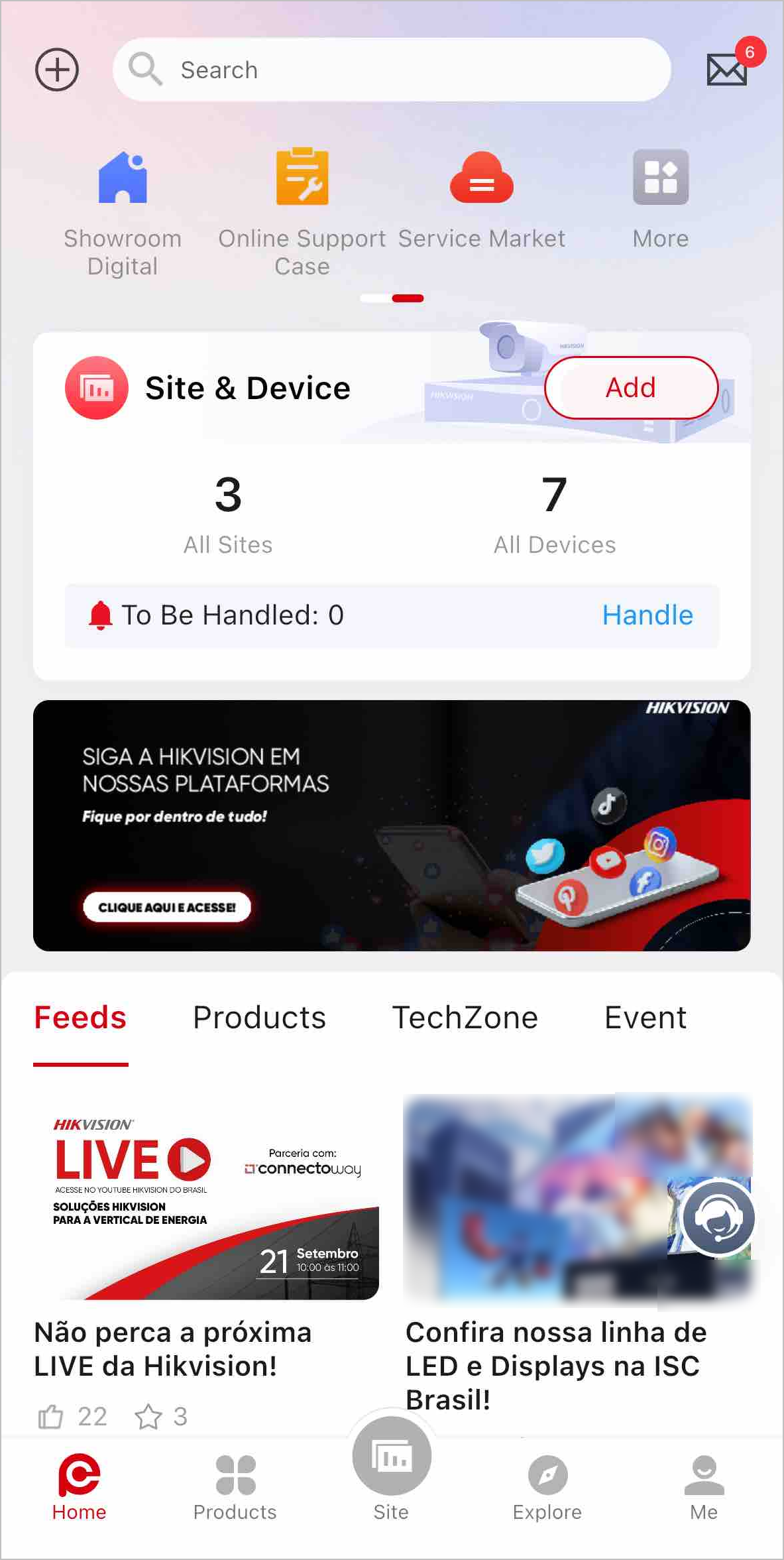
Figure 1 Home Page
Table 2 Home Page Description

Name

Introduction

Scan QR Code

You can scan the QR code to add devices, get points, add sites, reset passwords, check the firmware version, check the device batch, etc.

Tap > Help on the top right corner to view the details about different types of QR codes and their functions.

  1. Scan the QR code generated by Hik-Connect which contains the site information to add a site. For details about adding a site, refer to Add New Site.

  2. Scan the QR code on the device to add it. For details about adding device, refer to Add Device by Scanning QR Code.

  3. Scan the QR code generated by iVMS-4200 or iVMS-4500 to add multiple devices. For details about adding devices, refer to Add Device by Scanning QR Code.

  4. Scan other QR codes such as the QR code of marketing communications to enter the related web pages for more operations.

Add Device Manually

Add a device by entering the serial number or IP/domain.

Refer to Add Device by Entering Serial No. and Add Device by IP Address or Domain Name.

Synchronize Devices from Hik-Connect

Refer to Synchronize Devices with Hik-Connect Account.

SADP

Installation and configuration tool.

Refer to Use SADP Tool for On-Site Configuration.

Search

You can search for feeds, how to, products, events, and sites and devices by entering keywords.

In the Notification Center, you can view and handle all history business notifications (site sharing notifications, device management invitations, etc.), and view notifications of device and channel exceptions, system messages, and deals & offers.

Application Center

You can select 7 applications from the application center to display them on the Home page for quick access.

  • Tools: Quotation Tool, On-Site Config, SADP, Remote Batch Config, Batch Arm/Disarm, On-Site Batch Upgrade, Batch Device Search, Search for Important Firmware Update, and Account Linking

  • Calculators: Disk Calculator, NVR Channel Calculator, Focal Length Calculator, and Bandwidth Calculator

  • Learning: Hikvision eLearning, Digital Showroom, Help, and Tutorial Center

  • Rewards: Rewards Store, Lottery

    Note:

    Lottery is an event where you can upload sales receipts to get lottery tickets for chances of winning prizes, which is not available in some countries/regions or to some accounts.

  • Support: Chatbot, Case, RMA, Feedback, Contact Us, How To, Password Reset, and FAQ

  • Maintenance: Health Monitoring

  • Online Service: Service Market

Sites and Devices Overview

You can view numbers of all/abnormal sites and all/abnormal devices.

You can tap Add to add sites and devices. For details, refer to Add Device, Add New Site, and #GUID-20718474-F668-41C1-AAD1-F54D73C7D596.

You can view recently visited sites. Tap a site to enter the site details page.

Earn Points and Redeem for Gifts

You can check in, add devices, or do some other tasks to get the reward points redeemable for gifts. For more information about the reward point system. See Rewards Store for details.

Banner

Banners show the key features, functions, important information about Hik-Partner Pro, and events (including lottery draws where you can upload sales receipts to get lottery tickets for chances of winning prizes).

Note:

Events such as lottery draws are not available in some countries/regions or to some accounts.

Feeds, Products, How To, and Event

  • Feeds: You can view up-to-date news and information about Hikvision products and solutions.

  • Products: You can view information about hot products.

  • How To: You can view how-to guides (documents and videos) for helping you solve problems you encounter when using our products.

  • Event: You can view event details, and register for and participate in events, such as product promotions, trainings, lucky draws, and lottery.

    Note:

    Lottery is an event where you can upload sales receipts to get lottery tickets for chances of winning prizes, which is not available in some countries/regions or to some accounts.

Note:

For countries/regions that do not support Products and Explore, this section is not displayed; instead, the Tutorial Center section will be displayed.