Set Cloud Storage for NVR
You can enable and set up cloud storage for an NVR and its linked channels. When you complete the settings, the NVR will be able to upload event-related footage of its linked channels to the cloud.
Do I need a Hik-ProConnect box to enable cloud storage function for an NVR?
-
If your NVR supports cloud storage, there is no need for a Hik-ProConnect box.
This feature requires device capability. Refer to the Hik-Partner Pro Compatibility List for a complete list of supported models.
See the next section for instructions.
-
If your NVR does not support cloud storage, you can use a Hik-ProConnect box to help the linked channels of an NVR upload footage to the cloud.
See details in Set Cloud Storage for Hik-ProConnect Box.
How to enable cloud storage for an NVR that supports cloud storage?
Select the NVR's site, and tap on the NVR to enter its settings page. Tap Linked Channel where you can set up cloud storage for each channel.
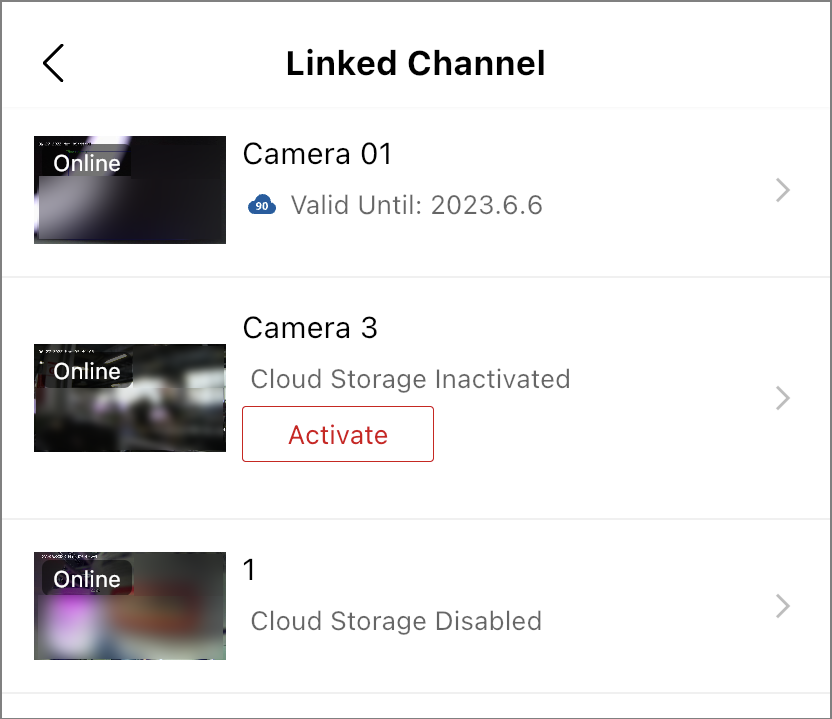
When setting up the cloud storage, you need to read and follow the recommendations for the resolution and bit rate of the channels at the top of the page.
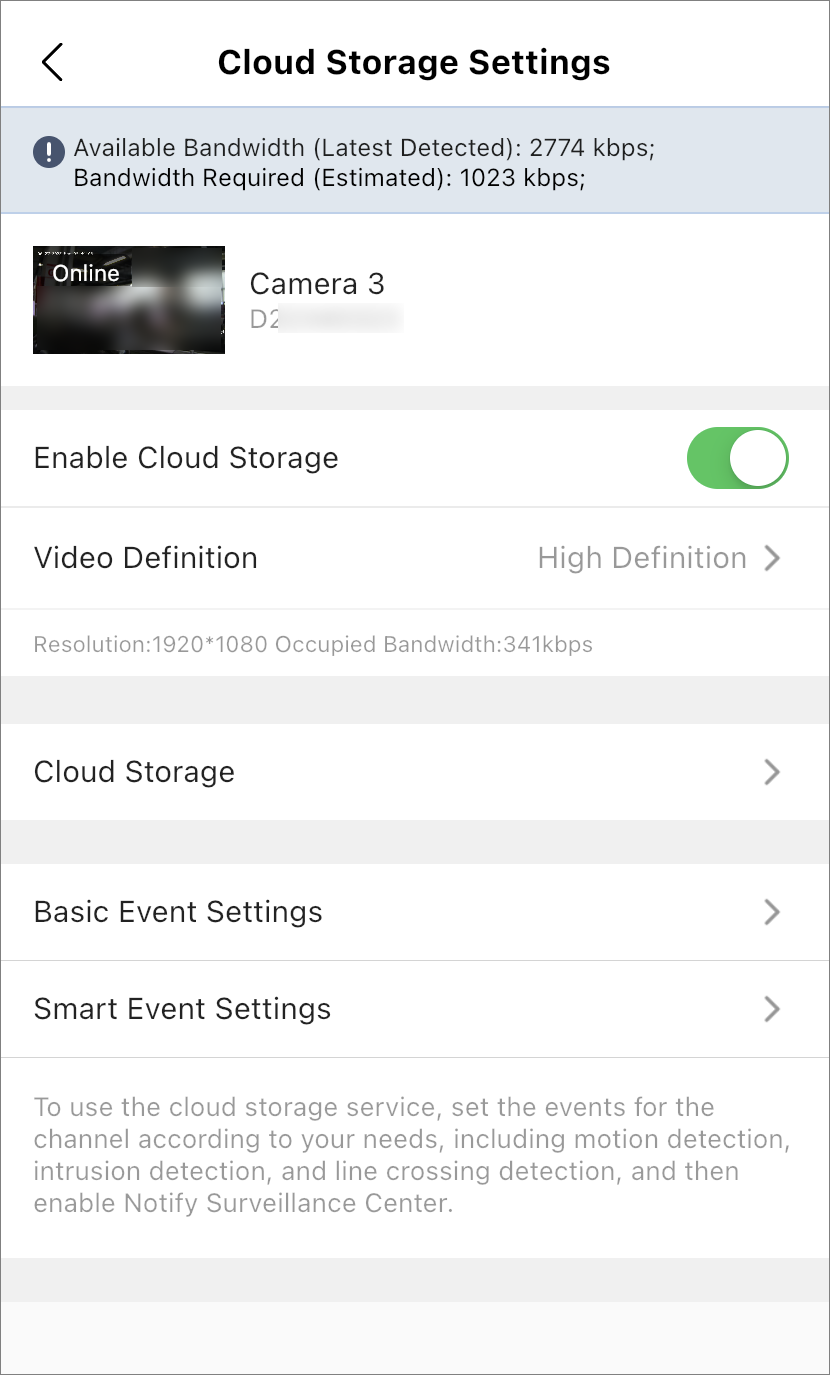
The steps are similar to those of setting up cloud storage for a Hik-ProConnect box. You can refer to Set Cloud Storage for Hik-ProConnect Box for descriptions of the parameters such as Video Definition, Cloud Storage, and Motion Detection.
-
If Smart H.264+ / H.265+ encoding is enabled for the channel with cloud storage enabled, the quality of the footage on cloud will be affected. The platform will notify you to switch to disable Smart H.264+ / H.265+ encoding.
-
If stream encryption is not enabled for an encoding device linked to an NVR that supports cloud storage, you cannot enable cloud storage for the channels of the encoding device.