Add New Site
When a customer wants the installation company to provide the installation and maintenance service or the installation company assigns devices of a customer to employees to install and maintain the devices, the Installer Admin or Installer with related permission needs to create a new site for managing these devices of the customer.
-
Enter the Add New Site page.
-
Tap the Site tab at the bottom to enter the Site page. Tap
 to enter the Add New
Site page.
to enter the Add New
Site page. -
Tap in the Site & Device area on the Home page.
-
Tap
Figure 1 Add New Site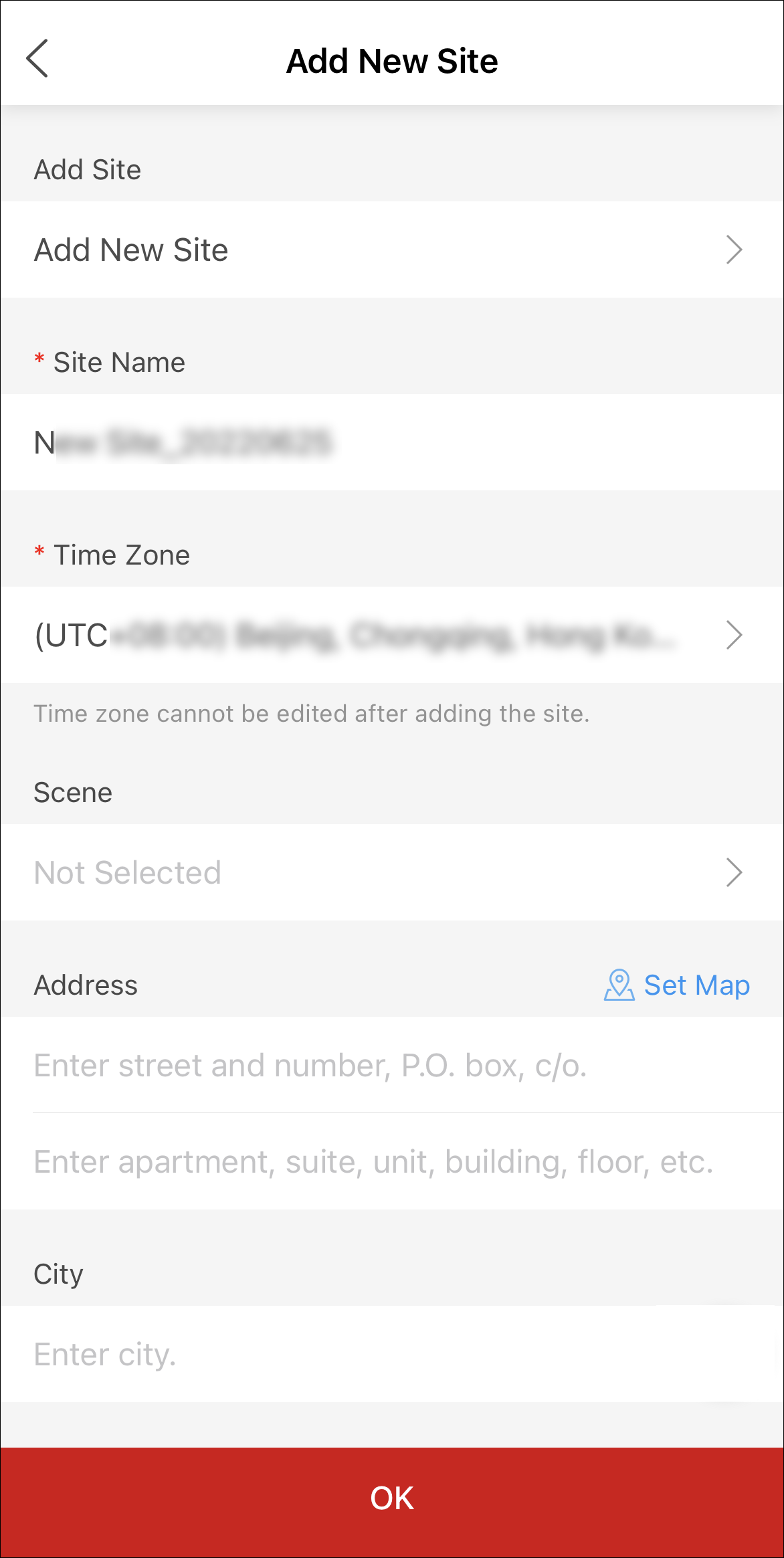 Note:
Note:If an existing site of customer is not authorized to any installation company, you can select Add Existing Site to add the existing site. For more details, refer to Add Existing Site.
-
- Optional:
Perform further operations.
Option Description Search Site
Enter keywords in the search field, and tap Search to display the results in the list.
View Site Details
Tap the site name to view the site details, including managed devices, site information, and so on.
Navigate with Map
Tap Map to enter the Map page, tap Navigate in the bottom to pop up the navigation tool(s) installed on the mobile phone, select a navigation tool to start navigation.
Edit Site
Tap
 in the upper-right
corner on the Site Details page, and then tap Mange Site
Information to edit the site information.
in the upper-right
corner on the Site Details page, and then tap Mange Site
Information to edit the site information. You can edit the site name, site address, city, state/province/region, GPC and remarks. If you are authorized to manage the site, you can also edit whether to enable Sync Time & Time Zone to Device.
Delete Site
Tap
in the upper-right
corner on the Site Details page, and tap Delete
Site to delete the site.Note:If a site contains armed security control panel(s), it cannot be deleted.
Hand Over Site by Transferring
For the site that is Not Handed Over, tap on the site details page to hand over the devices manged on the site to your customer, who will take the ownership of devices.
Note:For more details, refer to Hand Over Site by Transferring.
Hand Over Site by Sharing
For the site that is Not Handed Over, tap on the site details page to hand over the devices manged on the site to your customer, who will only have the permission to use devices, and not take ownership of devices.
Note:For more details, refer to #GUID-D4EDF213-9503-4605-945A-E45561CD8B78.
Manage Device
For the authorized site or the site with the status of Not Handed Over, Not Registered, or To Be Accepted, enter the Site Details page to manage the devices, such as adding devices to the site, upgrading device, deleting devices, applying for live view or configuration permission, , adding linkage rule, adding exception rule, etc.
Note:If a security control panel is armed, it cannot be deleted unless being disarmed first.