Network Topology
If you have added network switch(es) to a site and connected devices to the network switch(es), you can view these devices' network topology. Network topology displays network links between devices and shows the link exceptions and abnormal devices, helping you to locate the exception source and troubleshoot faults in a visualized way.
-
Make sure you have the configuration permission of the network switch. Otherwise, network topology will be unavailable. For details about applying for configuration permission, see Apply for Device Permission.
-
If you have not activated the health monitoring service for the network switch, some topology functions (e.g., viewing device status on the topology) will be unavailable. For details about activating the health monitoring service, see Activate the Health Monitoring Service
On the Home page, tap or , or .
-
Tap
 beside All Sites, select a site from the list, and then tap
View Topology.
beside All Sites, select a site from the list, and then tap
View Topology. -
Tap Network Switch, tap a switch to enter the device details page, and then tap
 > View Topology in the upper-right corner.
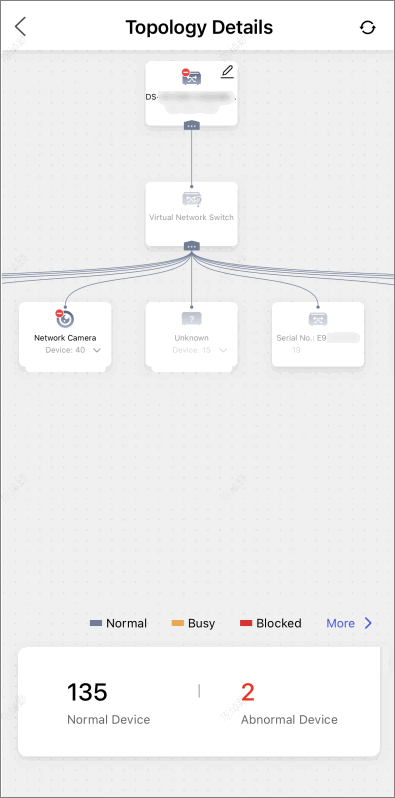
For detailed operations and descriptions about topology, refer to Network Topology.