Network Switch Operations
On the network switch details page, you can view the CPU usage, memory usage, view the status of the port, reboot the device.
On the device list, tap the switch name to enter the device details page.
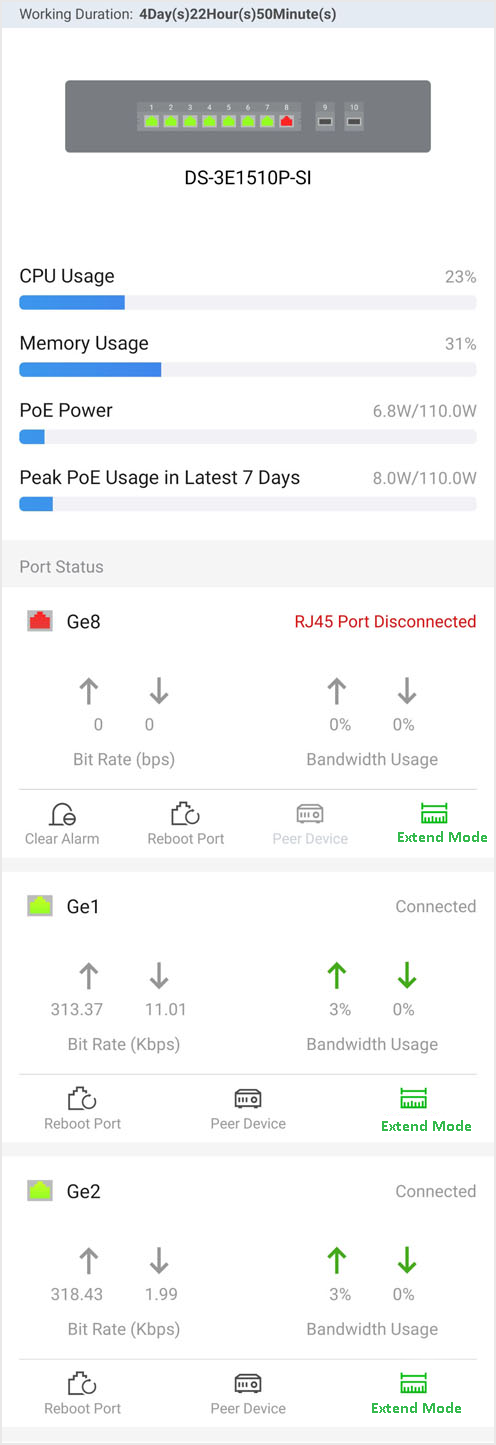
On the upper area of the page, you can view the CPU usage, memory usage, POE power and POE power peak.
On the middle area of the page, you can view the port status of each port, including the port type (Ethernet port, Fiber optical port), rate, bandwidth.
Perform the following operations according to your requirements.
|
Operation |
Description |
|---|---|
|
Reboot Switch |
Tap Reboot to reboot the switch. |
|
View Peer Device |
Tap Peer Device to view the details of the device connected to this port. |
|
Clear Alarm |
For port with alarm(s), tap |
|
Restart Port |
For the abnormal port, tap |
|
Enable/Disable Extend Mode for Port |
Tap Enable Extend Mode/Disable Extend Mode to extend or not to extend the transmission range of this port. Note:
After enabled, the transmission range of the port will be extended to 200 to 300 m. Meanwhile, its bandwidth will be limited within 10 Mbps. |
