Manage My Intentions
After you submit your purchase intentions on the sell-out promotion page, you can edit, duplicate, and delete your intentions. You can also check the confirmation status of your intentions. After your intentions are confirmed, you can go to the providers offline to purchase at the discounted prices based on the confirmed purchase intentions.
-
This function is only available to some users in some countries/regions.
-
Only the Installer Admin account can submit and manage intentions.
Tap to go to the My Intention page.
You can tap To Be Confirmed or Confirmed to switch between your confirmed and to-be-confirmed intention lists.
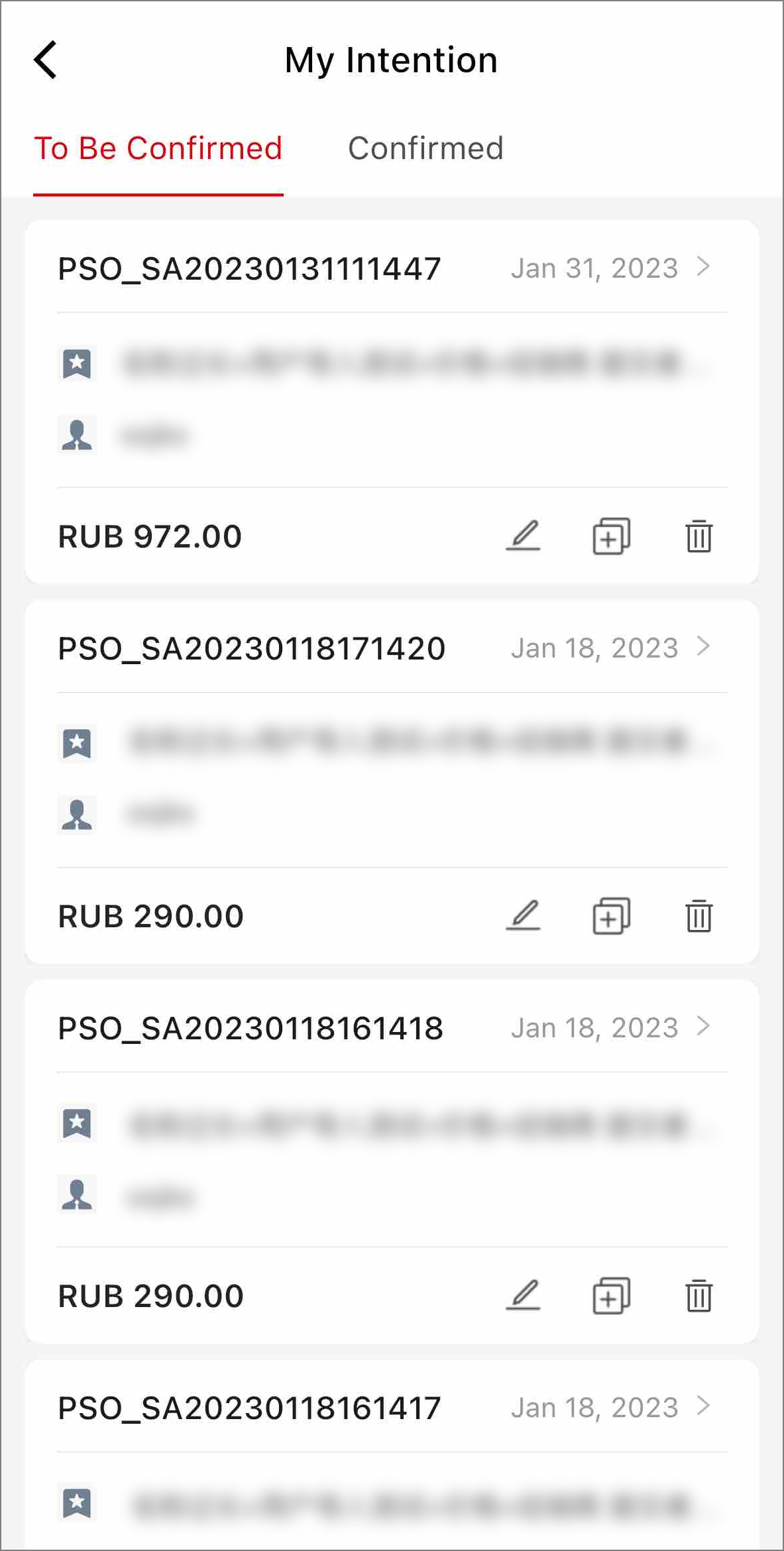
On each intention card, you can tap  to edit the intention, tap
  to delete the intention, and tap
  to duplicate the intention.
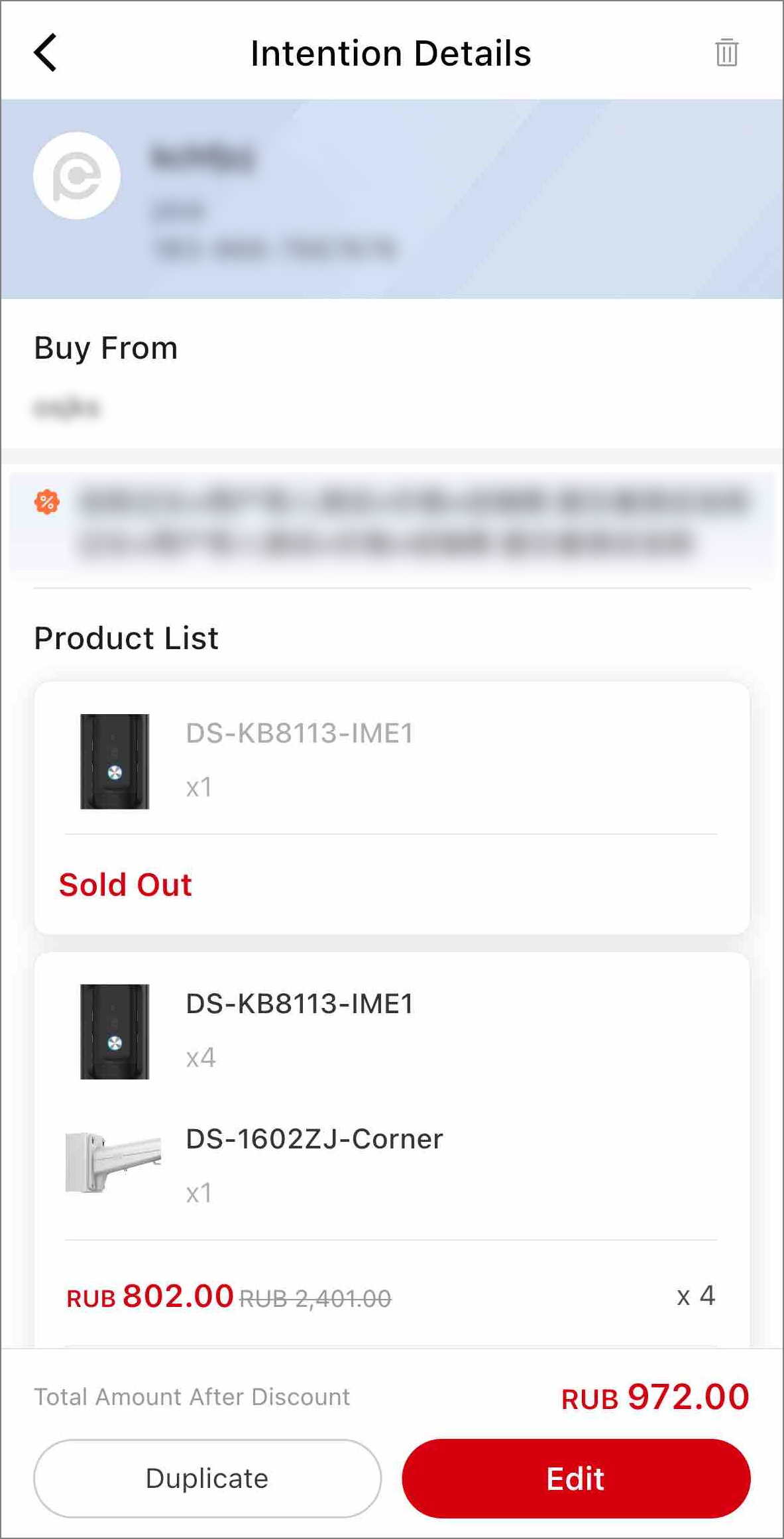
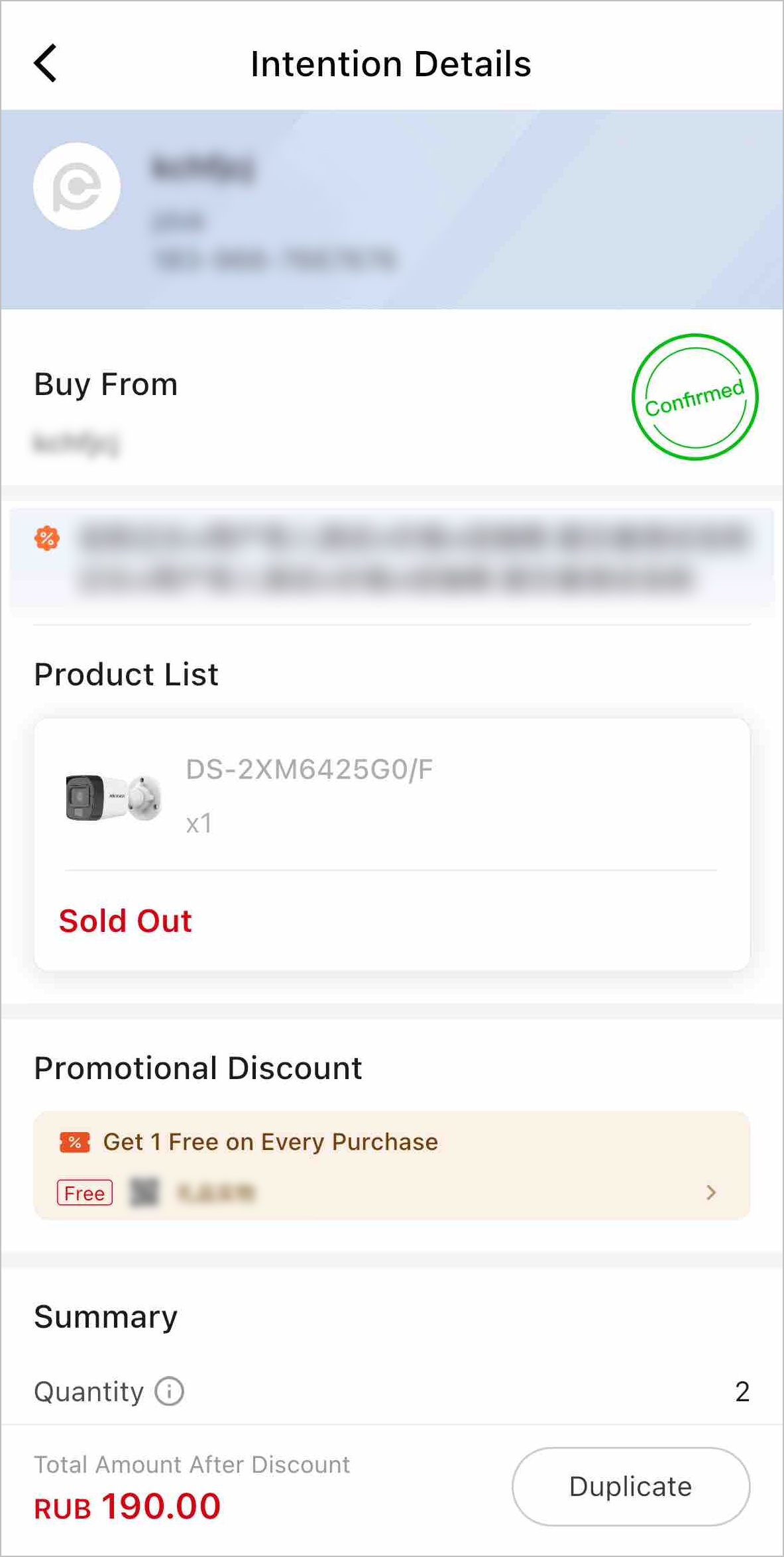
Tap an intention card to go to the Intention Details page. You can also tap , Edit, or
Duplicate on the Intention Details page to delete, edit, or
duplicate the intention.
-
After you edit or delete your intention, the corresponding provider will receive a notification in the Deals and Offers section of the Notification Center.
-
After your purchase intention is confirmed by the provider, you will not be able to edit or delete the intention, and you will receive a notification in the Deals and Offers section of the Notification Center.