Submit Device Unbinding Case
You can submit device unbinding cases, and after the support team replies, you can unbind your devices from Hik-Connect.
The function is only available in certain countries and regions. For details about whether your country or region supports the function, refer to the after-sales or local distributor.
-
Select the network status of devices to be unbound and enter the Submit Case
page.
-
Tap LAN Device (SADP) and select a device which is on the same LAN (Local Area Network) with the Mobile Client.
-
Tap Other.
Figure 1 Submit Device Unbinding Case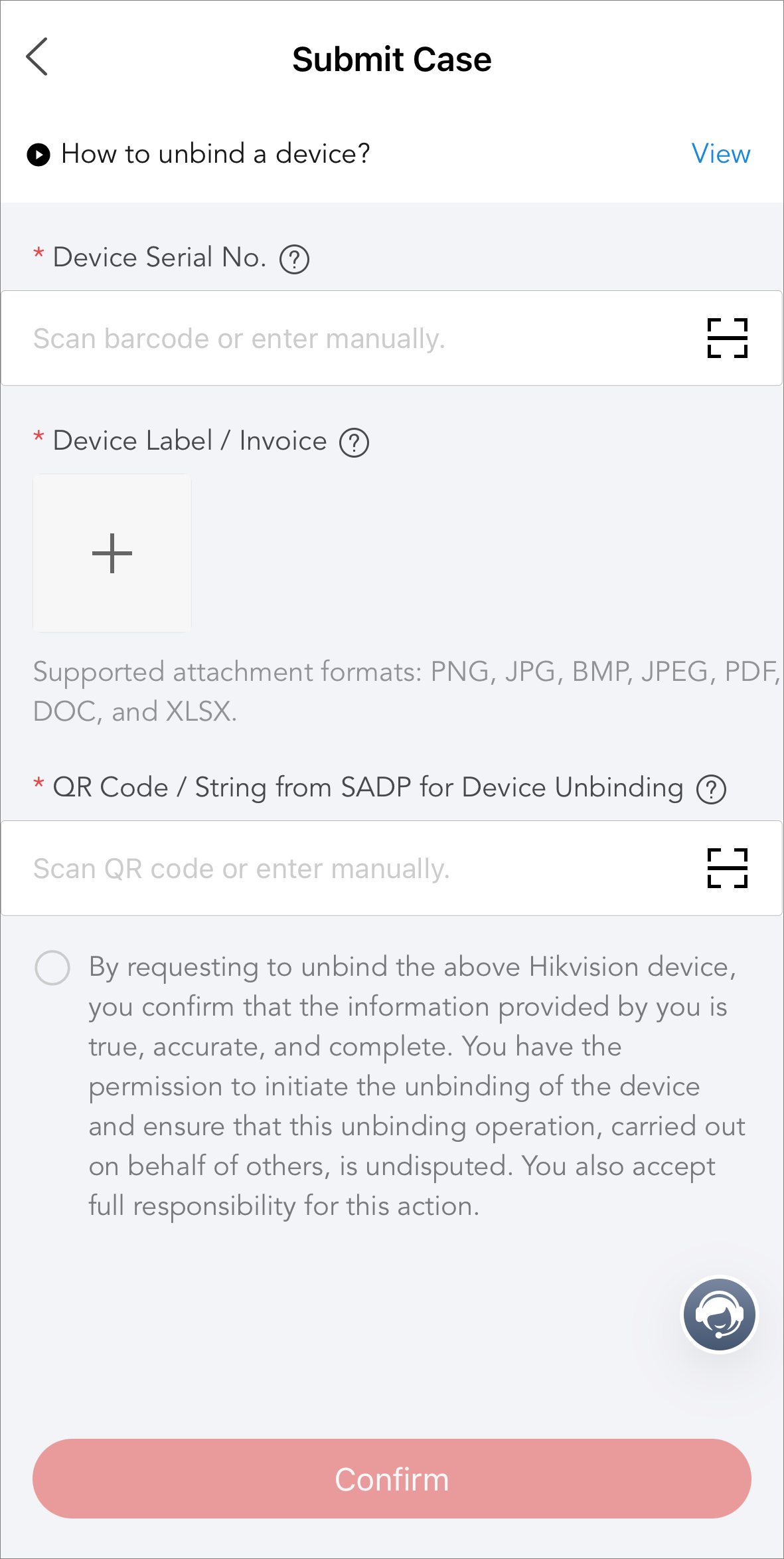
-
-
Set the information required on the Submit Case page.
Note:
-
If you enter the Submit Case page by tapping Other, you can tap View at the top to view the video about how to unbind a device.
-
You can tap
 beside the field
name to see where to find the information.
beside the field
name to see where to find the information.
- Device Serial No.
-
The serial No. of device to be unbound. You can tap
 to scan the
barcode on the device to automatically fill in the field, or
enter manually. For the LAN device, this field will be
automatically filled in.
to scan the
barcode on the device to automatically fill in the field, or
enter manually. For the LAN device, this field will be
automatically filled in. - Device Label / Invoice
-
Tap
 to upload the
device label picture or invoice as the attachment of the case
from the album, by taking a photo, or by choosing a file.
to upload the
device label picture or invoice as the attachment of the case
from the album, by taking a photo, or by choosing a file. - QR Code / String from SADP for Device Unbinding
-
The QR code or string provided by SADP for unbinding devices. You can tap
to scan the QR
code to automatically fill in the field, or enter manually. For
the LAN device, this field will be automatically filled in.
-