Hand Over Site by Sharing
If the devices are owned by your company, for example, if you are an ARC who provides the remote alarm receiving service for customers with your company's devices, you can hand over the devices to your customers by sharing without transferring ownership of the devices. To hand over devices by sharing, you can choose between applying for permissions from your customer (Mode A) and NOT applying for permissions from your customer (Mode B).
-
Make sure the site status is Not Handed Over, and you have the permission for site management, such as managing all sites and assigning sites.
-
Make sure the devices are added to the site. The supported devices include security control panels, access control devices, encoding devices, video intercom devices, doorbells, Hik-ProConnect boxes, and radars.
-
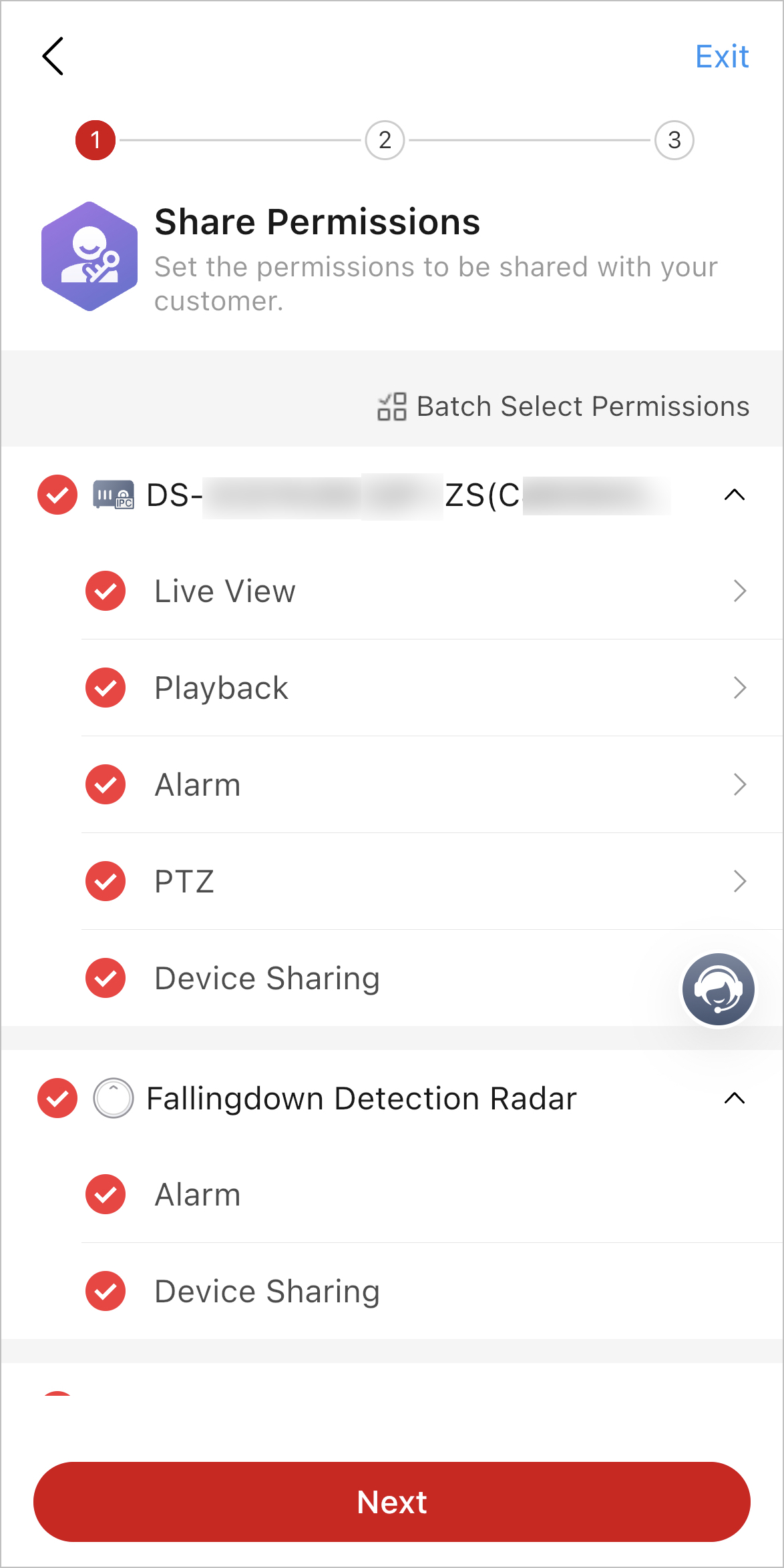
Select the resources and permissions to be shared with your customer.
Figure 1 Select Resources and Permissions
-
Decide whether to enable I Have All Device Permissions or
not.
-
Mode A: If you need to apply for permissions from your customer, do not enable I Have All Device Permissions.
In this mode, you need to set the permissions to apply for from your customer and their validity periods. The permissions include configuration, live view, playback, and sub permissions for alarm devices (PIRCAM GIF and video clips). The configuration permissions are selected by default and cannot be deselected. You only need to apply for sub permissions for alarm devices (PIRCAM GIF and video clips) when the ARC service is enabled for the devices to be handed over.
-
Mode B: Enable I Have All Device Permissions to confirm that you have all permissions for the devices and do not need to apply for permissions from your customer for remote maintenance.
Figure 2 Enable "I Have All Device Permissions" or Not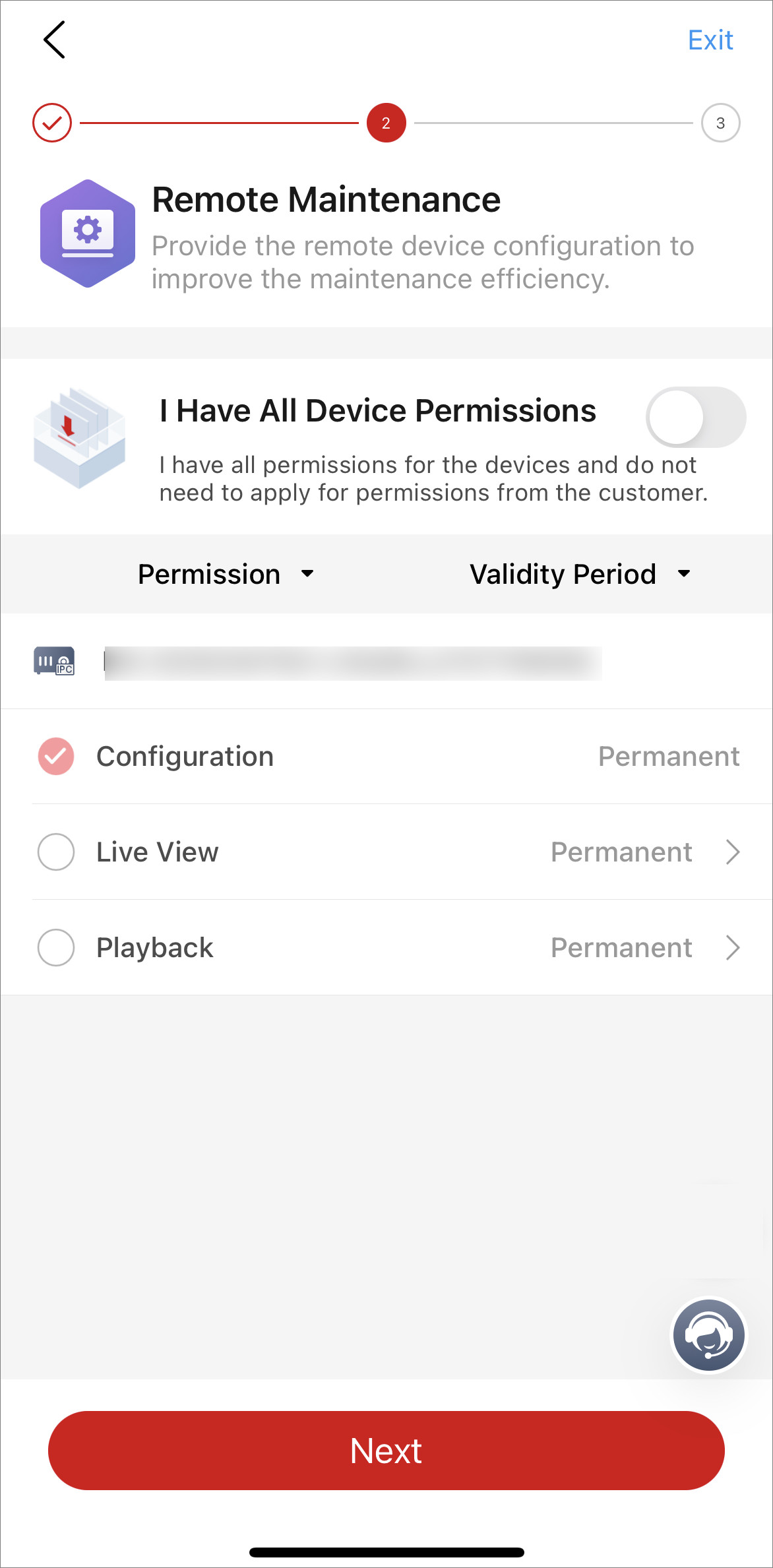
-
- Optional:
Hand over to only one customer.
Note:
-
For Mode A, this only one customer will be the customer administrator who reviews your application for permissions.
-
To accept the handover (by sharing), your customer's Hik-Connect need to be V5.4.0 or later.
-
Tap Hand Over via QR Code, and show the QR code to customer face to face, or tap
 to share the
QR code via a third-party application. Then ask your customer to scan the QR code with
Hik-Connect (V5.2.3 or later) to finish the
handover.
to share the
QR code via a third-party application. Then ask your customer to scan the QR code with
Hik-Connect (V5.2.3 or later) to finish the
handover. -
Tap Hand Over via Phone/Email, tap Phone Number or Email, enter the email address or phone number of the customer, enter the remarks (optional), and tap Submit Application.
Figure 3 Add Customer Account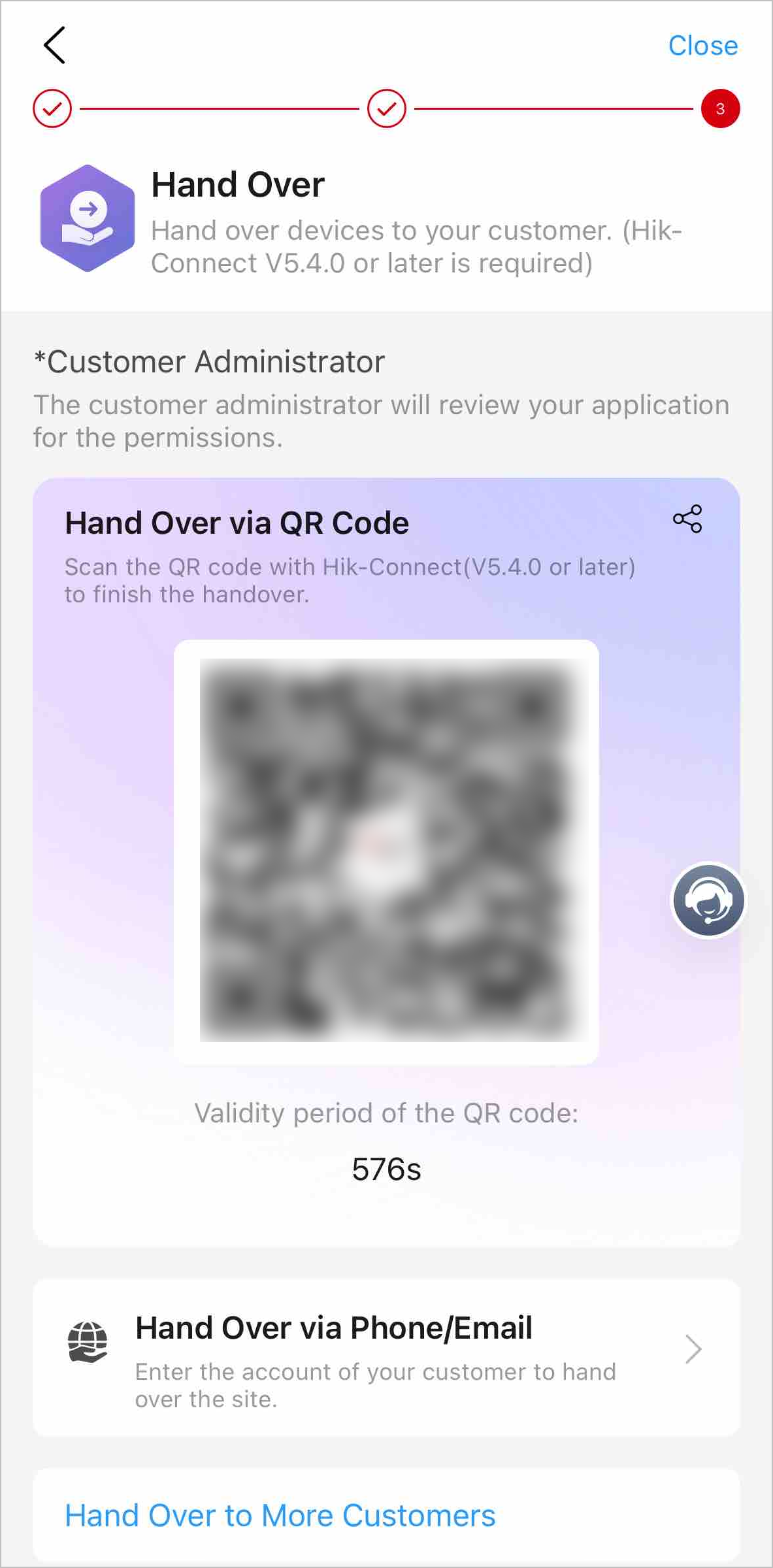
-
- Optional:
To hand over to multiple customers, tap Hand Over to More
Customers at the bottom of the page.
Note:
-
For Mode A, if you add more than one customer account to share with, you will be asked to select one customer as the customer administrator who reviews your application for device permissions.
-
One device can be shared with no more than 10 customers.
-
To accept the handover (by sharing), your customer's Hik-Connect need to be V5.4.0 or later.
-
Tap Hand Over via QR Code and ask multiple customers to scan the QR code with Hik-Connect (V5.4.0 or later) to finish the handover.
-
Tap Hand Over via Phone/Email, tap
 to add more
customers' phones/emails, enter remarks (optional), and tap Submit
Application.
to add more
customers' phones/emails, enter remarks (optional), and tap Submit
Application.
-
- Optional:
After sites are shared, you can perform the following operations.
Option Description Check Sharing Details
Tap a shared site, and tap
 > Customer to check sharing details including customer accounts and sharing
status.
> Customer to check sharing details including customer accounts and sharing
status.Share Again
Tap a shared site, and tap
> Customer. For sharings that are rejected and expired, you can tap
Share Again to share the site again.Cancel Sharing
Tap a shared site, and tap
> Customer. For sharings that are to be accepted and accepted, you can tap  > Cancel Sharing to cancel sharing.
View and Edit Shared Resources and Permissions
Tap a shared site, tap
> Customer, and tap the customer card to view and edit the resources and
permissions that are shared with the customer.Edit Customer Account
Tap a shared site, tap
> Customer, and tap > Edit Account to edit the customer account.Note:In Mode A, if the customer administrator accepts the sharing handover, you will not be able to edit their account, but you can tap Cancel Sharing send an application to the customer administrator to cancel sharing.
Add New Sharing
Tap a shared site, and tap
> Customer. Tap  in the
upper-right corner to add new customer accounts to share with them.
in the
upper-right corner to add new customer accounts to share with them.Add New Devices to Shared Sites
After a site is shared with customers, you can still add new devices to the site. By default, these newly added devices will not be shared with any customer, but you can tap the customer cards to select these devices and their permissions to share them with the corresponding customers. The customers do not need to accept the sharing once again.