Submit Device Password Reset Case
You can submit device password reset cases, and after the support team replies, you can reset the password according to the reply.
The function is only available in certain countries and regions. For details about whether your country or region supports the function, refer to the after-sales or local distributor.
-
Fill in the fields as required.
Figure 1 Device Password Reset Case
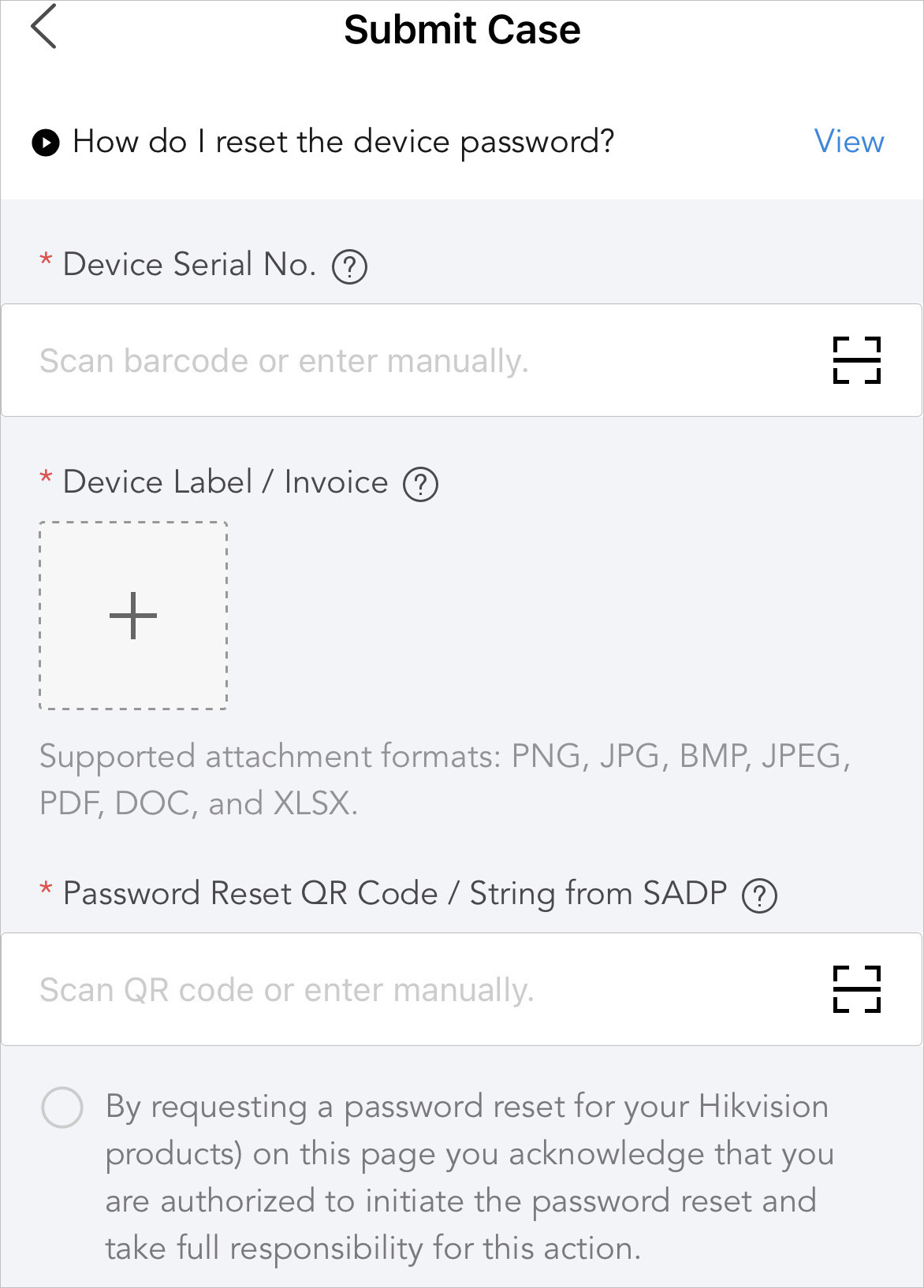
- Device Serial No.
-
Enter the device serial No. You can tap
 to see where to
find the serial No.
to see where to
find the serial No. - Device Label / Invoice
-
Tap
 to upload label
pictures or invoices from the photo library, to take a photo, or
to choose files.
to upload label
pictures or invoices from the photo library, to take a photo, or
to choose files. - Password Reset QR Code / String from SADP
-
Scan QR code or enter manually. You can tap
to see where to
find the information.