Reset Device Password
Three ways of resetting the device password are available: scanning the QR code acquired from the device's local GUI, sending the password reset application to Hik-Connect (the Mobile Client for your customers), and using the SADP tool.
Resetting the password via Hik-Partner Pro is not supported by every device type/model. For example, AX PROs do not support this function.
Access the Password Reset function via either of the following ways.
-
Tap Site at the bottom and enter the site where the device is located. Tap the device to enter the device details page and then tap Reset Password.
-
On the Home page, tap to open the Reset Password pane.
Note:You can also tap Submit Case on the Reset Password pane and submit a device password reset case. Refer to Submit Device Password Reset Case for details
You may enter automatically or choose one of the following three processes for password reset.
Nearby Device (Scanning)
If you can get the password reset QR code by tapping on the local GUI of the device, you can select this method.
Scan the password reset QR code via the Hik-Partner Pro Mobile Client, then you can get a verification code for password reset. Enter the verification code in the local GUI to reset the device password.
Device on Hik-Partner Pro
If the device is on Hik-Partner Pro, you can select this method to reset the device password directly or by sending password reset applications to your customer's Hik-Connect.
-
For a device not handed over:
Note:Make sure that the Hik-Partner Pro Mobile Client and the device are on the same LAN.
You can reset the password by entering and confirming a new password directly on Hik-Partner Pro.
-
For a device that is handed over:
Note:Make sure you are granted the site authorization. For details about how to get site authorization, see Apply for Site Authorization from Site Owner.
-
When you are not at the site:
Note:Make sure that your customer's Hik-Connect and the device are on the same LAN and that the version of Hik-Connect is V 4.15.0 or later.
Figure 1 Flow Chart of Resetting Device Password Offsite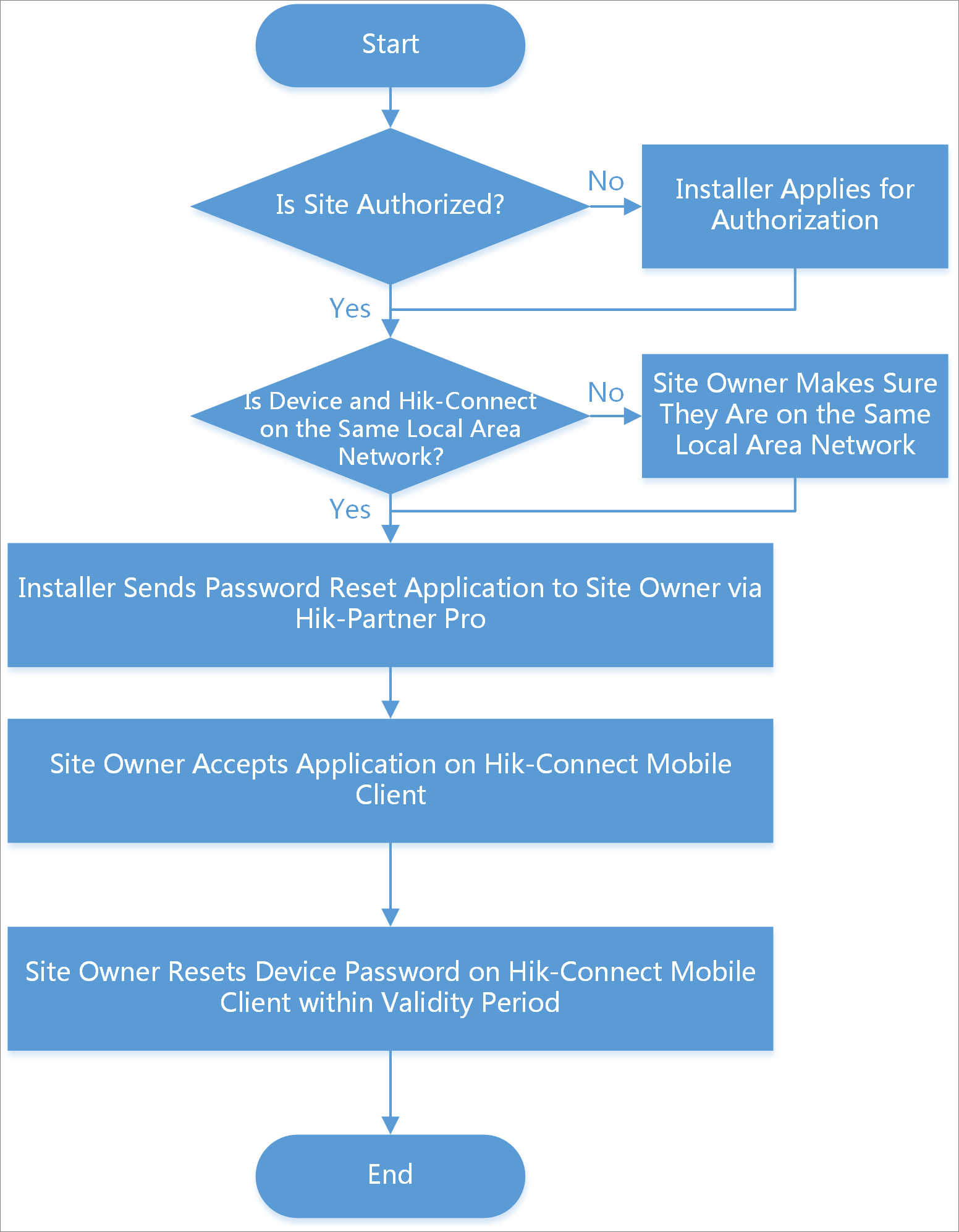
-
When you are at the site:
Note:Make sure that the Hik-Partner Pro Mobile Client and the device are on the same LAN.
Figure 2 Flow Chart of Resetting Device Password Onsite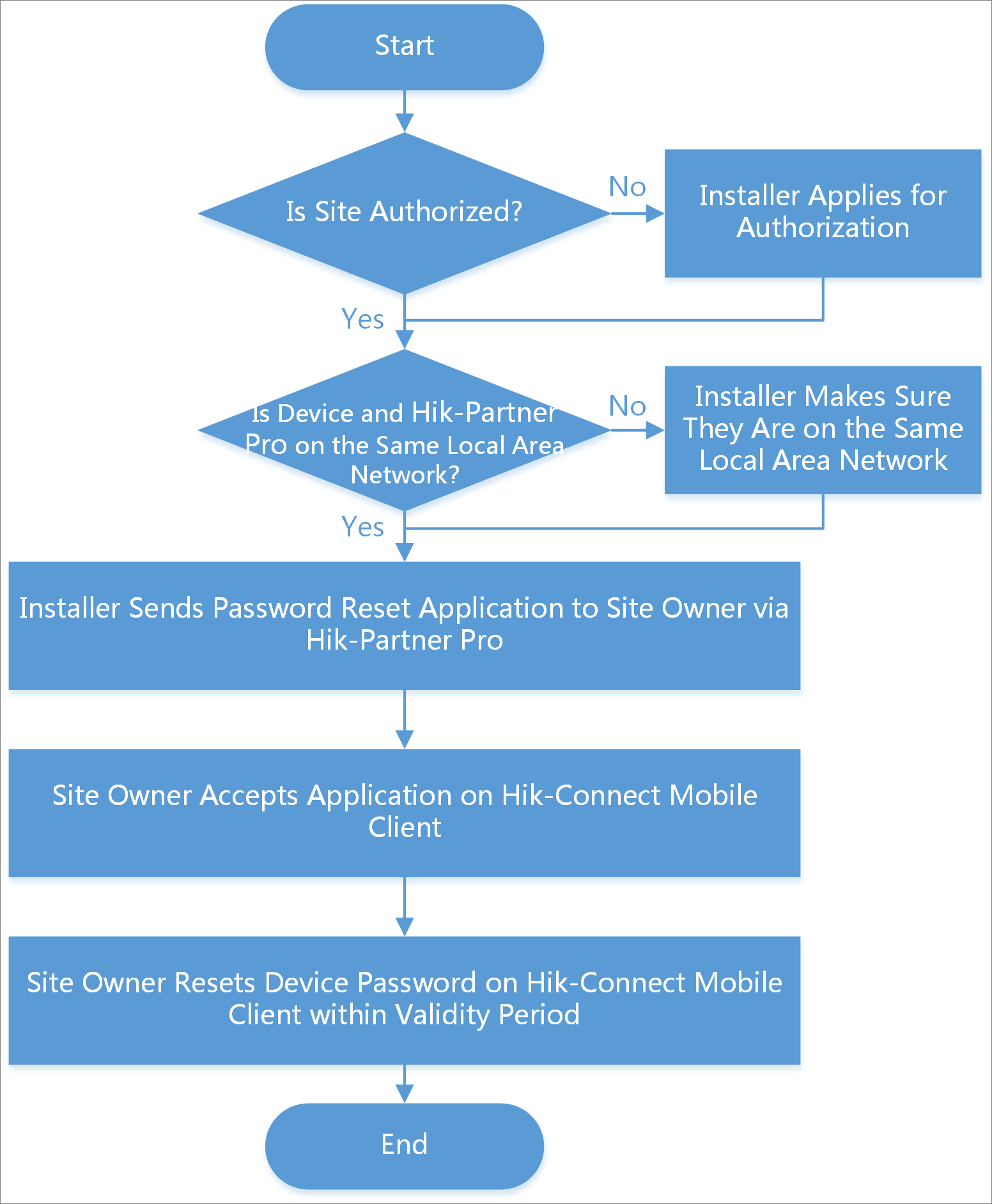
-
LAN Device (SADP)
If the device that requires password reset and your phone are on the same LAN, you can select this method.