View Status of Devices on All Sites
For the Installer, you can view the status of each device type on all the sites which have been assigned to you. For the Installer Admin, you can view the status of each device type on all the sites.
On the Home page, tap Health Monitoring or , or to enter the Health Monitoring page, and you can view the total number of devices and the number of abnormal devices on all sites.
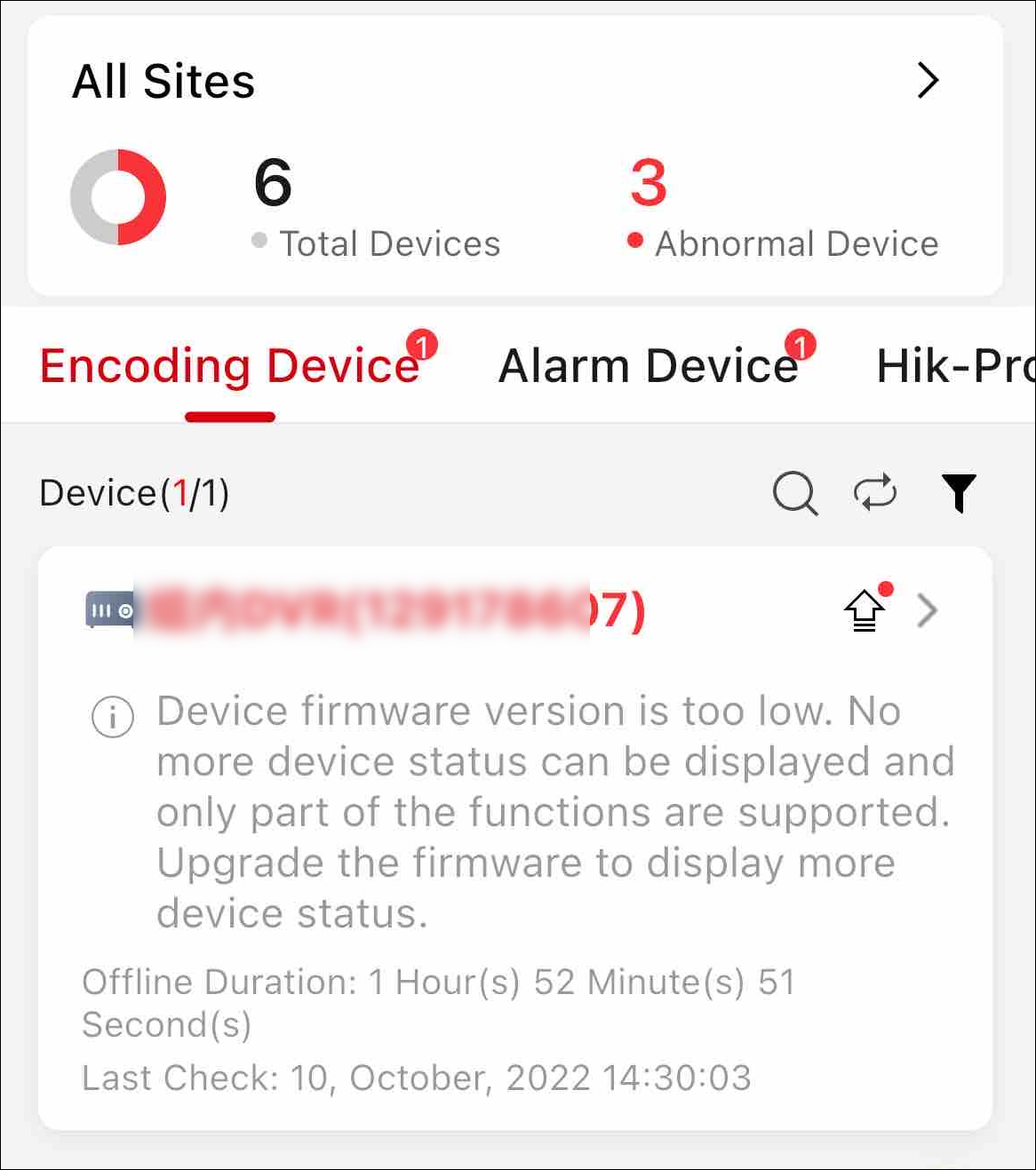
Refer to the following to get the device descriptions and operations.
-
For each device type, you can tap
 to inspect all the devices in the list; tap
  > Display
Abnormal Devices Only to display the abnormal devices only; tap > Display Authorized
Devices
Only to display the devices whose configuration permission has been authorized
to you.
> Display
Abnormal Devices Only to display the abnormal devices only; tap > Display Authorized
Devices
Only to display the devices whose configuration permission has been authorized
to you. -
The Offline Duration column displays offline duration of devices in the format of "x Day(s) x Hour(s) x Minute(s)". If the offline duration is less than one day, the duration will be displayed as "x Hour(s) x Minute(s) x Second(s)".
-
The icon
 beside the device name represents that you
do not have the configuration permission for the device. You can tap the device and tap
Apply for Configuration Permission to apply for the permission.
For details, see Apply for Device Permission.
beside the device name represents that you
do not have the configuration permission for the device. You can tap the device and tap
Apply for Configuration Permission to apply for the permission.
For details, see Apply for Device Permission. -
The icon
 beside the device name represents that a new firmware is available.
You can tap the device and tap Upgrade to upgrade the device. For
details, see Upgrade Device.
beside the device name represents that a new firmware is available.
You can tap the device and tap Upgrade to upgrade the device. For
details, see Upgrade Device.
Encoding Device
You can view the device information including network status, the number of offline linked cameras, storage status, HDD usage, last check time, overwritten recording status, etc.
 beside the device name represents that the IP
address/domain set for the device is invalid or the DDNS is invalid, you can tap the device
and tap Edit Device Information to edit the device information or tap
Configure DDNS to reconfigure the device's DDNS.
beside the device name represents that the IP
address/domain set for the device is invalid or the DDNS is invalid, you can tap the device
and tap Edit Device Information to edit the device information or tap
Configure DDNS to reconfigure the device's DDNS.- For details about configuring device IP address/domain, see Add Device by IP Address or Domain Name.
-
For details about configuring DDNS, see Configure DDNS for Devices.
Tap a device to enter the Device Details page to view more basic information about the device, and perform the following operations.
|
Operation |
Description |
|---|---|
|
Inspect Device |
Tap |
|
Remotely Configure Device |
Tap |
|
Live View |
Tap Note:
|
|
View Playback |
Tap |
|
View Site Owner and Site Manager Information |
Tap |
|
View Camera Status |
Tap Camera to view the cameras linked to the device and their online/offline status. |
|
View DVR HDD Information |
Tap HDD to view the HDD information about the DVR, including self evaluation result, overall evaluation result, running status, running time, HDD temperature, and S.M.A.R.T information. |
 to remotely configure the device parameters. For
details, see the device user manual.
to remotely configure the device parameters. For
details, see the device user manual. to view the live view of the
device.
to view the live view of the
device. to view the playback of the device.
 beside site name to view the
information about the Site Owner and Site Manager, such as name and phone
number.
beside site name to view the
information about the Site Owner and Site Manager, such as name and phone
number.Alarm Device
You can view the device information including network status, remaining battery power, ARC ID, number of abnormal peripheral devices, etc.
Displaying peripheral device's remaining power is not supported.
Tap a device to enter the Device Details page to view the basic information about the device, and perform the following operations.
|
Operation |
Description |
|---|---|
|
Remotely Configure Device |
For security control panels, tap Note:
|
|
Control and Configure AX PRO Devices |
For AX PRO devices, you can control and configure them. For details, refer to Control AX PRO and AX HYBIRD PRO and Configure AX PRO and AX HYBIRD PRO. |
Hik-ProConnect Box
You can view the device information including network status, the number of offline linked cameras, and the last check time.
Tap a device to enter the Device Details page to view more basic information about the device, and perform the following operations.
|
Operation |
Description |
|---|---|
|
Inspect Device |
Tap |
|
Remotely Configure Device |
Tap |
|
View Site Owner and Site Manager Information |
Tap |
|
View Camera Status |
Tap Camera to view the cameras linked to the device and their online/offline status. |
Access Control Device
You can view the device information including device model, network status, last check time, etc.
Tap a device to enter Device Details page to view more basic information about the device, and perform the following operations.
|
Operation |
Description |
|---|---|
|
Inspect Device |
Tap |
|
View Site Owner and Site Manager Information |
Tap |
Video Intercom Device
You can view the device information including network status, last check time, etc.
Tap a device to enter Device Details page to view more basic information about the device, and perform the following operations.
|
Operation |
Description |
|---|---|
|
Inspect Device |
Tap |
|
View Site Owner and Site Manager Information |
Tap |
Doorbell
You can view the device information including device model, network status, SD card status, last check time, etc.
Tap a device to enter Device Details page to view the basic information about the device, and perform the following operations.
|
Operation |
Description |
|---|---|
|
Inspect Device |
Tap |
|
Remotely Configure Device |
Tap |
|
Live View |
Tap Note:
|
| View Playback |
Tap |
|
View Site Owner and Site Manager Information |
Tap |
|
View Camera Status |
Tap Camera to view the cameras linked to the device and their online/offline status. |
Network Switch
View information including network status of the switch (online/offline), the number of online ports of the switch, and the last check time.
Working duration refers to the time from when the switch is turned on till the current moment. If the switch is turned off, its working duration will be recounted when turned on again.
-
Tap
 > Device Information in the upper-right corner to view more basic information about the
device, including device serial No., device model, device type, etc. You can tap
Reboot Device at the bottom to reboot the device.
> Device Information in the upper-right corner to view more basic information about the
device, including device serial No., device model, device type, etc. You can tap
Reboot Device at the bottom to reboot the device. -
Tap
> Topology in the upper-right corner to view the topology of this switch. For
details about topology, refer to Network Topology.
For the port with alarms, tap Clear Alarm to clear the alarms of this port.
Tap Extend Mode to extend the transmission range of this port. Tap Extend Mode (displayed in green) to disable extending the transmission range of the port.
When enabled, the transmission range of the port will be extended from 200 m to 300 m. Meanwhile, its bandwidth will be limited within 10 Mbps.