Accept a Device Management Invitation from Your Customer
You can accept a device management invitation from your customer (i.e., a Hik-Connect user) to manage a device that has already been added to a Hik-Connect account. In this way, the device, along with its configuration and operation permissions, can be shared with you to allow you to manage it for your customer on Hik-Partner Pro. Compared with migrating the device from Hik-Connect to Hik-Partner Pro, which requires your customer to share their Hik-Connect account name and password with you, this way is much more privacy-friendly and easier to be accepted.
To know more about the device management invitation, read the sections below:
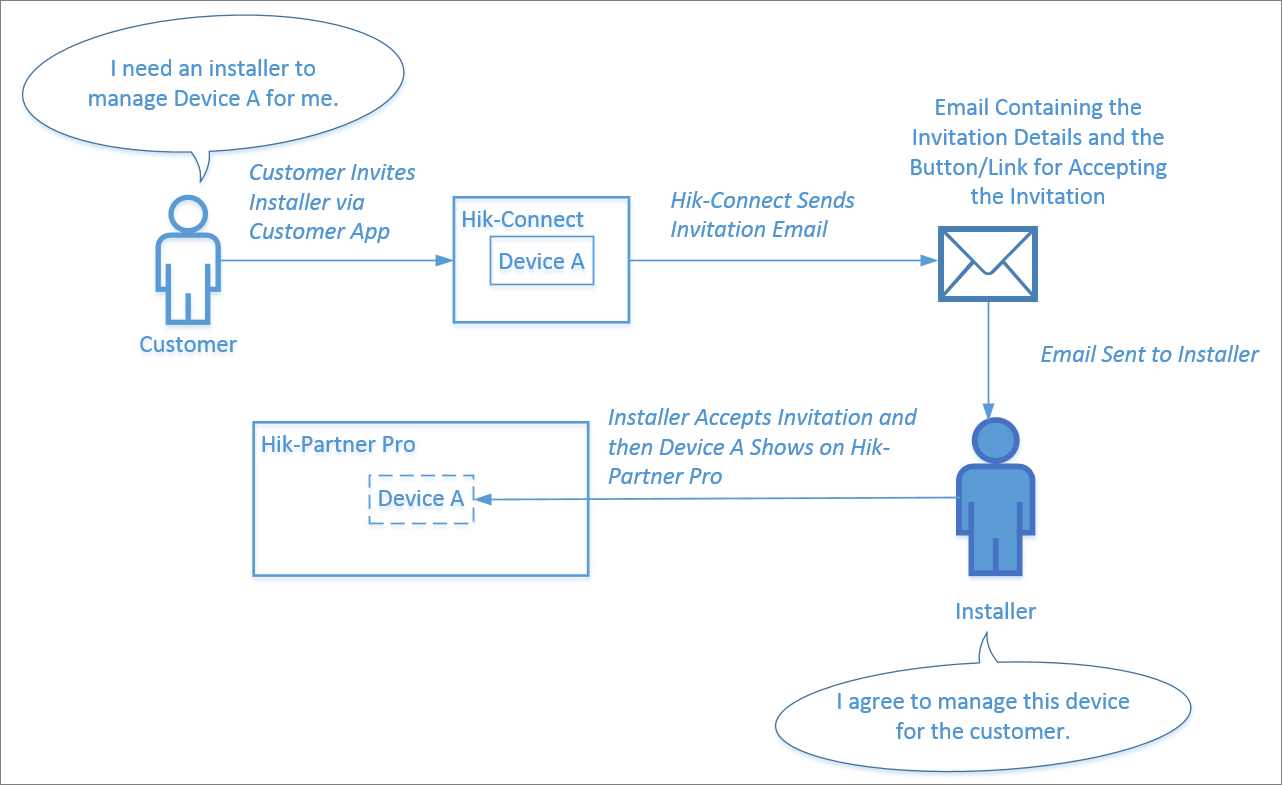
Overall Process
If your customer (i.e., the Hik-Connect user) has already added one device to their Hik-Connect account, the customer can use the
Hik-Connect Mobile Client to invite you
to manage this device. Once the customer completes the invitation, an email
containing the invitation information (e.g., the Hik-Connect user name and device name) and the button/link for
accepting the invitation will be sent to you, and then you can accept the
invitation. Invitations for device management can also be accepted via  > Business Notification. Once you accept the invitation, the device will show on the
specified site (namely, the site mentioned in the email or the notification) on
Hik-Partner Pro.
> Business Notification. Once you accept the invitation, the device will show on the
specified site (namely, the site mentioned in the email or the notification) on
Hik-Partner Pro.
How Your Customer Invites You to Manage Their Device
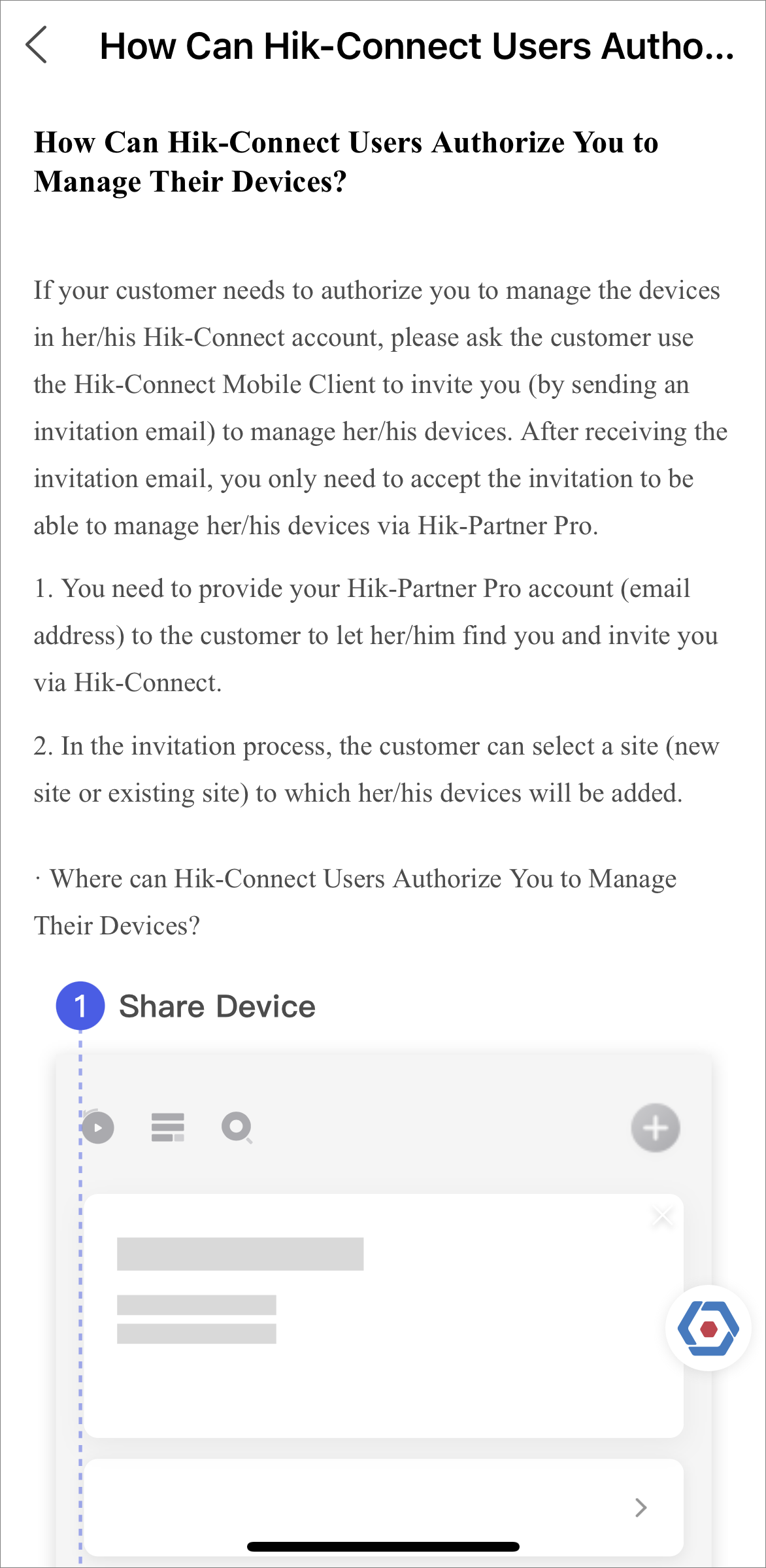
You can go to the site list page, and then tap to open the following page to see how your customer uses the Hik-Connect Mobile Client to invite you to manage their device. It should be noted that you need to provide your Hik-Partner Pro account (email address) to your customer first to let them specify you as the Installer who manages their device.
The Email of Device Management Invitation
The email shows the invitation details including the device name, device serial number, name of the site where the device(s) is added, Hik-Connect user account, and the time of invitation. If you agree to manage the device(s) for your customer, you need to accept the invitation in three days, otherwise the invitation will be invalid.
The Notification of Device Management Invitation
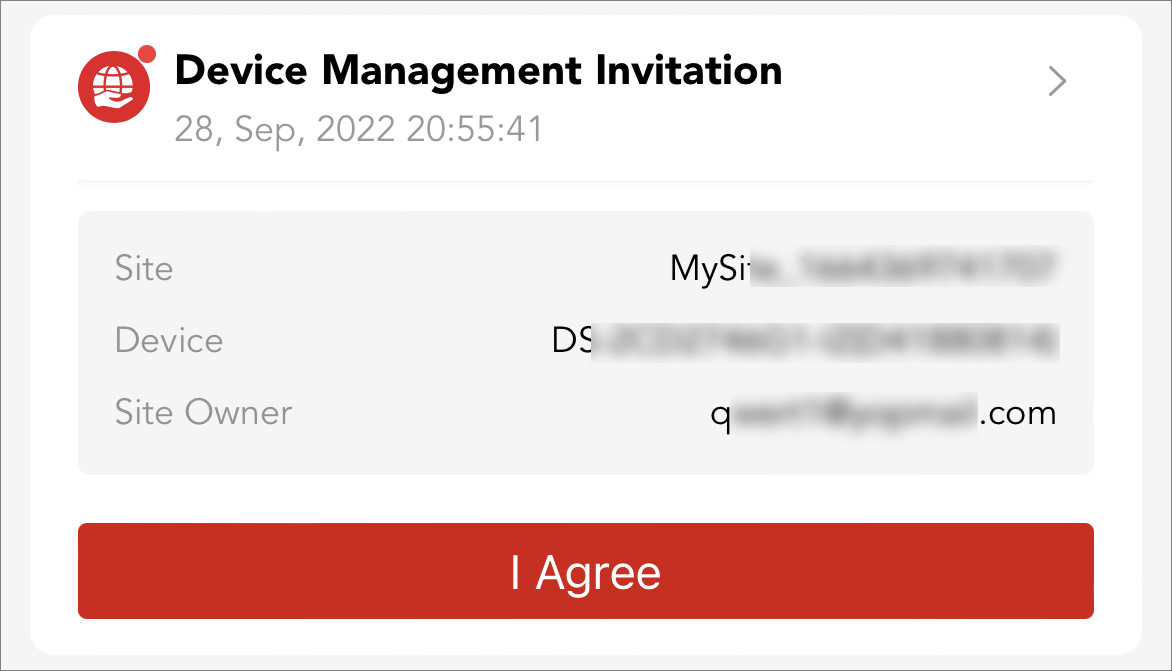
The notification shows the invitation details including name of the site where the device(s) is added, device name, device serial No., the Hik-Connect user account, and the time of invitation. If you agree to manage the device(s) for your customer, you need to accept the invitation in three days, otherwise the invitation will be invalid.