Create Site Group
You can create site groups and move sites to the groups.
If you need to manage customers from different cities, or if there is a customer who has many sites, such as chain stores, you can create site groups by cities or create a site group for such a customer who has many sites, thus managing your customers more efficiently.
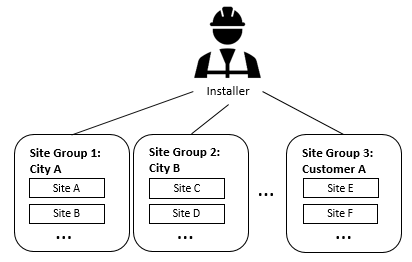
There are three ways for you to create a site group.
One site can be added to only one site group.
-
If there is no site group, there will be a prompt above the site list. Tap Create Group, enter the group name, tap
 to select sites from the site list (optional), and
tap Complete.
to select sites from the site list (optional), and
tap Complete. -
If there are already created site groups, you can tap
 above the site list to pop up the Group pane, tap
Add Group, enter the group name, tap to select sites from the site list (optional), and tap
Complete.
above the site list to pop up the Group pane, tap
Add Group, enter the group name, tap to select sites from the site list (optional), and tap
Complete. -
You can also create site groups when you add sites. On the Add New Site page, check Move to Group, tap
 or the group name, tap Create
Group, enter the group name, and tap
OK.
or the group name, tap Create
Group, enter the group name, and tap
OK.
The following operations are supported after adding site groups.
|
Description |
Operation |
|---|---|
|
Edit Site Group |
Tap |
|
Delete Site Group |
Tap |
|
Search for Site Group |
Tap |
 to delete it.