Add Exception Rule

An exception rule is used to monitor the status of managed resources in real time. When the resource is exceptional, the resource will push a notification to the Hik-Partner Pro to notify the specified Installer(s) about this exception. Currently, the exceptions include two types: device exceptions and channel exceptions.

  • Make sure you have the permission for configuration of the device (if the device supports). For applying for configuration permission, refer to Apply for Device Permission.

  • Make sure you have enabled the device to send notifications to the system (if the device supports). For details, refer to Enable Device to Send Notifications.

You can add a rule to define such an exception. The rule contains five elements, including Source (device A or channel A), Exception (the exception occurred on device A or channel A), Received by (the source pushes a notification to notify the recipient via certain ways), Recipient (who can receive the notification), as well as Schedule (when the recipient can receive the notification).

Note:

This function is not supported by the solar camera.

  1. Tap the name of a site to enter the site details page, and then tap Exception at the bottom.

    The exception rules of all the devices added in this site are displayed respectively.

    Figure 1 Add Exception Rule
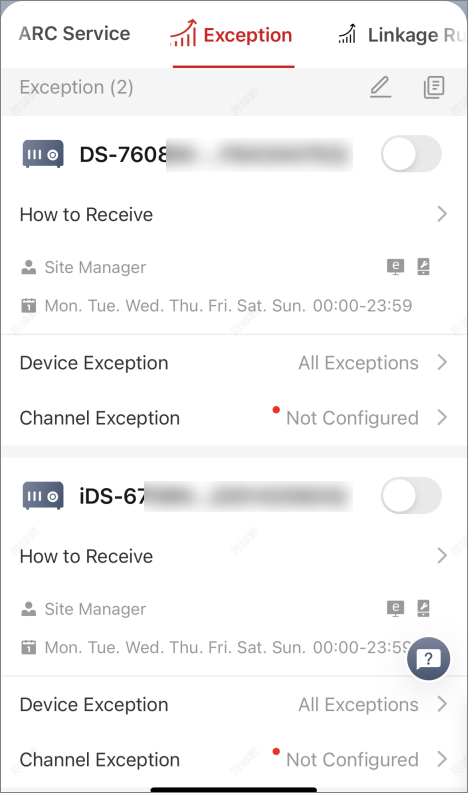
  2. Tap How to Receive on one device panel to set the Recipient, Received by, and Schedule in the rule.
    Figure 2 How to Receive
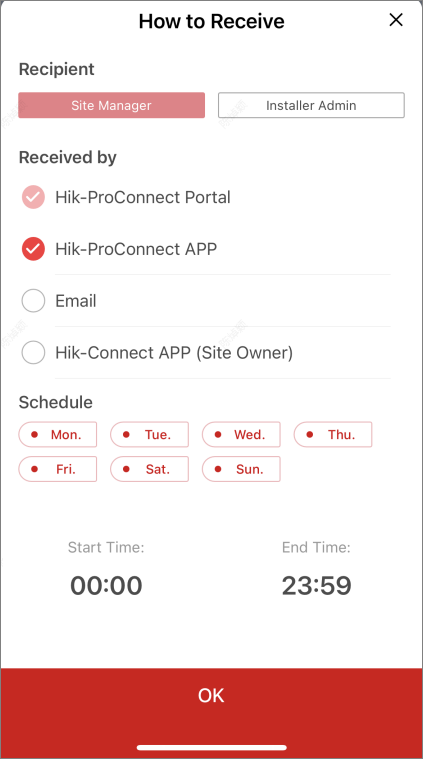
    1. In the Recipient field, select Site Manager or Installer Admin. The recipient can receive the notification when the exception is detected in real time.
      Note:

      The Site Manager is selected by default and you cannot edit it.

    2. In the Received by field, select the receiving mode(s) according to actual needs.
      Portal

      When an exception is detected, the device will push a notification to the Portal in real time.

      The Portal is selected by default and you cannot edit it.

      Hik-Partner Pro App

      When an exception is detected, the device will push a notification to the Hik-Partner Pro Mobile Client in real time.

      Note:

      For checking the exceptions received by the Mobile Client, refer to Exception Center.

      Email

      When an exception is detected, the device will push a notification to the Hik-Partner Pro, and the system will send an email with the exception details to the email address(es) of the recipient(s) in real time.

      Hik-Connect App (Site Owner)

      When an exception is detected, the device will push an notification to the Hik-Connect Mobile Client, used by your customer in real time.

      Note:

      For alarm devices, this option is enabled by default and you cannot disabled it.

    3. In the Schedule field, set when the recipient can receive the notification of the exception according to the actual needs, including days and time period on the selected days.
    4. Tap OK.
  3. Tap Device Exception or Channel Exception to select types of exceptions which can trigger the notification.
    Note:
    • For Offline exception, you can set the threshold of offline duration. When the device or channel is offline for longer than this threshold, an offline exception will be triggered.

    • The threshold of device offline duration should be between 5 minutes and 24 hours and it is 5 minutes by default.

    • The threshold of channel offline duration should be between 5 and 120 minutes.

  4. Optional: Set the exception rules of the devices in the site in a batch.
    1. Tap .
    2. Check the devices or channels you want to set the exception rules, and tap Next.
    3. Set the exception types including device exception or channel exception, and tap Next.
    4. Set the receiving mode, recipient, and time.
    5. Tap Finish to save the settings.
  5. Optional: After setting one rule, you can copy the rule settings to other devices or channels for quick settings.
    1. Tap .
    2. Select device(s) or channel(s) as the sources to copy from.
    3. Select the target resources of the same type as the selected sources.
    4. Tap OK to copy the rule settings of the sources to the target resources.
  6. After setting the exception rule, you need to set the switch in the upper-right corner of the rule to on to enable the device's exception rule.

    After enabling the rule, it will be active and when an exception occurs, the device will push a notification according to the settings in the rule.