Set Administrator
After device activation, you can add an administrator to manage the device parameters.
Activate the device and select an application mode.
-
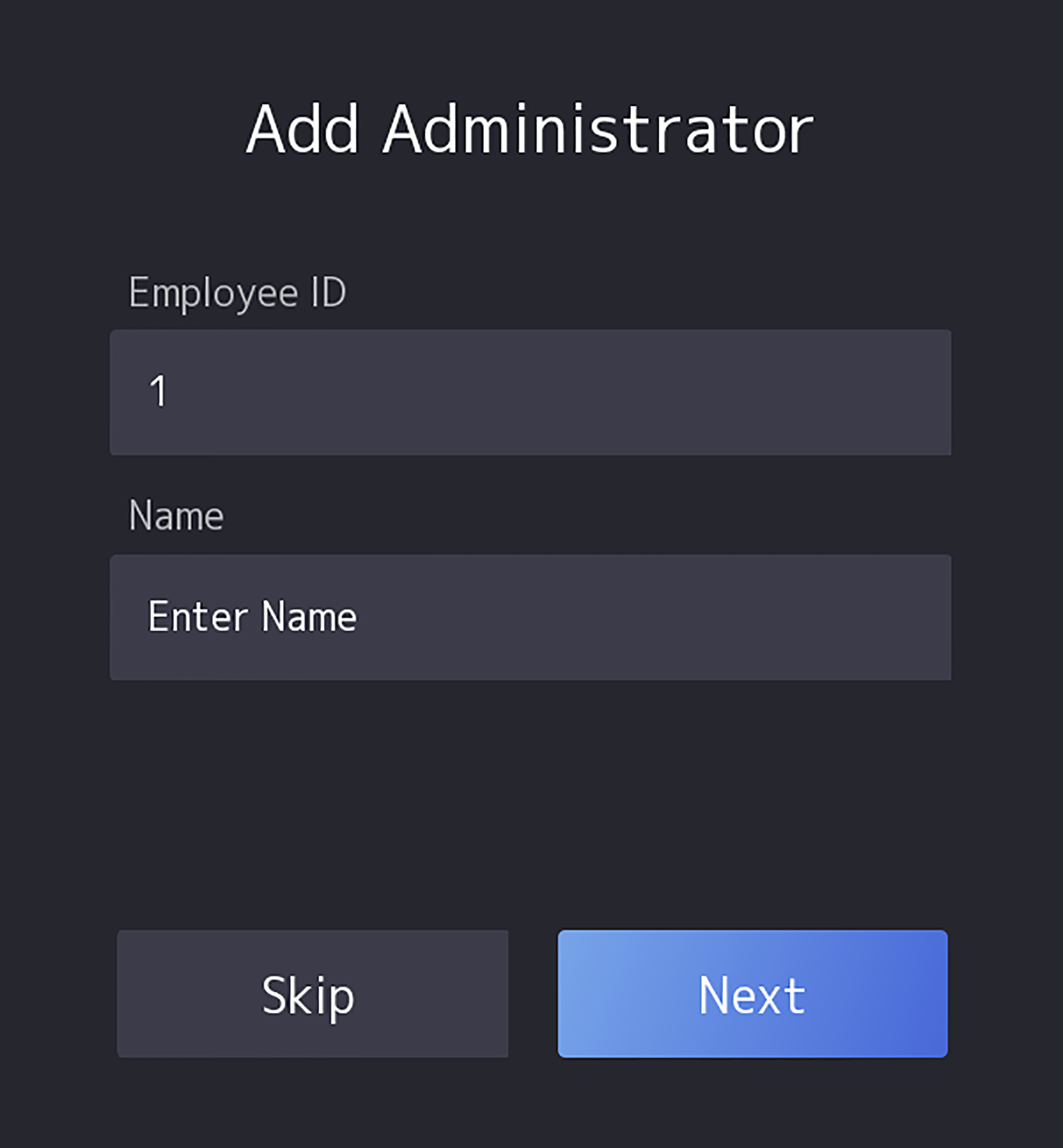
Enter the administrator's name (optional) and tap
Next.
Figure 1 Add Administrator Page
-
Select a credential to add.
Note:
Up to one credential should be added.
-
 : Face forward at the
camera. Make sure the face is in the face recognition area. Click
: Face forward at the
camera. Make sure the face is in the face recognition area. Click  to capture and click
 to confirm.
 -
 : Press your finger
according to the instructions on the device screen. Click to confirm.
: Press your finger
according to the instructions on the device screen. Click to confirm. -
 : Enter the card No. or
present card on the card presenting area. Click
OK.
: Enter the card No. or
present card on the card presenting area. Click
OK.
Note:Only devices connected to the external fingerprint module support fingerprint function.
-
-
Click OK.
You will enter the authentication page.
- Status Icon Description
- Shortcut Keys Description
-
Note:
You can configure those shortcut keys displayed on the screen. For details, see Basic Settings.
 /
/
 /
/
 /
/ /
/
 /
/ /
/

 to
call the center.
to
call the center.