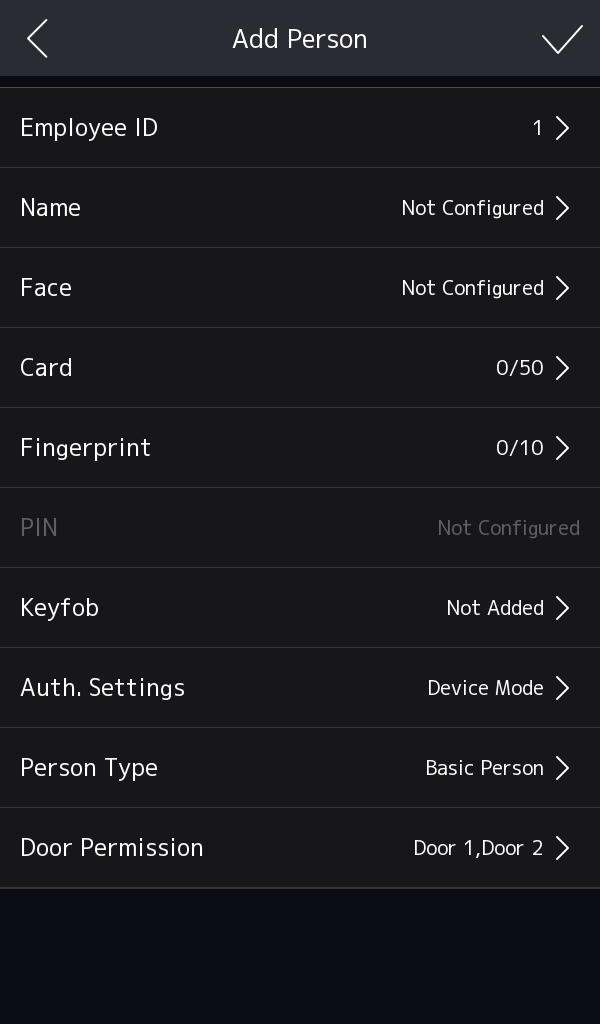
The administrator can log in the device backend and configure the device
parameters.
-
Long tap on the initial page for 3 s and slide to the left/right by following
the gesture and enter the device backend.
-
Tap to enter the Add User page.
-
Edit the employee ID.
Note:
-
The employee ID should be less than 32 characters.
And it can be a combination of lower letters, upper letters, and
numbers.
-
The employee ID should not be duplicated.
-
Tap the Name field and input the user name on the soft keyboard.
Note:
-
Numbers, upper case letters, lower case letters, and
special characters are allowed in the user name.
-
Up to 32 characters are allowed in the user name.
- Optional:
Add a face picture, fingerprints, cards, PIN, keyfob for the
administrator.
- Optional:
Set the administrator's authentication type.
-
Set Person Type and Person Role.
-
Enable the Administrator Permission function.
- Enable Administrator Permission
-
The user is the administrator. Except for the normal
attendance function, the user can also enter the Home page to
operate after authenticating the permission.
-
You can enable Attendance Check Only, After enabling,
this person won't be given access control permission.
-
Set Door Permission.
-
Tap
 to save the settings.