Set Auto Attendance via Device
Set the attendance mode as auto, and you can set the attendance status and its available schedule. The system will automatically change the attendance status according to the configured schedule.
Add at least one user, and set the user's authentication mode. For details, see User Management.
-
Set the Attendance Mode as
Auto.
Figure 1 Auto Attendance Mode
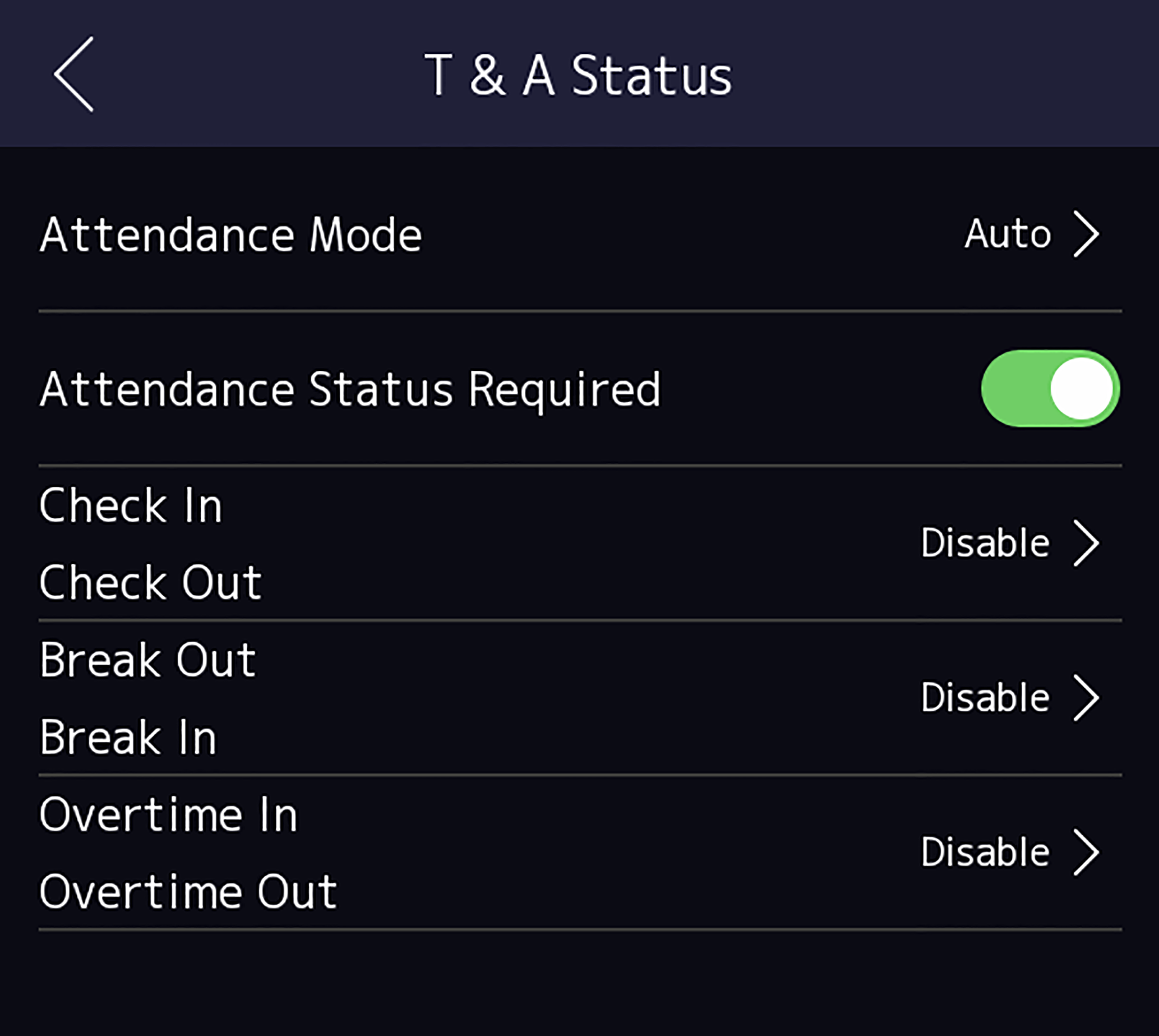
When you authenticate on the initial page, the authentication will be marked as the configured attendance status according to the configured schedule.
If set the Break Out as Monday 11:00, and Break In as Monday 12:00, the valid user's authentication from Monday 11:00 to 12:00 will be marked as break.