If the actual number of vacant parking spaces is different from the number
displayed on the guidance screens, you can search for the vehicles that already exited but
still recorded in the parking lot to edit the vehicle information. For example, for parking
lots requiring all on-site vehicles out at the end of a day, you can search for the vehicles
that are still in the parking lot and export the vehicles' information. In another
situation, if a vehicle is manually allowed to exit the parking lot, the number of vacant
parking spaces may not be updated in time. In this situation, you can search for the vehicle
and delete it from the vehicle list of the parking lot to update the number of vacant
parking spaces.
-
On the top navigation bar, select .
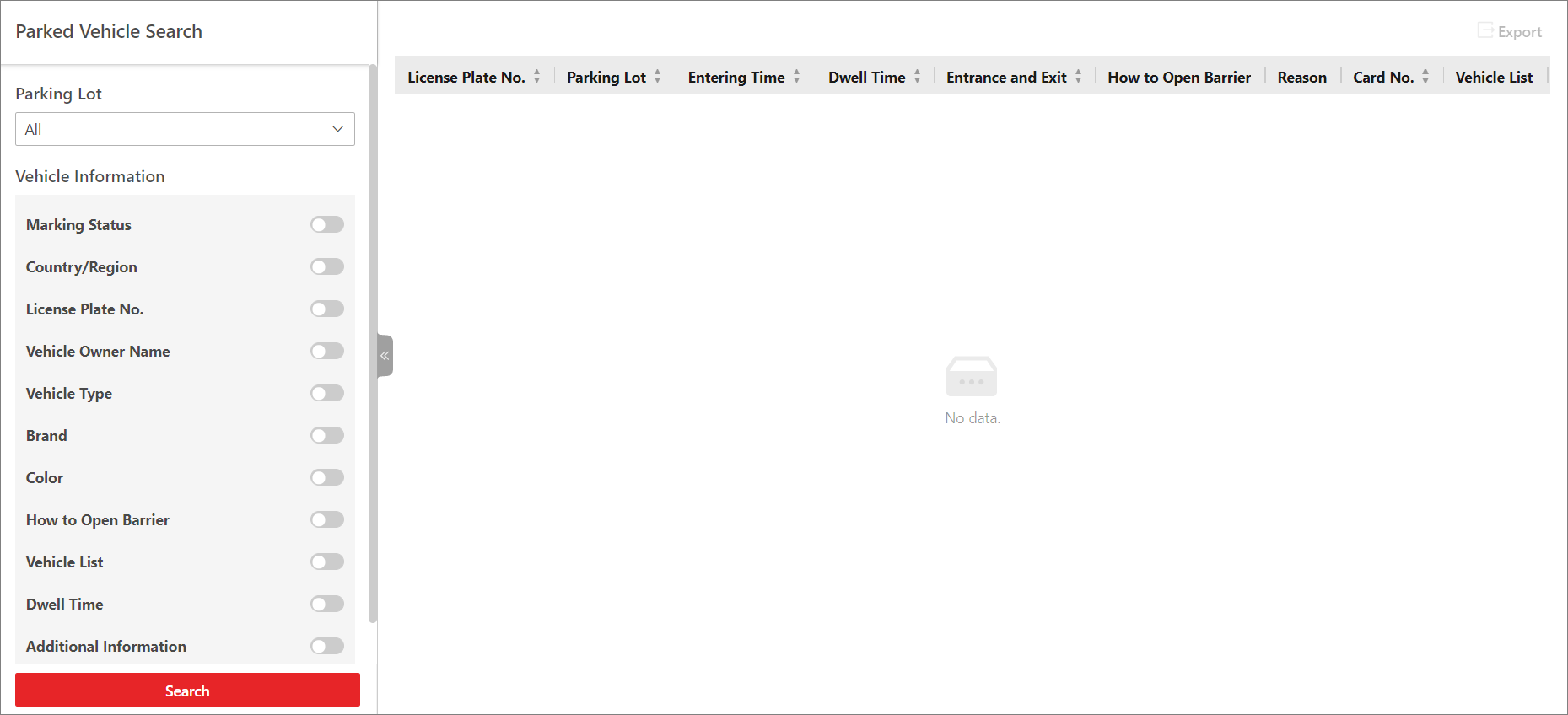 Figure 1 Search for Parked
Vehicles in Parking Lot
Figure 1 Search for Parked
Vehicles in Parking Lot
-
Select a parking lot from the drop-down list.
-
Switch on and set the search condition(s) according to your needs. Here we only
introduce conditions that may confuse you.
- Country/Region
-
Select the country/region where the vehicle's
license plate number is registered.
- License Plate No.
-
- How to Open Barrier
-
Select how the barrier gate is opened when a vehicle
enters/exits the parking lot. Manual
indicates that a security guard manually controlled the barrier
gate to open after identifying the vehicle owner;
Automatic indicates that the barrier
gate opened automatically after the license plate number was
recognized by a capture unit; Barrier Not
Open indicates that the barrier gate did not
open after the capture unit recognized the license plate
number.
- Vehicle List
-
Select from the drop-down list to search for records
of temporary vehicles, visitor vehicles, registered vehicles, or
vehicles in the blocklist or other custom lists.
- Additional Information
-
The item(s) of additional vehicle information you
customized. For how to
customize vehicle information, refer to Customize Vehicle Information.
-
Click Search.
The matched results will be displayed on the right.
- Optional:
Perform the following operations as needed.
| Option |
Description |
|---|
|
View Vehicle Details
|
Click a license plate number in the License Plate No.
column to open the vehicle details pane.
You can view the captured
picture and information about the vehicle owner, the vehicle, and
details related to its entry/exit.
|
|
View Owner's Picture
|
Click a license plate number, and click the name of the
vehicle owner to view pictures of the owner, including an uploaded
profile photo and a picture captured at the entrance & exit.
Note:
This operation can only be performed if the entry
& exit modes of the parking lot is set to Person and License Plate Match. For details about setting the
entry/exit modes, refer to Set Entry & Exit Mode.
|
|
Export All Records
|
Click Export and select
Excel or CSV as
the format of the exported file.
Note:
-
If you select Excel as
the file format, you can check Export
Picture to save pictures contained in
the search results to the local PC with the exported
file.
-
No more than 500 records with captured
pictures can be exported in the Excel format at one
time. If the number exceeds 500, you need to go to the
Control Client to export them.
-
No more than 100,000 records without captured
pictures can be exported at one time.
|
|
Delete Vehicle from Parking Lot
|
Click Delete All to remove all
displayed vehicles from the parking lot.
|
 > Passing Management > Parking Lot > Search > Parked Vehicle Search.