Customize Vehicle Information
You can customize different items of vehicle information (such as vehicle model) which are not predefined in the basic information. The customized vehicle information can help to recognize vehicles or search for vehicles more accurately.
-
On the top navigation bar, select
 > Basic Management > Vehicle or click Vehicle to enter the vehicle
management page.
> Basic Management > Vehicle or click Vehicle to enter the vehicle
management page.
- On the left navigation pane, click Vehicle Information.
-
Add vehicle types.
-
Click Add in the Vehicle Type area to open the
Add Vehicle Type pane.
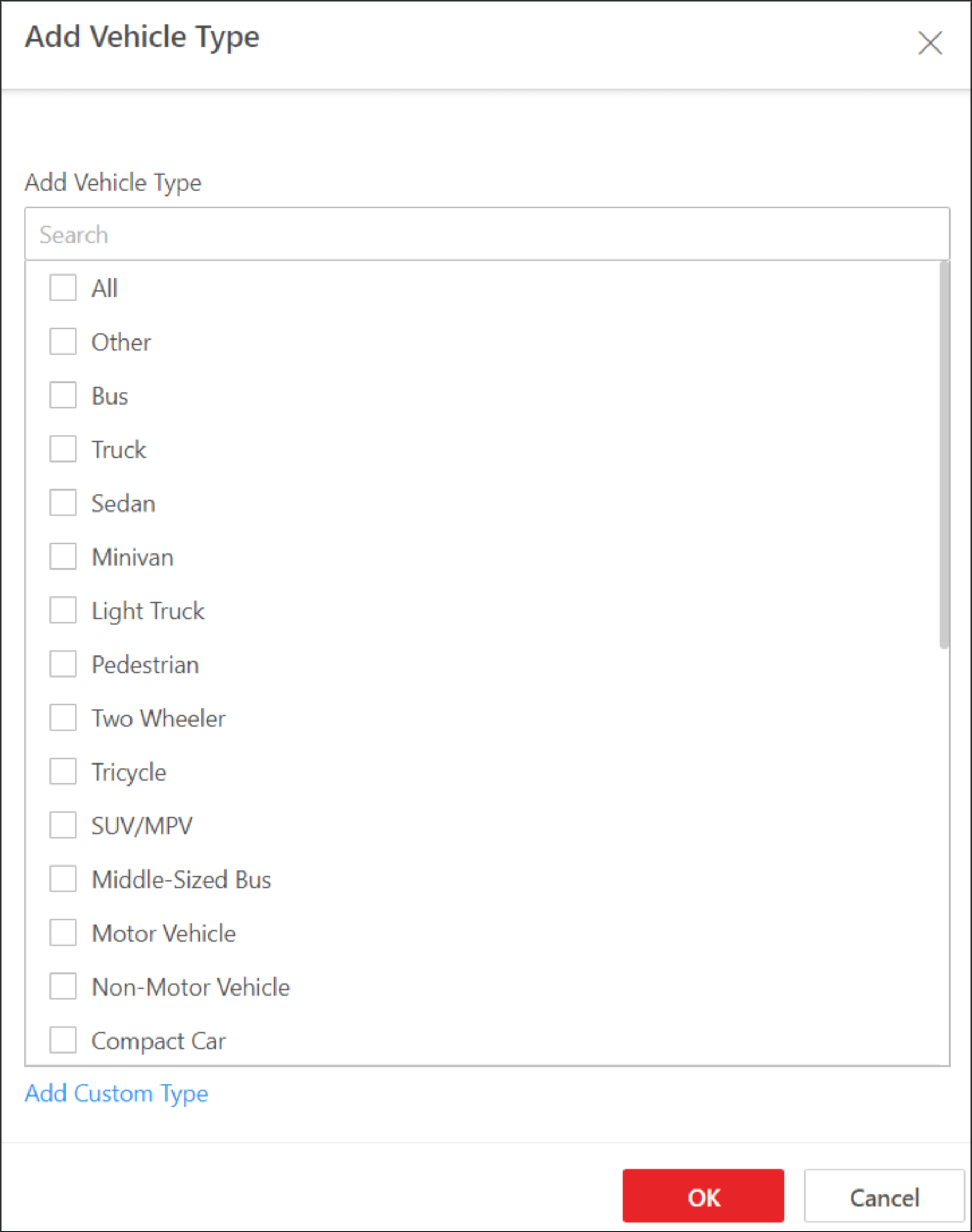 Figure 1 Add Vehicle
Type
Figure 1 Add Vehicle
Type
-
Click Add in the Vehicle Type area to open the
Add Vehicle Type pane.
-
Add the additional information item(s), which can be used as the conditions
during the vehicle search.
-
Click Add in the Additional Information area to
open the following pane.
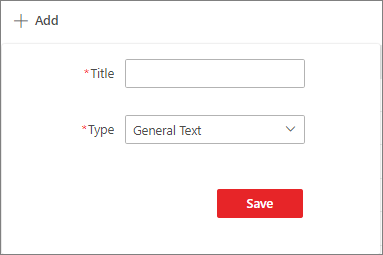 Figure 2 Customize
Additional Information
Figure 2 Customize
Additional Information
-
Click Add in the Additional Information area to
open the following pane.
- Optional:
Perform the following operation(s) after adding vehicle types or custom
items.
Option Description Delete a Vehicle Type
Click
 in the Operation
column of a vehicle type to delete it.
in the Operation
column of a vehicle type to delete it.Edit a Custom Item
Click
 in the Operation
column of a custom item to edit it.
in the Operation
column of a custom item to edit it.Delete a Custom Item
Click
in the Operation
column of a custom item to delete it.