Issue Temporary Cards
You can add temporary cards to parking lots. The temporary cards are mainly designed for temporary vehicles. Before a temporary vehicle enters a parking lot, the driver needs to take a temporary card from the machine. Before exiting the parking lot, the driver needs to return the card and pay the parking fee.
-
On the top navigation bar, select
 > Passing Management > Parking Lot.
-
On the left navigation pane, click Temporary Card.
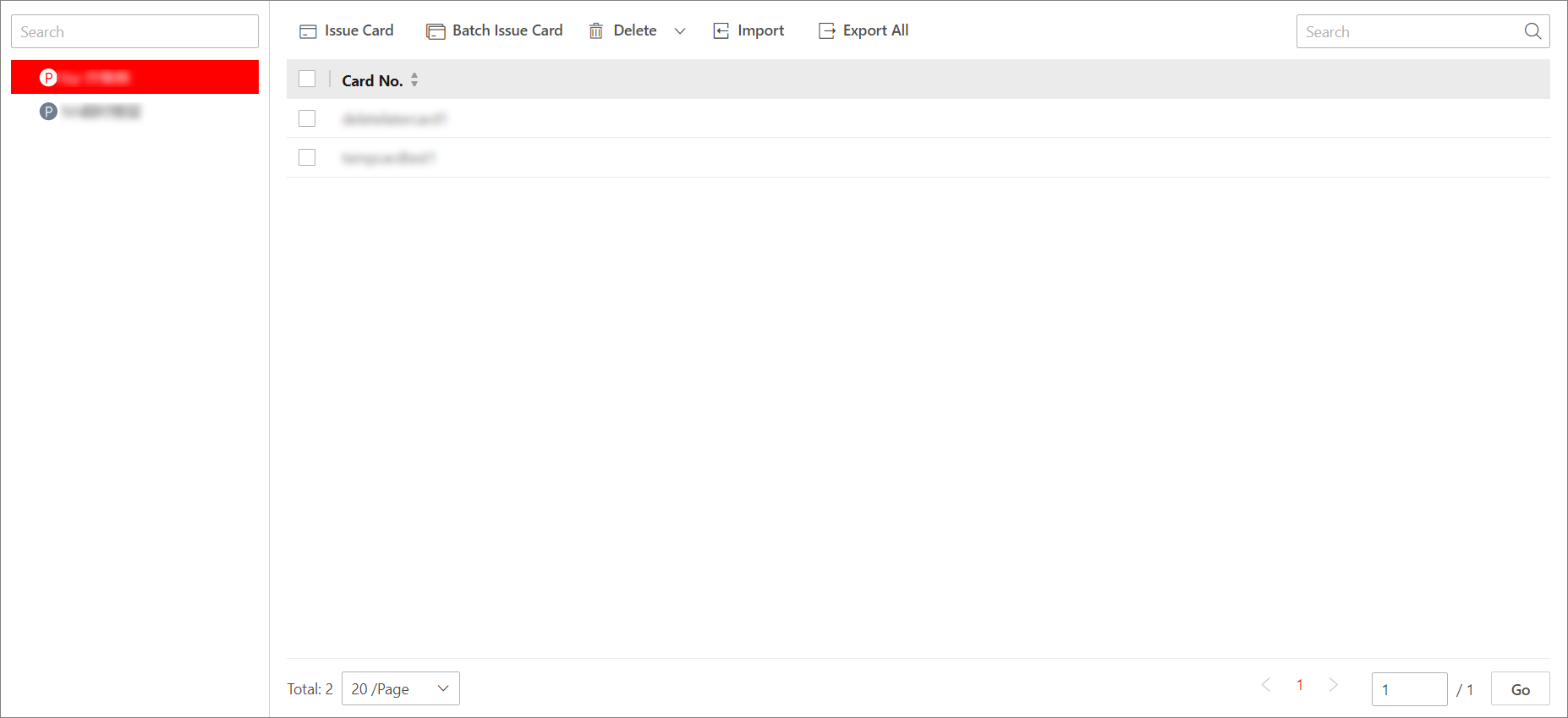 Figure 1 Issue Temporary Card
Page
Figure 1 Issue Temporary Card
Page -
Click Issue Card.
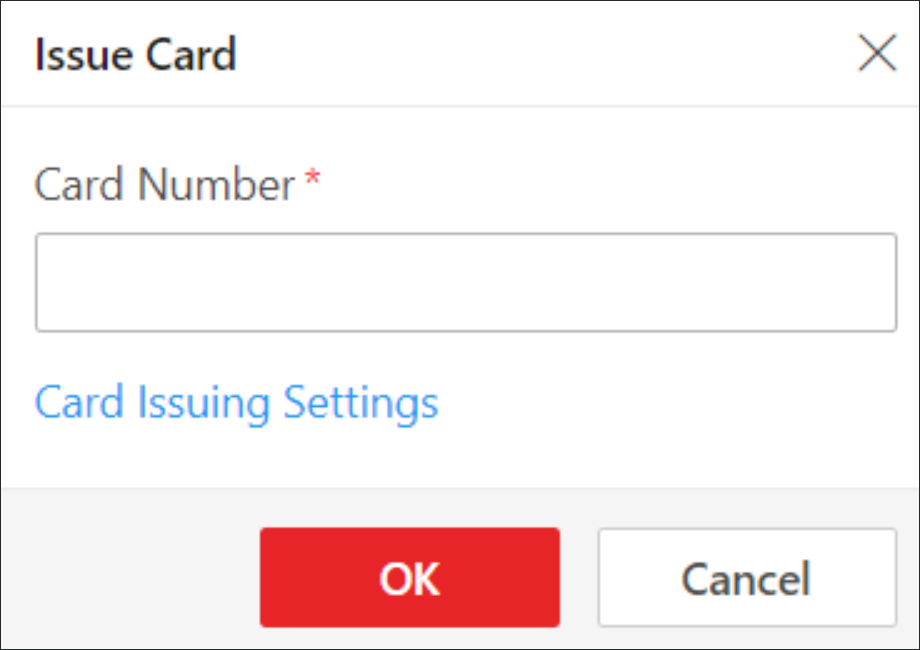 Figure 2 Issue Card
Window
Figure 2 Issue Card
Window - Optional:
Perform the following operations as needed.
Option Description Batch Issue Cards
Click Batch Issue Card to issue multiple temporary cards at the same time.
Delete Selected Card(s)
Select the temporary card(s) and click Delete to delete the selected card(s).
Delete All Cards
Click
 next to
Delete, and click Delete
All to delete all temporary cards of the selected
parking lot.
next to
Delete, and click Delete
All to delete all temporary cards of the selected
parking lot.Import Temporary Card Information
Click Import, click
 , select a template
file from your PC, and click Import.Note:
, select a template
file from your PC, and click Import.Note:-
You can click Download Template and save the predefined template (in XLSX format) to the local PC.
-
You can check Auto Replace Duplicate Card No. to allow the platform to overwrite card numbers that already exist.
Export Temporary Card Information
Click Export All to save the information about all temporary cards added for the selected parking lot to the local PC.
Search for Temporary Cards
Enter a keyword in the search box and click
 to search for
temporary cards by card number.
to search for
temporary cards by card number. -