Mark Devices on the Map
You can link guidance screens to parking spaces at a specific direction in the parking lot. Once linked, the guidance screen can display the number of vacant parking spaces and guide vehicles to them.
-
Enter the following page after configuring the parking space type.
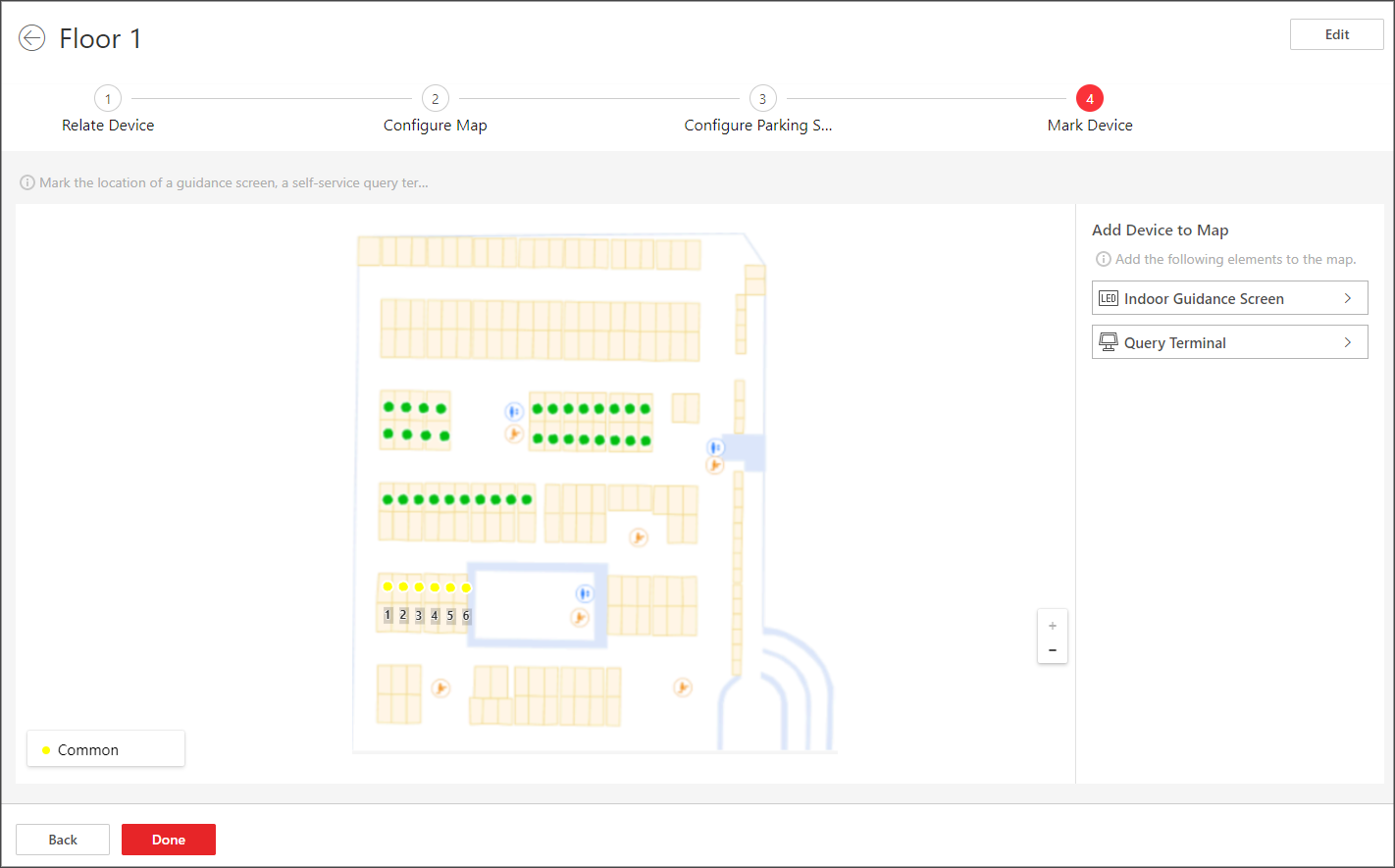 Figure 1 Mark Device
 -
Add a device (indoor guidance screen or query terminal) to the map by dragging
the device from the device list to the map.
Note:
Only the indoor guidance screen can be marked. The entrance guidance screens or entrance and exit display screens will not be displayed in the list.
- Click Link Parking Space on the pop-up menu to enter the marking window.
-
Select the parking space(s) and click OK to link the
selected parking space(s) with the device.
Note:
-
When you select the parking space(s), you can click a parking space icon to select one, or click Batch Select to select multiple parking spaces at a time, or check Select All Parking Spaces to select all parking spaces on the map.
-
If the current floor has linked with multiple maps, you can click Switch Map to switch to another map for marking.
-
- Optional:
Perform the following operations after marking devices on the map.
Option Description Configure Guidance Screen
Click the device icon on the map and click Guidance Screen Configuration on the pop-up menu to enter the Guidance Screen Configuration page. For details about configuring guidance screens, refer to Link Display Screen and Set Displayed Content.
Check Information Currently Displayed on Guidance Screen
Click the device icon on the map and click Guidance Screen and Parking Space Status on the pop-up menu to check information currently displayed on the guidance screen. You can click a screen to view the detailed information about the parking space(s) linked to it, such as parking space No., floor where the parking space is located, whether the parking space is occupied, and the picture of the parking space captured at the moment.
Note:This function is only supported by some guidance screens.
Remove Device
Click the device icon on the map and click Delete on the pop-up menu to remove the device from the map.
- Optional: Click Back to configure the parking space types again.
- Click Done to finish the parking guidance configuration.