Calibrate Parking Spaces Regularly
To reduce the manual operation costs of a parking lot and avoid parking disputes caused by the incorrect number of vacant parking spaces displayed on the display screen, you can enable the functions of regularly calibrating vacant parking spaces on each floor or in the parking lot, so the real-time number of vacant parking spaces in the parking lot will be counted regularly and the number of vacant parking spaces to be reserved for vehicles that entered the parking lot but not parked will also be regularly counted and displayed by floor.
Make sure you have deployed ANPR cameras if you want to regularly calibrate parking spaces on floors.
-
On
the parking guidance configuration page of a selected parking lot,
click Calibrate Parking Space
Regularly in the top right corner of the parking lot details
page.
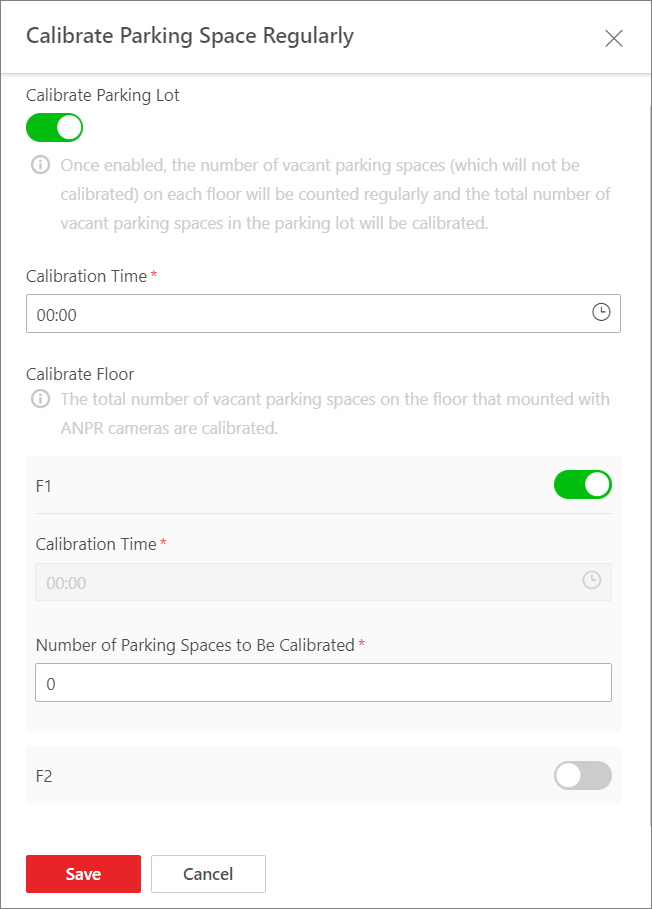 Figure 1 Calibrate Parking
Spaces Regularly
Figure 1 Calibrate Parking
Spaces Regularly