You can add a map to the floor,
add
parking spaces to the map, and
configure
the layout of parking spaces.
-
Enter the following page after linking device(s) to the floor.
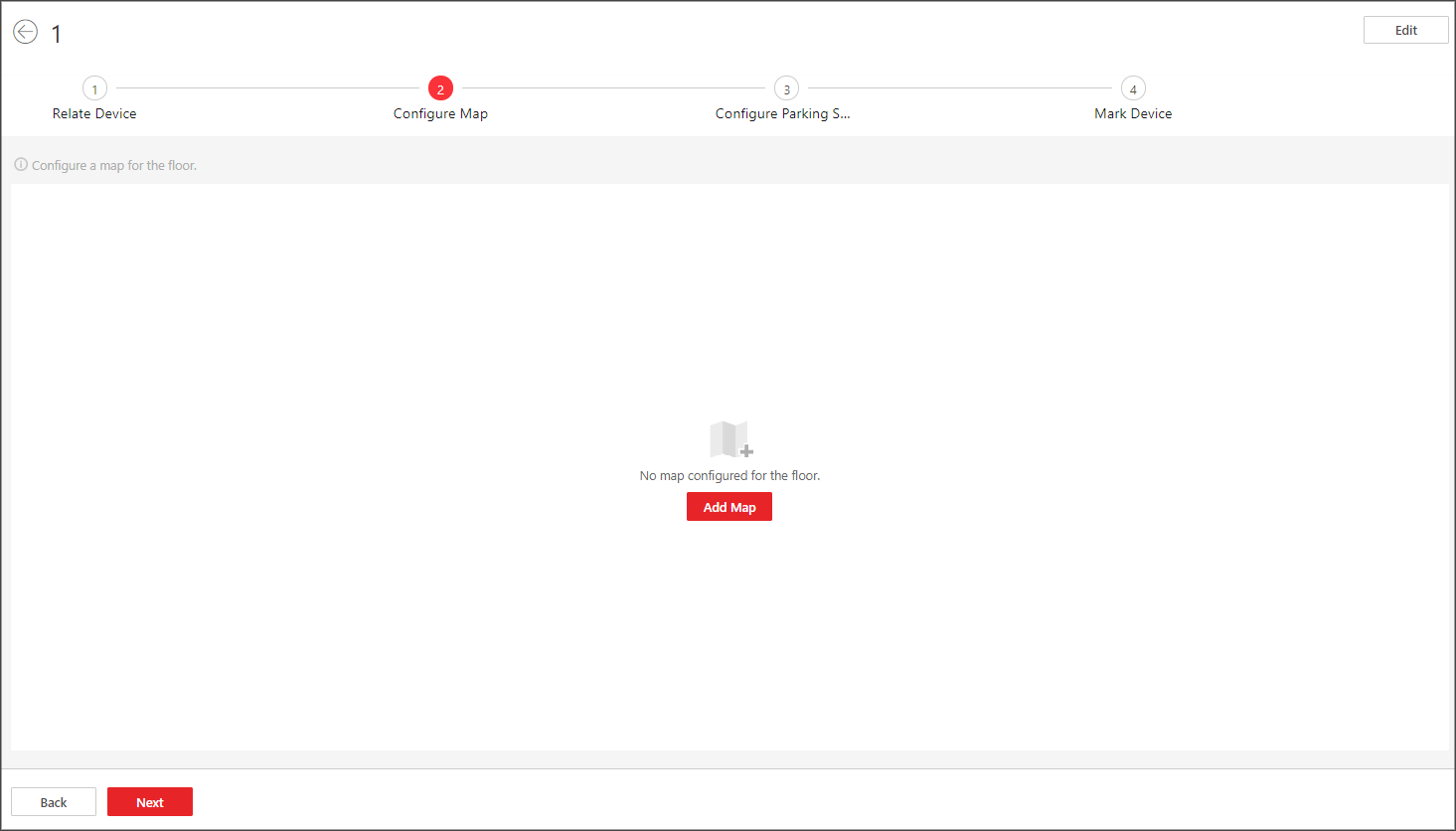 Figure 1 Add a Map
-
Click Add Map.
-
Select a map from your PC and add it to the floor.
-
Add parking space(s).
- Optional:
Perform the following operation(s) if needed.
| Option |
Description |
|---|
|
Move Parking Space
|
Drag a parking space to move it.
|
|
Delete Parking Space(s)
|
-
Click one parking space (the green point) and
click Delete to delete it.
-
Click Batch Select, drag
you cursor to select multiple parking spaces, and click
Delete to batch delete them.
|
|
Adjust the Size of the View of Parking Space(s)
|
-
Click one parking space and click
Size (+) or Size
(-) to make it bigger or smaller.
-
Click Batch Select, drag
you cursor to select multiple parking spaces, and click
Size (+) or Size
(-) to make them bigger or smaller.
|
|
Align Parking Spaces Horizontally
|
Click Batch Select, drag you
cursor to select multiple parking spaces, and click
Horizontal Alignment to align them in a
horizontal line.
|
|
Align Parking Spaces Vertically
|
Click Batch Select, drag you
cursor to select multiple parking spaces, and click
Vertical Alignment to align them in a
vertical line.
|
|
Replace Map
|
Click Replace Map to change the
map.
|
|
Delete Map
|
Click Delete Map to delete the
map.
|
- Optional:
Click Back to edit former configuration.
Click Next to set types for parking spaces on the
map. See Set Types for Parking Spaces on the Map.
 or
or  to adjust the size of
the map.
to adjust the size of
the map.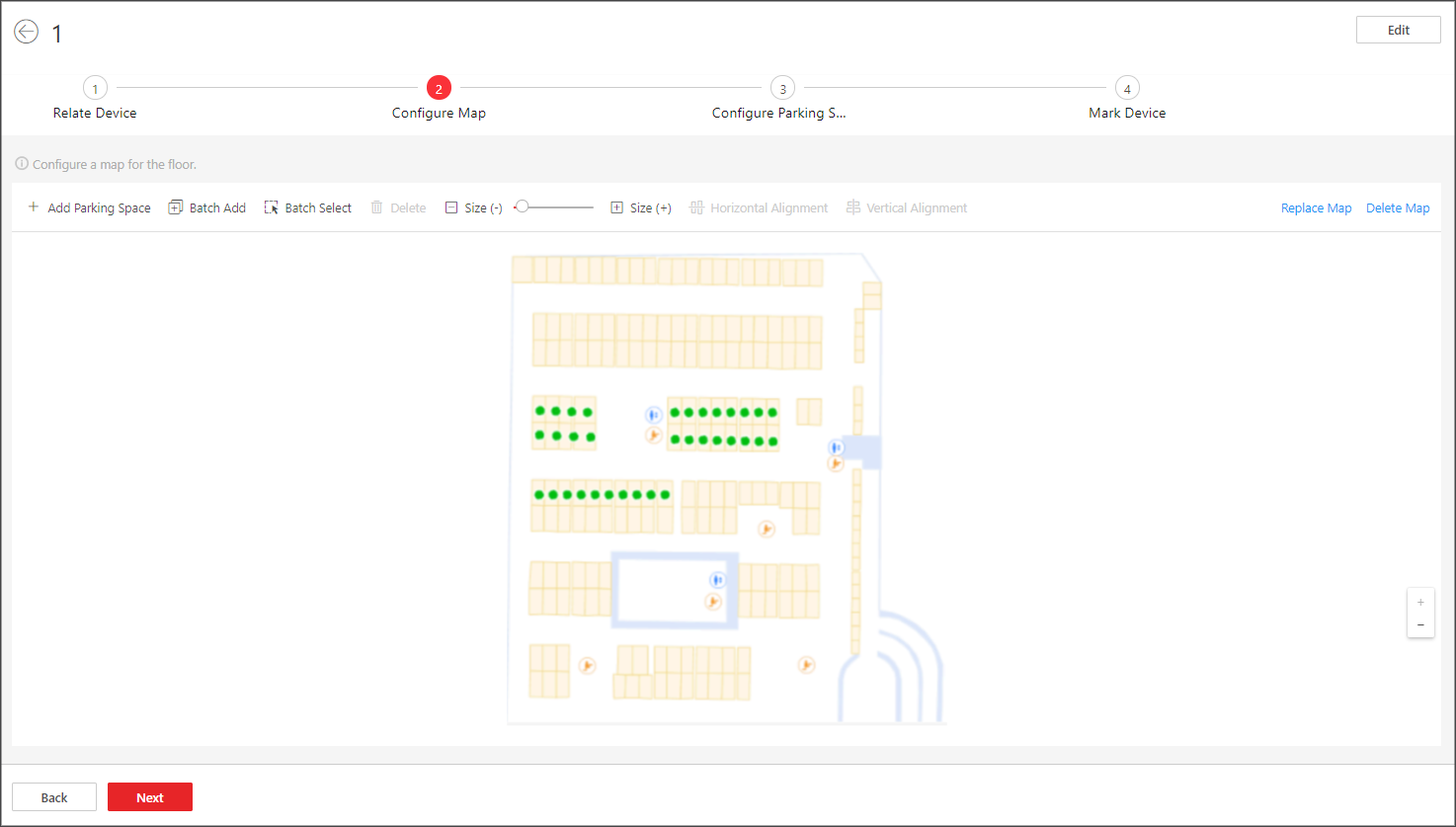 Figure 2 Configure the
Map
Figure 2 Configure the
Map