Unattended baggage detection detects the objects left over in a predefined
region such as the baggage, purses, dangerous materials, etc., and a series of actions can
be taken when the alarm is triggered.
-
Go to .
-
Select a camera.
-
Click Unattended Baggage.
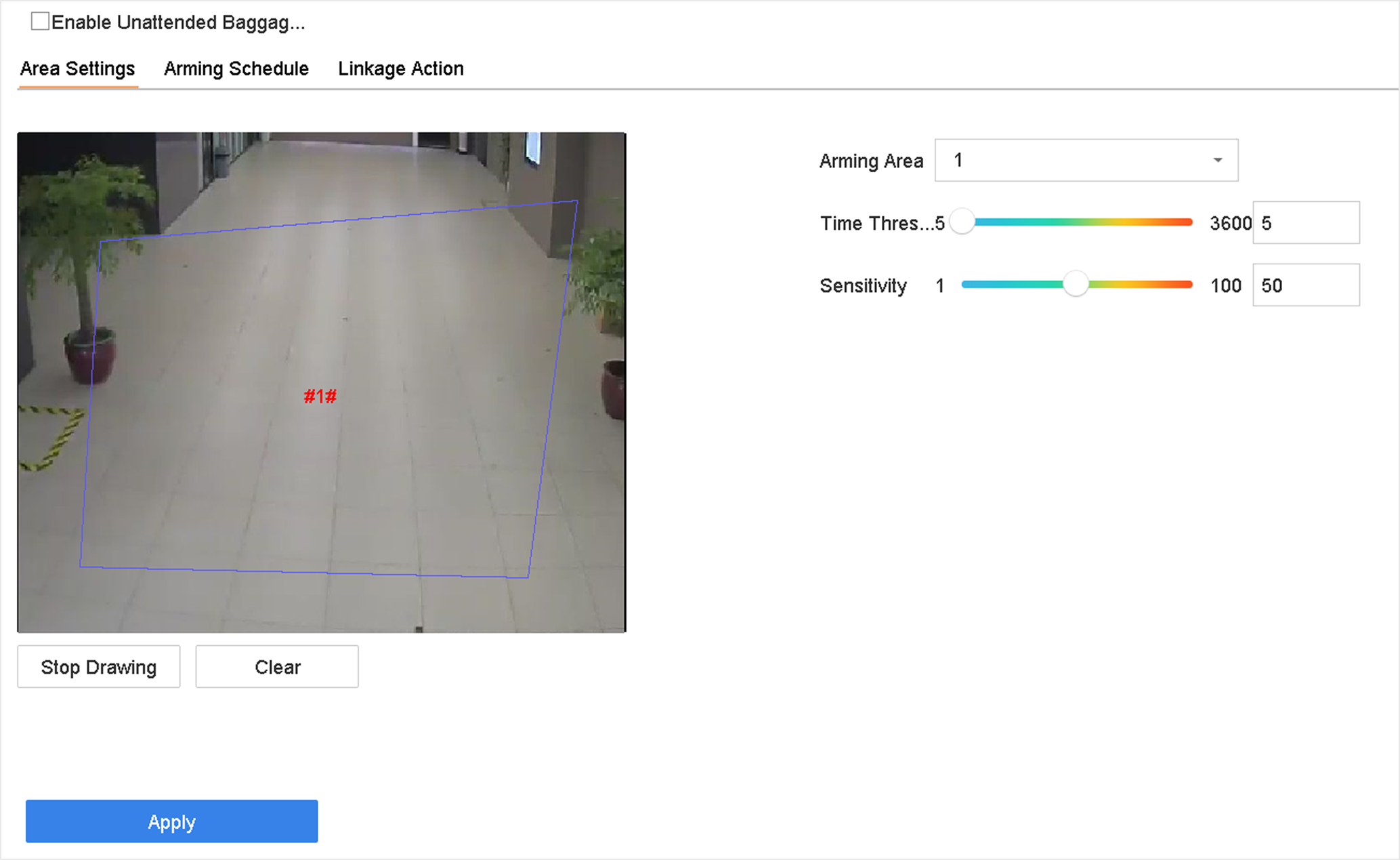 Figure 1 Unattended Baggage
Detection
Figure 1 Unattended Baggage
Detection
-
Check Enable Unattended Baggage Detection.
- Optional:
Check Save VCA Picture to save the captured unattended
baggage detection pictures.
-
Set the detection rules and detection areas.
-
Select Arming Area.
Note:
Up to 4 areas are selectable.
-
Drag the sliders to set Time Threshold and
Sensitivity.
- Time Threshold
-
The time of the objects left in the region.
If the value is 10, an alarm will be triggered after the
object is left and stayed in the region for 10 s. Range:
[5-20].
- Sensitivity
-
Similarity of the background image to the
object. The higher the value is, more easily the
detection alarm will be triggered.
-
Click Draw Region and draw a quadrilateral in
the preview window.
-
Set the arming schedule. Refer to Configure Arming Schedule.
-
Set linkage actions. Refer to Configure Linkage Actions.
-
Click Apply.