Intrusion detection function detects people, vehicles or other objects that
enter and loiter in a pre-defined virtual region. Specific actions can be taken when an
alarm is triggered.
-
Go to .
-
Select a camera.
-
Click Intrusion.
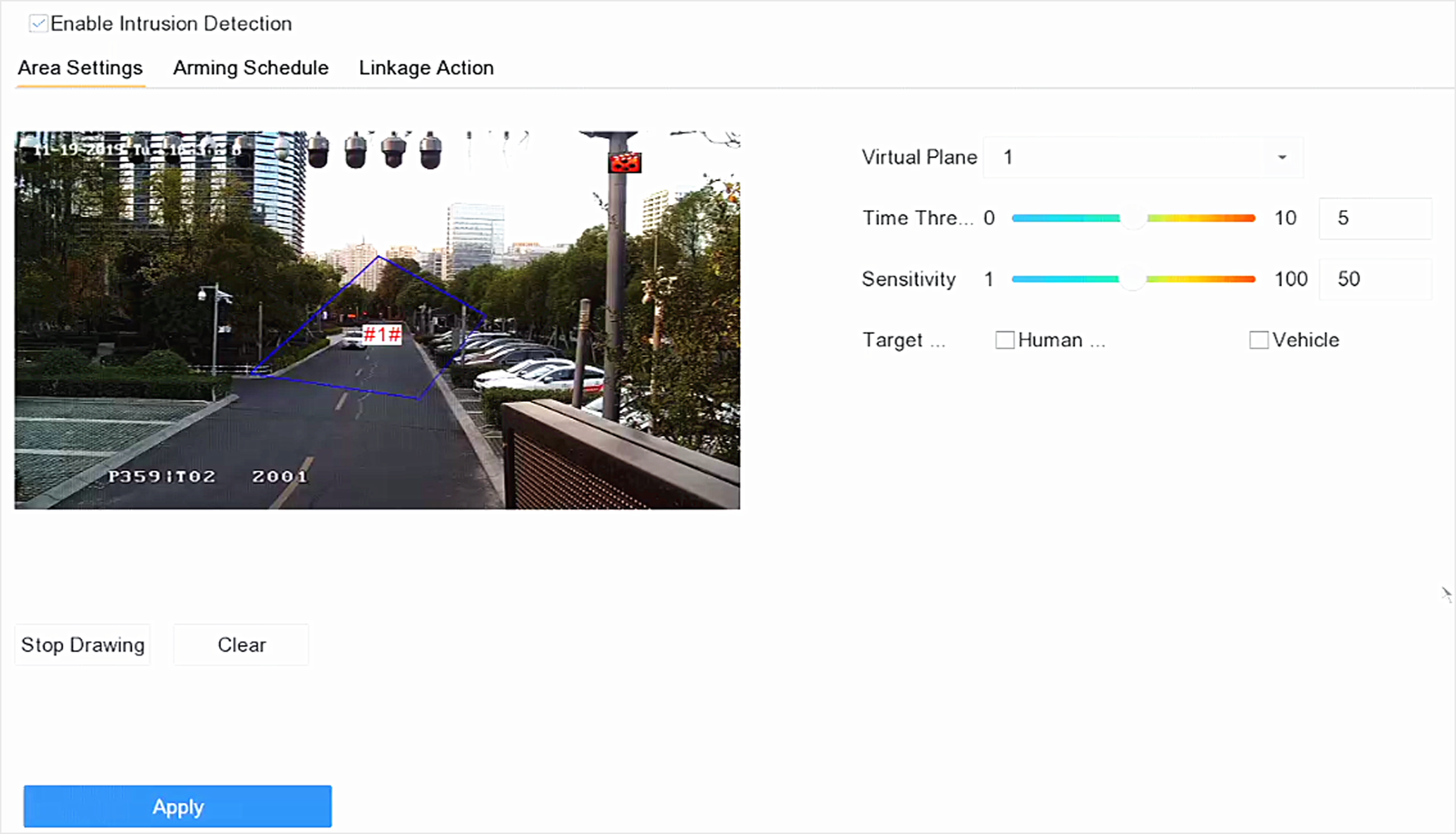 Figure 1 Intrusion
Detection
Figure 1 Intrusion
Detection
-
Check Enable Intrusion Detection.
- Optional:
Check Save VCA Picture to save the captured intrusion
detection pictures.
-
Set the detection rules and detection areas.
-
Select a virtual panel. Up to 4 virtual panels are selectable.
-
Set Time Threshold, and
Sensitivity.
- Time Threshold
-
The time an object loiter in the region. When the
duration of the object in the defined detection area
exceeds the threshold, the device will trigger an
alarm.
- Sensitivity
-
Sensitivity is the object size which is able to trigger
an alarm. The higher the sensitivity is, the more easily
the detection alarm will be triggered.
-
Click Draw Area.
-
Draw a quadrilateral in the preview window.
- Optional:
Draw the maximum size/minimum size for targets.
Note:
Only the targets in the size ranging from maximum size to minimum size
will trigger Intrusion detection.
-
Click Max. Size/Min.
Size.
-
Draw an area in preview window.
-
Click Stop Drawing.
- Optional:
Select Detection Target as
Human or Vehicle to discard
alarms which are not triggered by human body or vehicle.
-
Set the arming schedule. Refer to Configure Arming Schedule.
-
Set linkage actions. Refer to Configure Linkage Actions.
-
Click Apply.