The administrator and the installers can manage users. If you are the
administrator, you can add, edit, and delete users, and assign different permissions to the
newly-added users. If you are an installer, you can only add and delete users.
Note:
There are four types of users for the security control panel,
including administrator (or owner), operator, installer (or setter), and
manufacturer. Different types of users have different permissions for
accessing the functionality of the security control panel. For details, see
the user manual of the security control panel.
-
On the device list page, tap the security control panel and then log in to the
device to enter the control panel page.
-
Tap .
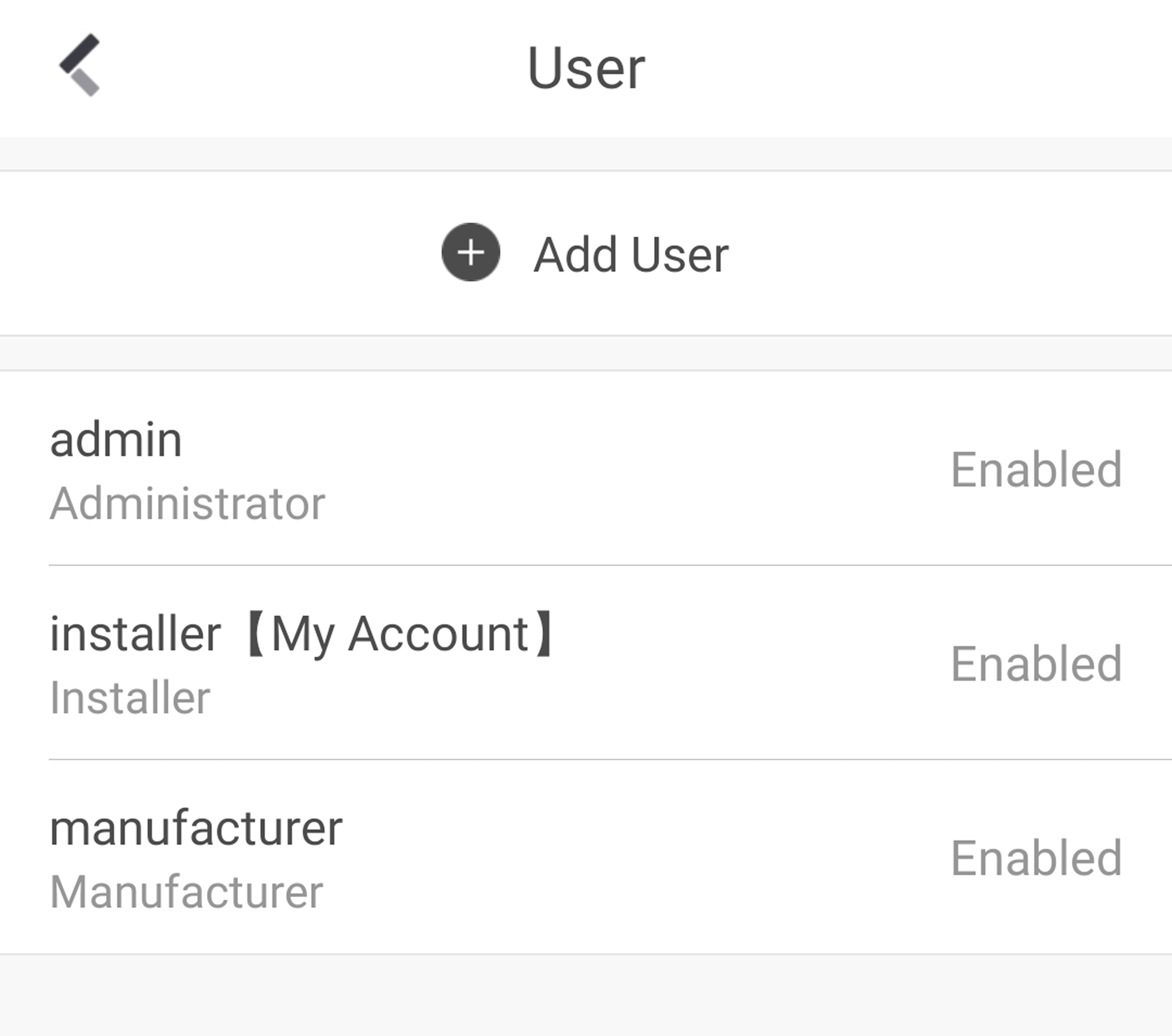 Figure 1 User
Management
-
Tap Add User.
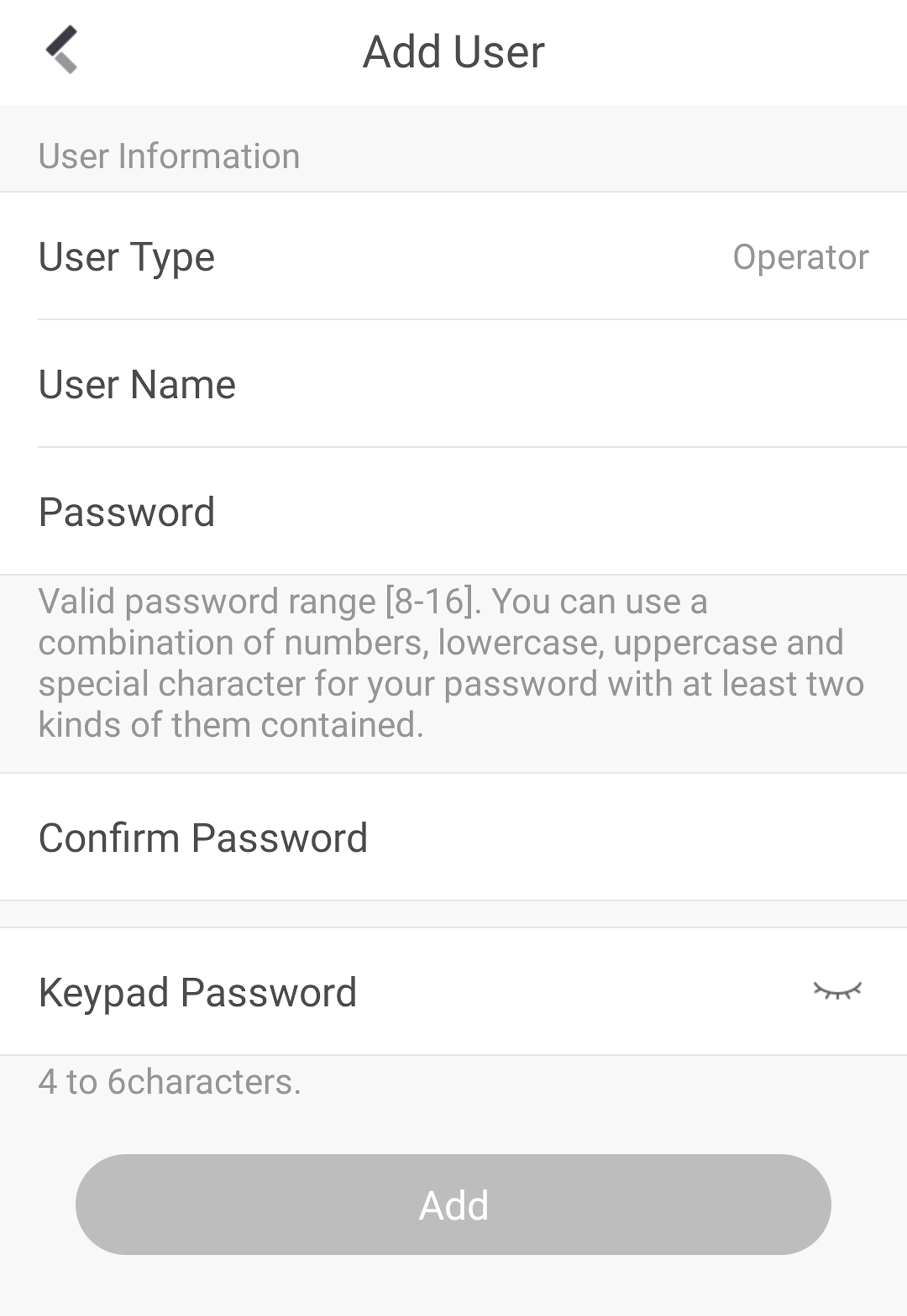 Figure 2 Add User
-
Select User Type. Enter User Name and Password.
-
Enter Keypad Password.
Note:
The keypad password +1 or -1 is the duress code. Use the
duress code can operate the keyboard to arm and disarm normally and
upload a duress alarm. For example, if the keypad password is 123456,
the duress code is 123455 or 123457.
-
Tap Add to add the user.
- Optional:
Perform the following operations if required.
| Option |
Description |
|---|
|
Enable/Disable User
|
If you log in as an administrator, you can tap an
installer, an operator, or a manufacturer on the user list, and then
enable/disable the user on the user details page.
If you log in as an installer, you can tap an operator
or a manufacturer on the user list, and then enable/disable the user
on the user details page.
Note:
Only the administrator and installer can
enable/disable users.
|
|
Set Linked Area
|
If the target user is a an operator, tap the target user
on the user list and then tap Area Linkage to
set the area linked to the target user.
Note:
Only the administrator can do such an operation.
|
|
Set Permissions for the User
|
If the target user is a manufacturer, an installer, or
an operator, you can tap the target user on the user list and then
tap Permission to set the permissions
authorized to the target user.
Note:
Only the administrator can do such an operation.
|
|
Delete User
|
If the target user is an operator, tap the target user on
the user list and then tap delete to delete
the target user.
Note:
Only the administrator and installer can do such an
operation.
|
 > User Management > User.