In access control, multi-factor authentication is an authentication
method in which the door will unlock only after multiple persons present authenticating
multiple credentials in turn. This method is mainly used for locations with high security
requirements, such as bank vault. With the mutual supervision of the persons, multi-factor
authentication provides higher security for the assets in these locations.
Note:
This function should be supported by the device.
-
In the top left corner
of
the Home page, select .
-
Click Add.
-
Enter the rule name.
-
Select a door from the following area list.
-
Set the access mode of the door.
- Unlock After Access Granted
-
The door will be unlocked automatically after the
persons swiping their cards (or other type of credentials) on
the card readers of the door and the access is granted.
- Remotely Unlock After Granted
-
After the persons swiping their cards (or other type
of credentials) on the card readers of the door and the access
is granted, a window will pop up. The operator should confirm to
unlock the door remotely and then the door will be unlocked
successfully.
- Enter Super Password After Granted
-
After the persons swiping their cards (or other type
of credentials) on the card readers of the door and the access
is granted, they should enter the super password on the card
reader. After that, the door will be unlocked successfully.
-
Set the access schedule to define in which time period, the persons are
authorized to access the door.
Note:
The default and customized access schedules are displayed
in the drop-down list. You can click
Add
to customize a new schedule. For details, refer to Set Access Schedule Template.
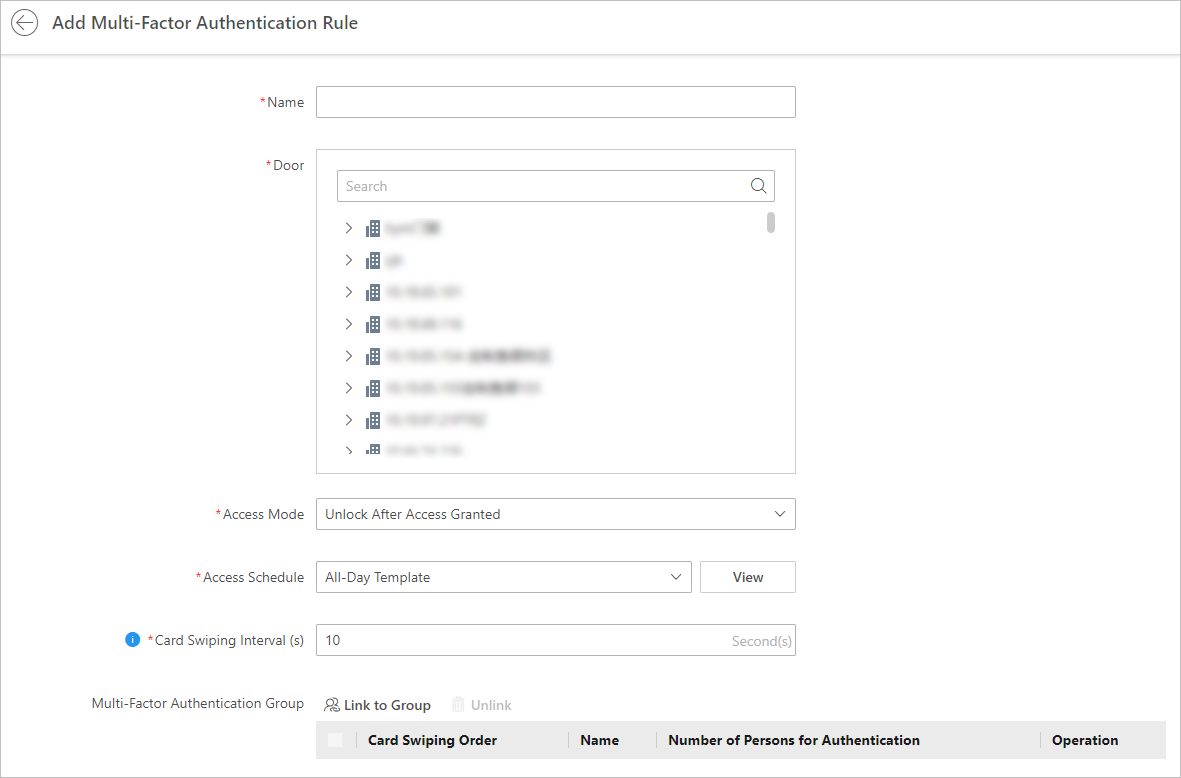 Figure 1 Add Multi-Factor Authentication Rule
-
Set the card swiping interval and make sure the interval between two
authentications on the card reader is within this value.
When you set the interval as 5s, if the interval between two
authentications is longer than 5s, the authentications will be invalid, and
you should authenticate again from the beginning.
-
Click
Link
to Group to set the access group(s) to define
who have the permission to access the door.
Note:
When adding groups, if you check Select All
Persons, all persons who matched the search conditions
you set will be selected.
- Card Swiping Order
-
Click ↑ or
↓ in the Operation column to set the authentication order
of different access groups.
- Number of Persons for Authentications
-
Define how many persons should authenticate on the
card reader.
For example, if you set 3 for access group Security
Guard and 1 for access group Bank Manager, it means three
security guards should swipe cards on the card reader (or other
access mode), and one bank manager should swipe card on the card
reader (or other access mode) for this multi-factor
authentication.
Note:
This value should be no larger than the number of
persons in the access group.
-
Click
Add.
 > Passing Management > Access Control > Access Control Application > Multi-Factor Authentication.