Apply Advertisement to Access Control Devices
You can add picture(s), video(s), and text(s) in the advertisements, then apply the advertisements to access control devices. After applying advertisements, you can filter or delete them.
-
In the upper-left corner of the Home page, select
 > Passing Management > Access Control > Access Control Application > Apply Advertisement.
-
Select the available door station in the left list and click
 to add it to the right list. You can click
  to remove it from the selected door station list on the
left.
to remove it from the selected door station list on the
left.
-
Add materials (picture, video, or text) for an advertisement to be applied to
access control devices.
Note:
-
The material type (picture, video, or text) should be supported by devices.
-
You can check two types of advertisement materials at the same. For example, you can check both picture and video at the same time, excluding text.
-
You can up to 8 videos and pictures, or 3 texts at one time.
-
-
Click Picture >
 to add picture(s) for an advertisement.
 -
Set the duration for pictures switching interval.
-
Set the time period to play the added picture(s).
Note:Up to 2 time periods are allowed. You can click Add to add the time period if needed.
-
-
-
Click Video >
to add a video for an advertisement. -
Set the duration for videos switching interval.
-
Set the time period to play the added video.
-
Click Text >
to add a text for an advertisement. -
Set the advertisement texts, including uploading the background picture, setting the text title/font size/color, and selecting the layout style.
-
Set the time period to play the added texts.
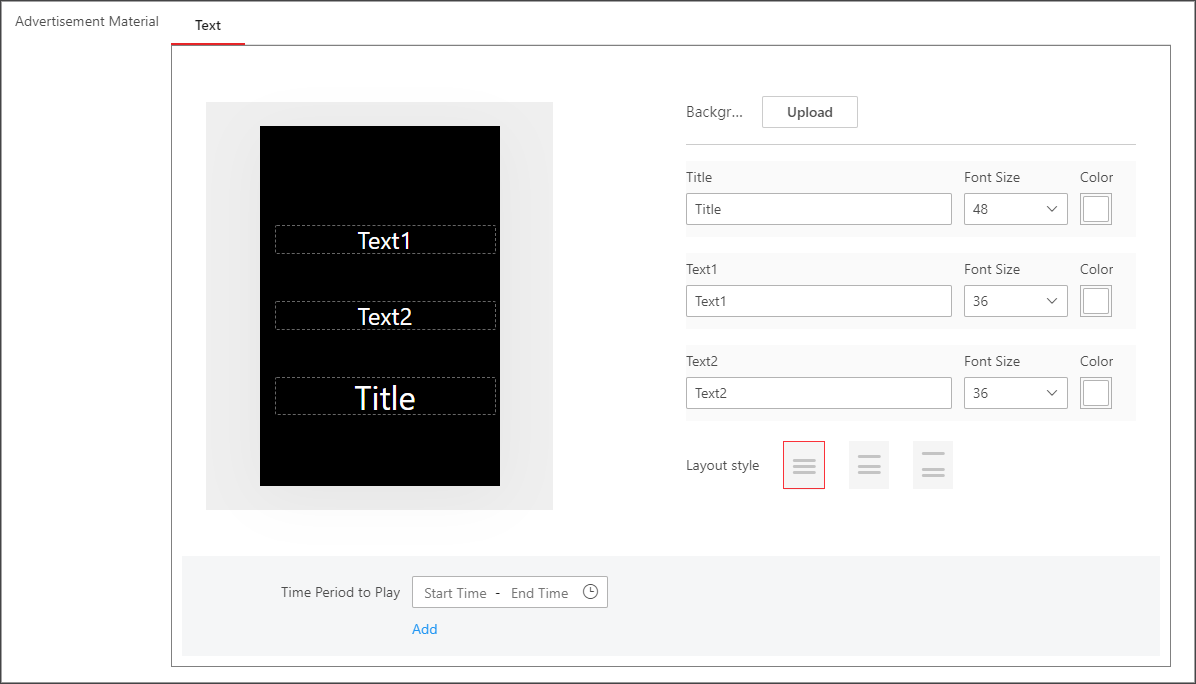 Figure 1 Add Text
in Advertisement
Figure 1 Add Text
in Advertisement
-
-
- Optional:
Perform the following operations.
Option Description Filter Advertisement
Click
 and set filter
conditions such as device name, and then click
Filter to filter the target
advertisement.
and set filter
conditions such as device name, and then click
Filter to filter the target
advertisement.Delete Advertisement
Select one or multiple advertisements in the list and click Clear Advertisements to delete the advertisements. Also, you can click Delete All to delete all of the advertisements.
Copy Advertisement
Select one advertisement in the list, click
 in the operation
column to copy the current advertisement to other devices.
in the operation
column to copy the current advertisement to other devices.View Details
Select one advertisement in the list, click
 to view the details of applying
progress.
to view the details of applying
progress.