Search Data Recorded on Access Control Devices and Elevator Control Devices
The records can be events/alarms triggered by human behaviors detected by devices and those triggered by devices (such as device faults). You can search for the records in different dimensions according to your needs.
-
In the upper-left corner of the Home page, select
 > Passing Management > Access Control > Search > Device Recorded Data Retrieval.
-
Click Search.
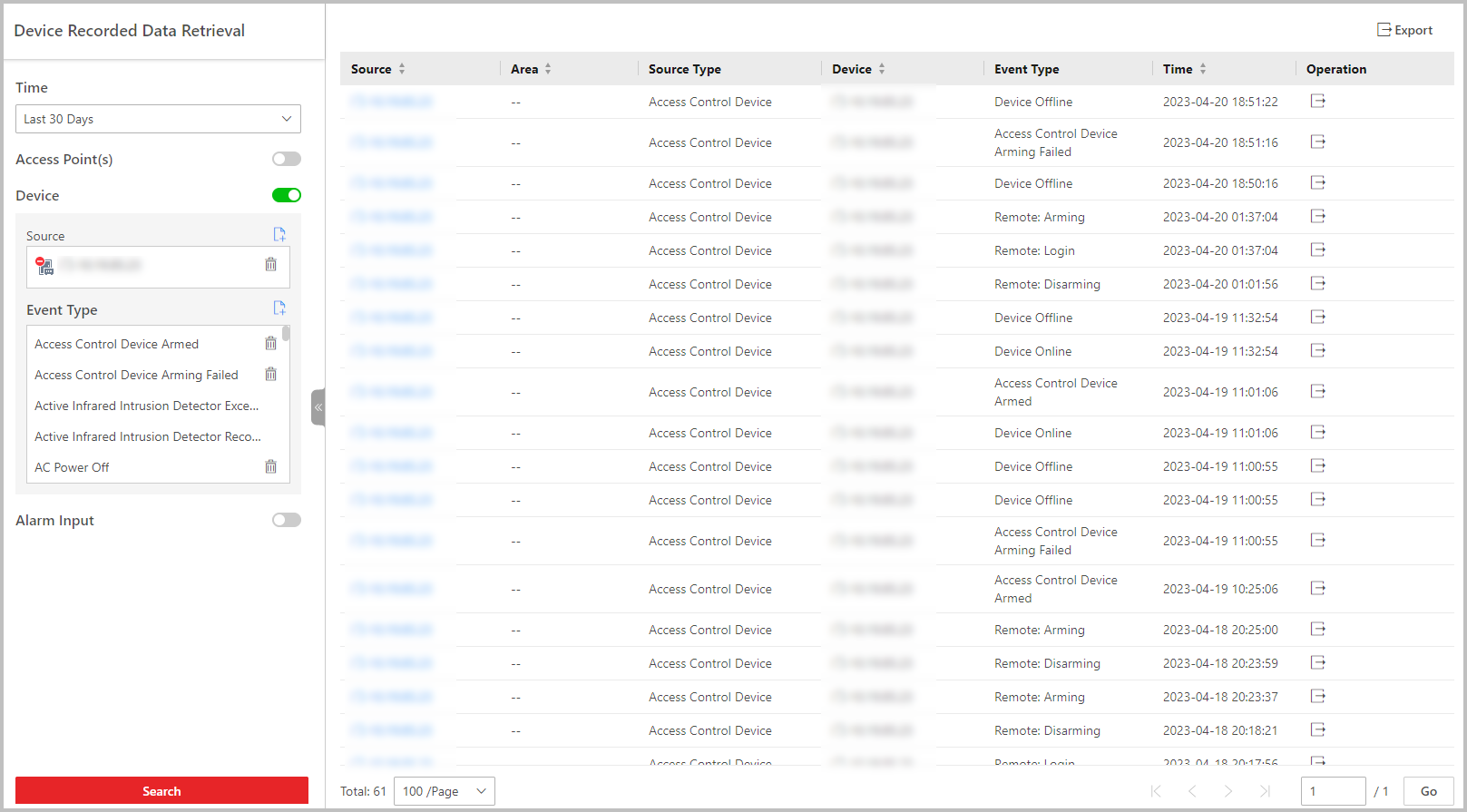 Figure 1 Device Recorded Data
Retrieval
Figure 1 Device Recorded Data
Retrieval - Optional:
Perform further operations on the searched records.
Option Description View Record Details
Click the device name in the Source column to view the record details, such as the device name and record type.
Export Single Record
Click
 in the Operation
column to save the record to the local PC as a CSV file.
in the Operation
column to save the record to the local PC as a CSV file.Export All Searched Records
Click Export to save all the searched records to the local PC as an Excel or a CSV file.