Access Control Test
HikCentral Professional provides Access Control Test. It is a tool through which you can test whether the configurations about access control (such as persons' credentials and access levels for access control and video intercom) are set correctly and completely and whether the devices are running properly.
In the top left
corner
of the Home page, click  > Passing Management > Access Control > Troubleshooting.
Check Credential Status
Select the Credential Status tab to view the status of the added credentials.
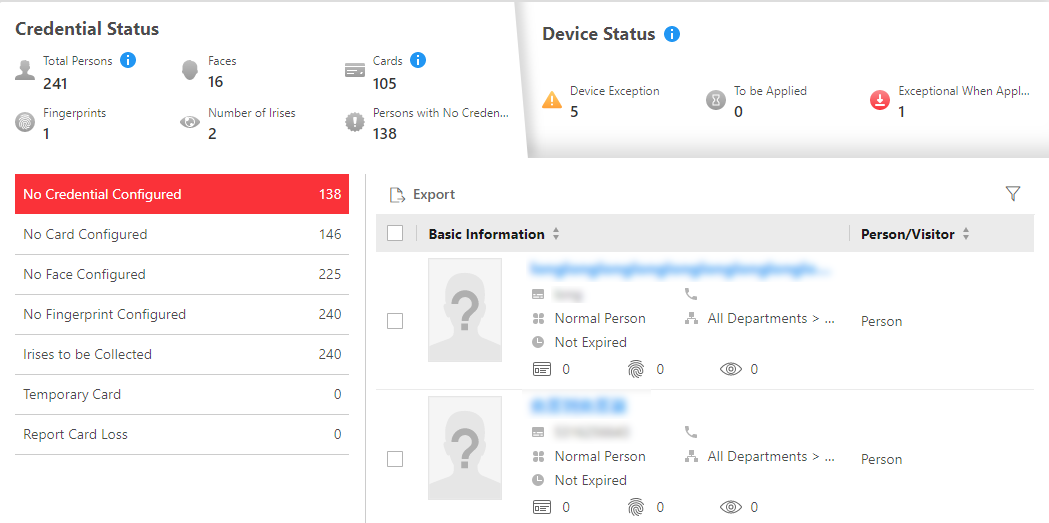 Figure 1 Credential Status
There are 6 types of exceptions on credential settings in the system. The number next to each exception type indicates the number of persons and visitors whose credential settings are abnormal.
Click each exception type to view the information about the persons and visitors with exceptions.
You can click the person's name to edit the credentials if necessary.
Check Device Status
Select the Device Status tab to view the status of the devices (including access control devices, elevator control devices, and video intercom devices). You can check person information and credential information that are already applied to the devices, configured in the system, fails to be applied, and check information of persons to be applied to the devices.
Only the status of the devices which have been configured with access levels are shown.
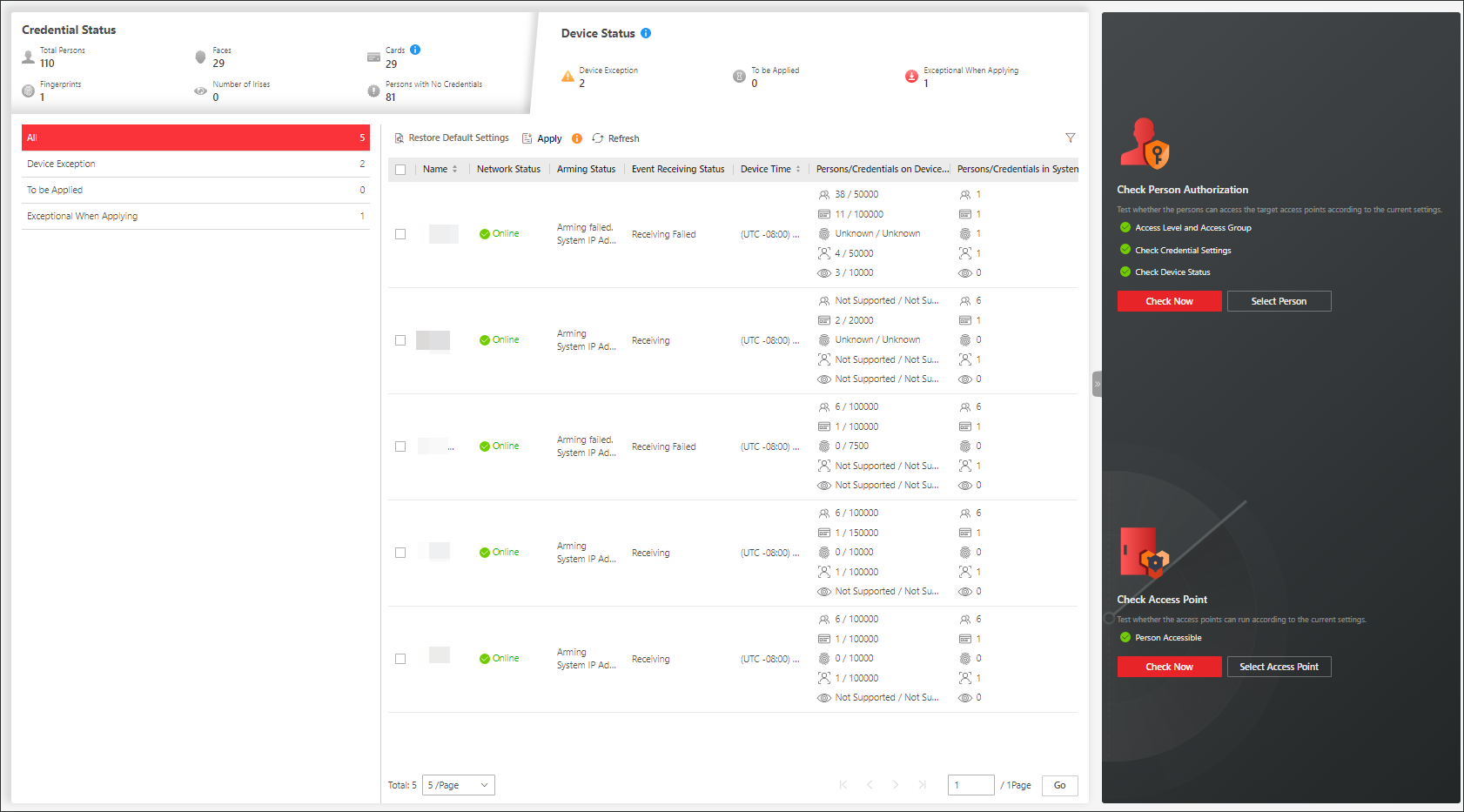 Figure 2 Device Status
Click each exception type to view the information about the persons and visitors with exceptions.
You can select the devices and click the following buttons to solve device issues.
|
Restore Default Settings |
Restore the settings on the devices to the default value. |
|
Apply |
Apply person information and credential settings to these devices again. |
|
Refresh |
Refresh the list to get the latest device status. |
Check Authorization Settings of Persons/Visitors
You can check the authorization settings (such as access levels and access group settings, credential settings, and applying status) of specific persons or visitors in the system. This function helps you to test whether the persons can access the target access points according to the current settings.
Click  to expand the side panel.
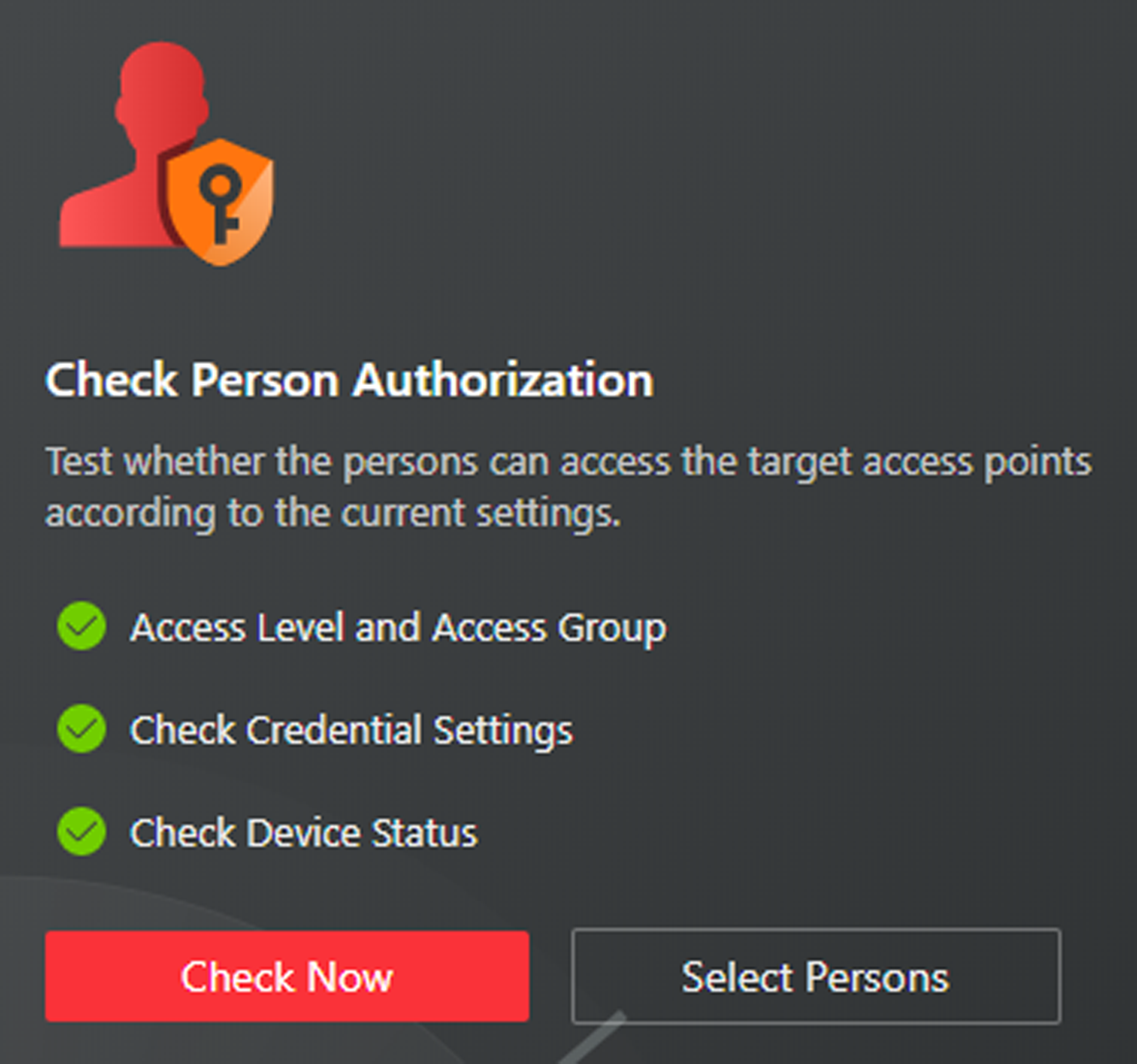 Figure 3 Check Authorization
Settings
Figure 3 Check Authorization
SettingsIn the Check Person Authorization section, select the item(s) you want to check.
Click Check Now to test the authorization settings of all existing persons and visitors.
Or click Select Persons to select the persons or visitors you want to test and then click Check Now to test the authorization settings of the selected persons or visitors.
Check Access Point Settings
You can test whether the persons can access the access points according to the settings in the system.
Click to expand the side panel.
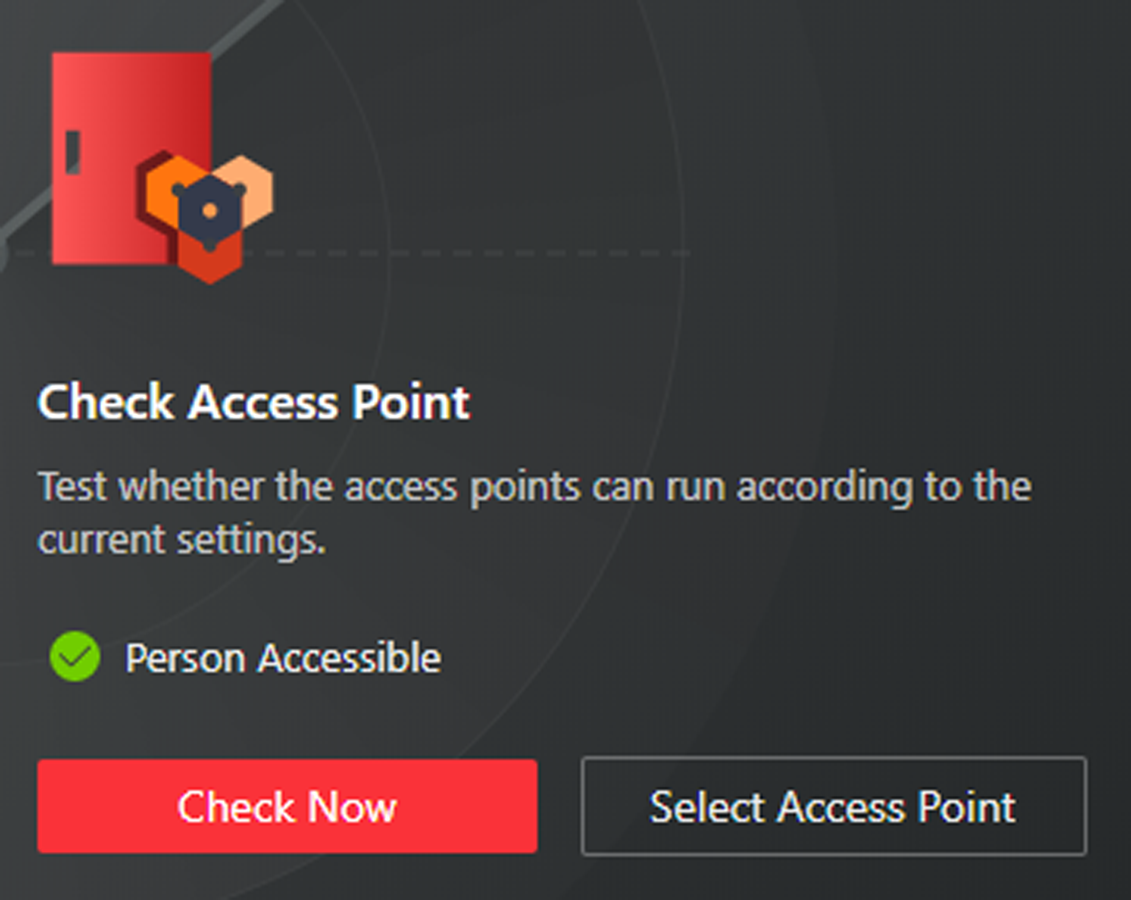 Figure 4 Check Access Point
Settings
Figure 4 Check Access Point
SettingsIn the Check Access Point section, select the item(s) you want to check.
Click Check Now to test the settings of all existing access points in the system.
Or click Select Access Points to select the access points you want to test and then click Check Now to test the settings of the selected access points.
The access points which are not added to any access levels will not be checked.