Review Visitor Reservations
If you have enabled self-service reservation when you set visitor self-service reservation parameters, after the visitors reserve, their information will be displayed on the Visitor to Be Approved page. You should review their information to approve or reject the reservations. After approving, they will be added to the target visitor group.
Make sure you have enabled self-service reservation and configured related parameters. See Set Self-Service Reservation Parameters for details.
You need to have the permission () shown in the picture below before you can review reservations.
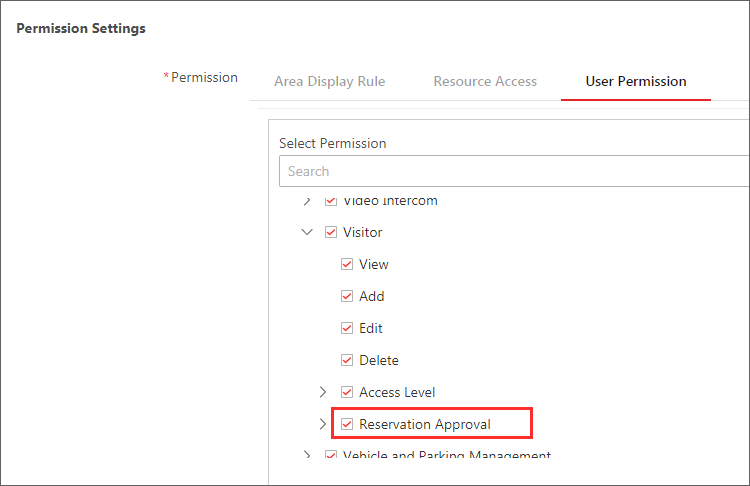 Figure 1 The Permission for
Reviewing Reservations
Figure 1 The Permission for
Reviewing Reservations-
On the top left of the Web Client, select
 > Passing Management > Visitor > Visitor Reservation.
Note:
> Passing Management > Visitor > Visitor Reservation.
Note:-
If there are visitors to be approved, the number of the to-be-approved visitors will be displayed.
 Figure 2 The Number
of The To-Be-Approved Visitors
Figure 2 The Number
of The To-Be-Approved Visitors -
You can only review the visitors reserved via the QR code you generated for self-service reservation, which allows different users to manage their own visitors independently. See Set Self-Service Reservation Parameters for details.
-
-
Click To Be Reviewed on the top to enter the following
page.
On the page, you can view the information of the to-be-approved visitors, such as their companies and whether their attributes match entities in the watch list.
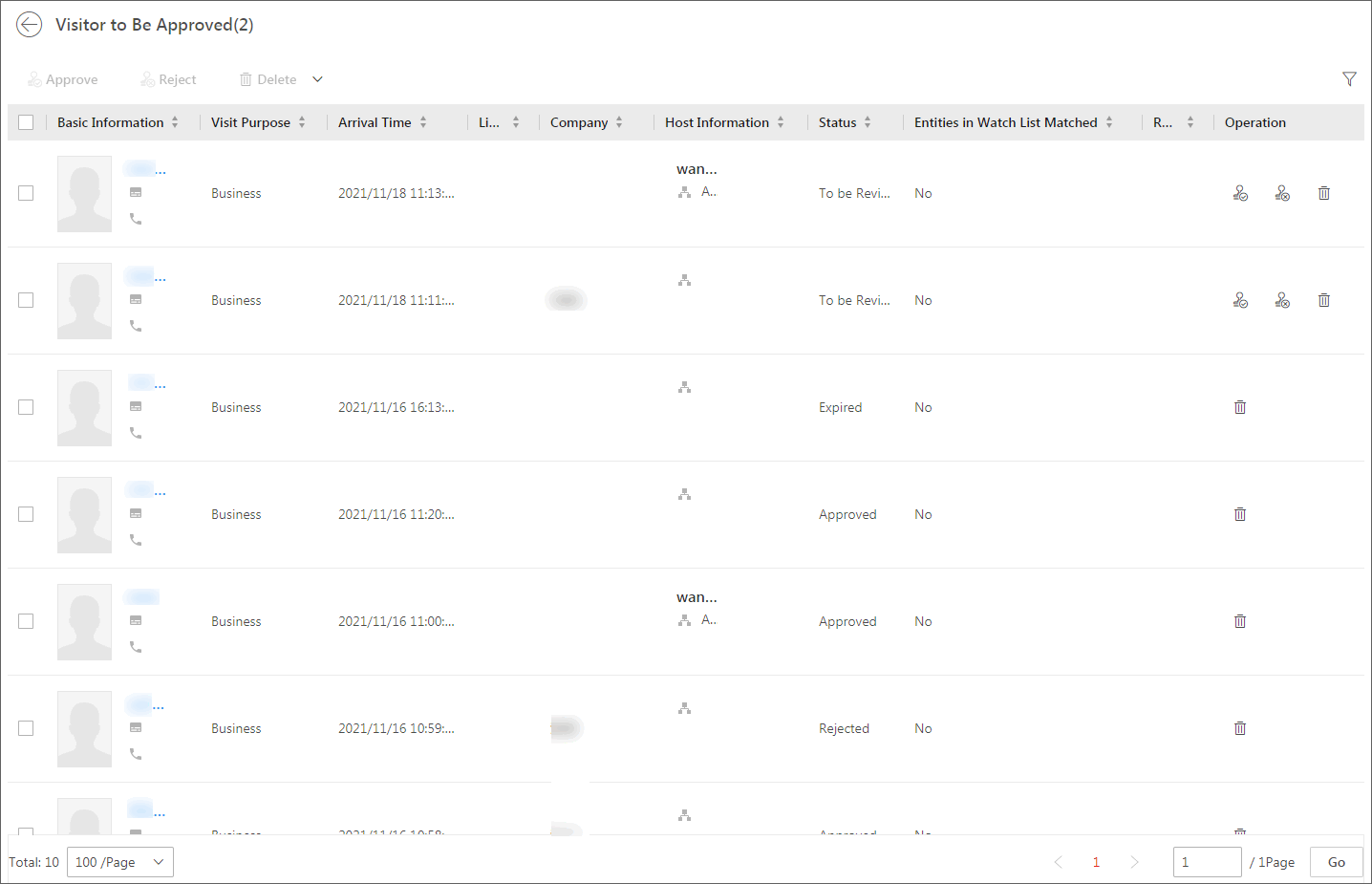 Figure 3 Visitor To Be
Approved
Figure 3 Visitor To Be
Approved - Optional:
Click
 to filter reserved
visitors by name, ID, status, etc. to quickly find your wanted visitors.
to filter reserved
visitors by name, ID, status, etc. to quickly find your wanted visitors.