Visitor Check-Out
You should check out a visitor or let the visitor check out at a self-service check-out point before the visitor leaves. This is to ensure that the access level assigned to the visitor expires after they leaves.
On the top left of the Web Client, select  > Passing Management > Visitor > Visitor Check-In/Out > Visitor Check-Out to enter the Visitor Check-Out page.
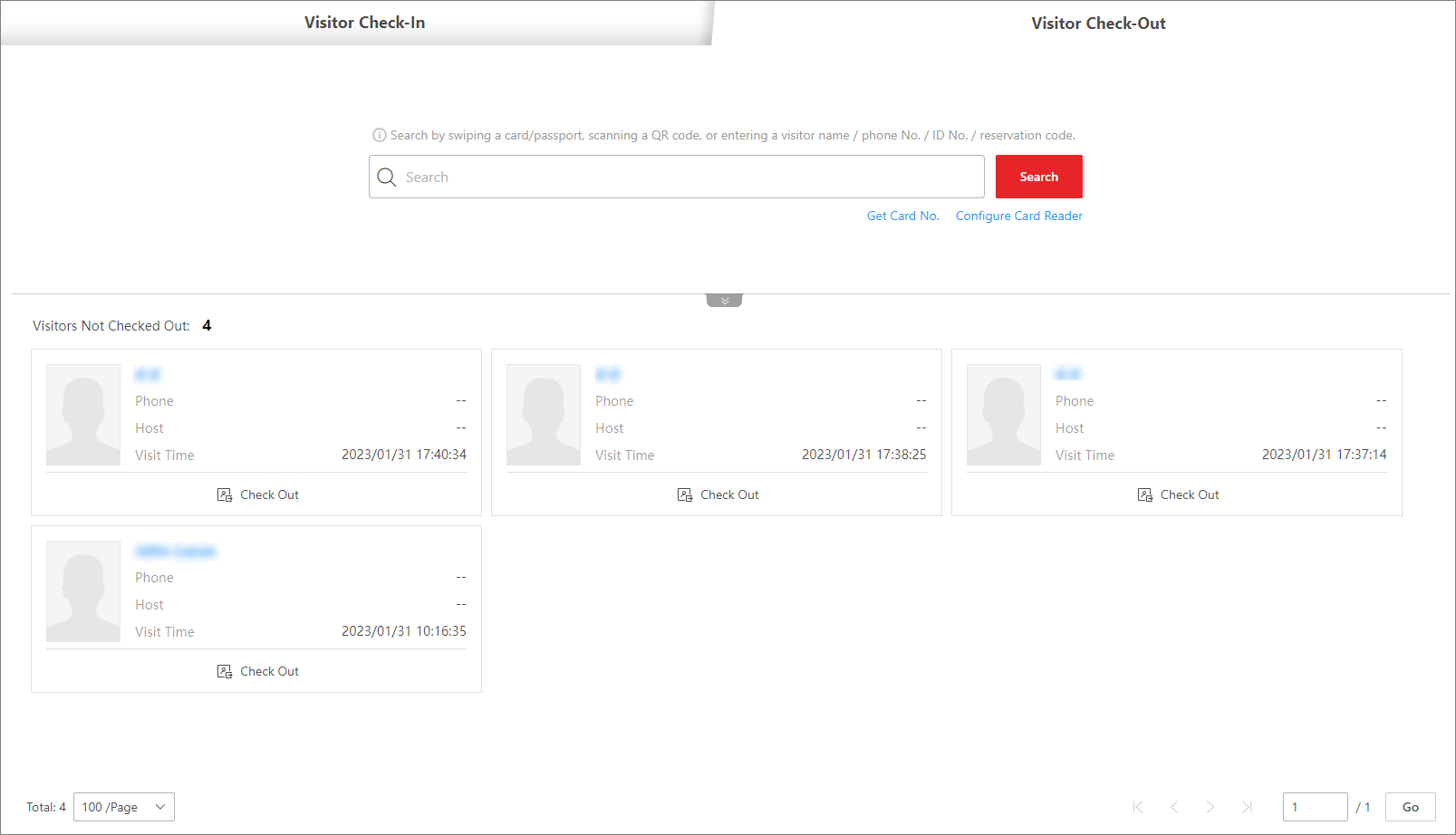 Figure 1 Visitor Check-Out Page
A visitor can be checked out in the following ways:
Check Out at Self-Service Check-Out Point
If you have set a self-service check-out point, the visitor can check out by authenticating at the self-service check-out points without the help of the receptionist. If you have issued a card to a visitor when checking in, after checking out, the visitor should put the card in the place for card collection. The access level of their cards, fingerprints, face pictures, and QR codes will expire automatically.
See Set Self-Service Check-Out Point for details about how to set a self-service check-out point.
Check Out by Swiping Card
If you want to allow visitors to check out by swiping their cards, you need to click Configure Card Reader in the upper-right corner of the Visitor Check-Out page to configure the card reader first.
Before configuring the card reader, make sure that you have added
the corresponding device (enrollment station or card enrollment station) to the
platform, otherwise  will appear next to
Configure Card Reader, indicating that the platform
fails to detect the device.
will appear next to
Configure Card Reader, indicating that the platform
fails to detect the device.
By default, Card Enrollment Station is selected as the card reader. If you select Enrollment Station and complete related settings, you need to click Get Card No. on the Visitor Check-Out page to activate the settings.
For details about how to configure the card reader, see Set Card Issuing Parameters.
Search for and Check out a Visitor
You can swipe a card/passport, scan a QR code, or enter a visitor name / phone No. / ID No. / reservation code, and click Search to search for the visitor, and then click Check Out on the search result page to check out them.
-
Only if a bar code reader is plugged into the PC where the platform runs, you can use the bar code reader to scan the QR code on the visitor pass of a visitor to search for the visitor to check them out.
-
Only if a KR420 passport reader is plugged into the PC where the platform runs, you can use the KR420 passport reader to swipe the card/passport to search for the visitor to check them out.
Check Out Visitors in the Visitors Not Checked Out Section
Visitors not checked out will be displayed on the Visitor Check-Out page, you can click Check Out on the visitor card to check them out, or you can click the name of a visitor to go to the details page and click Check Out.
Automatic Check-Out
If you do not manually check out a visitor, the visitor will be checked out by the platform automatically when the configured visiting duration ends.
Automatic check-out is available only when Check Out Automatically is selected for visitors not checked out after the exit time on the Basic Parameters page. For details, see Set Basic Parameters.