Batch Import the Visitor Reservation Information
You can add the information of multiple visitors to the platform by importing an excel file with visitor information. Also, by entering the names of visitor groups of multiple persons in the excel file, you can add them to different groups in a batch.
Before any operations in the visitor system, you can set the parameters according to actual situation such as setting basic parameters to define the scenario for the visiting process, managing visitor types, assigning access levels to visitors, etc. See Configurations Before Visitor Management for details.
-
On the top left of the Web Client, select
 > Passing Management > Visitor > Visitor Reservation.
-
Click
 and select the excel file with
visitor information from local PC.
and select the excel file with
visitor information from local PC.
- Optional:
Check Replace Repeated Visitor.
Note:
If you check Replace Repeated Visitor, the existing visitor information (with repeated certificate type and number) in the list will be replaced. Otherwise, importing visitors with repeated certificate number will fail.
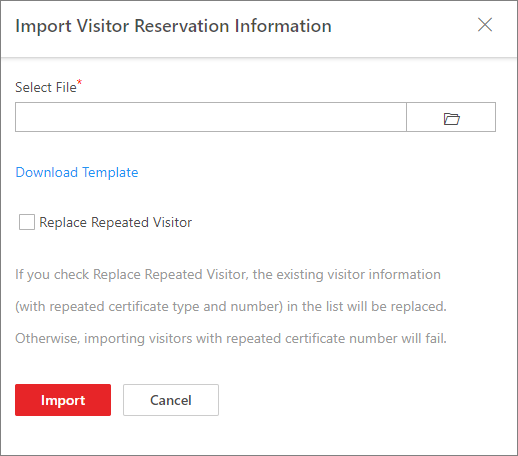 Figure 1 Import Visitor
Reservation Information
Figure 1 Import Visitor
Reservation Information - Optional:
Check one or
more
visitor(s) and click Delete to delete
the reservations for the selected visitor(s); or click
 > Delete All to delete all the reservation information.
Note:
> Delete All to delete all the reservation information.
Note:If a reservation has not expired, the reservation will expire after you delete it.