Set Live View
On the live view page, you can view the live video of linked door station, outer door station and sub door station.
-
Make sure the door station is well-connected.
-
Make sure the indoor extension and the indoor station are well-connected.
-
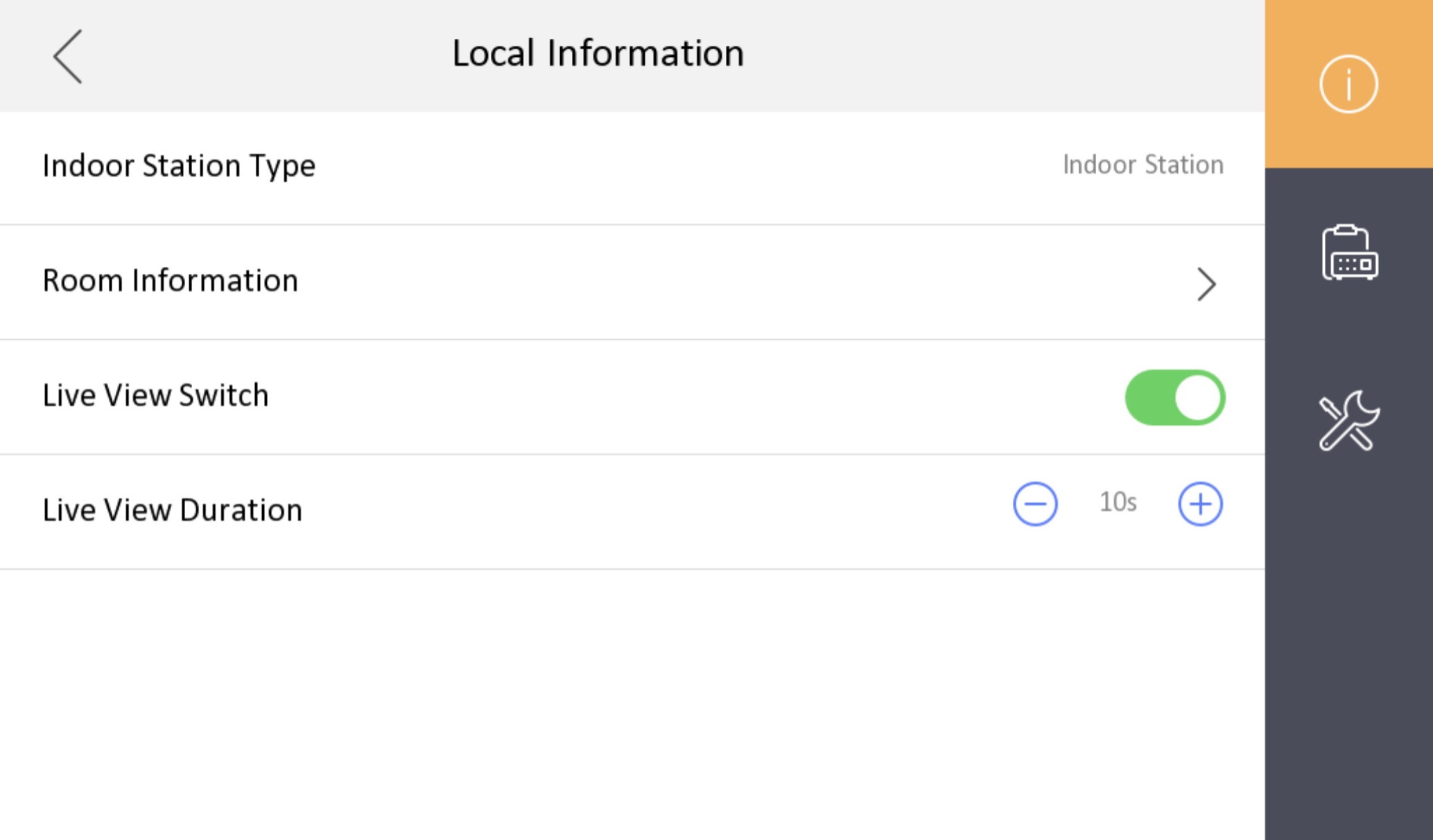
Tap Settings >
 > Configuration >
 to enter the page of Local Information.
Figure 1 Local Information
-
After enable the function, the live view icon will be shown on the main page.
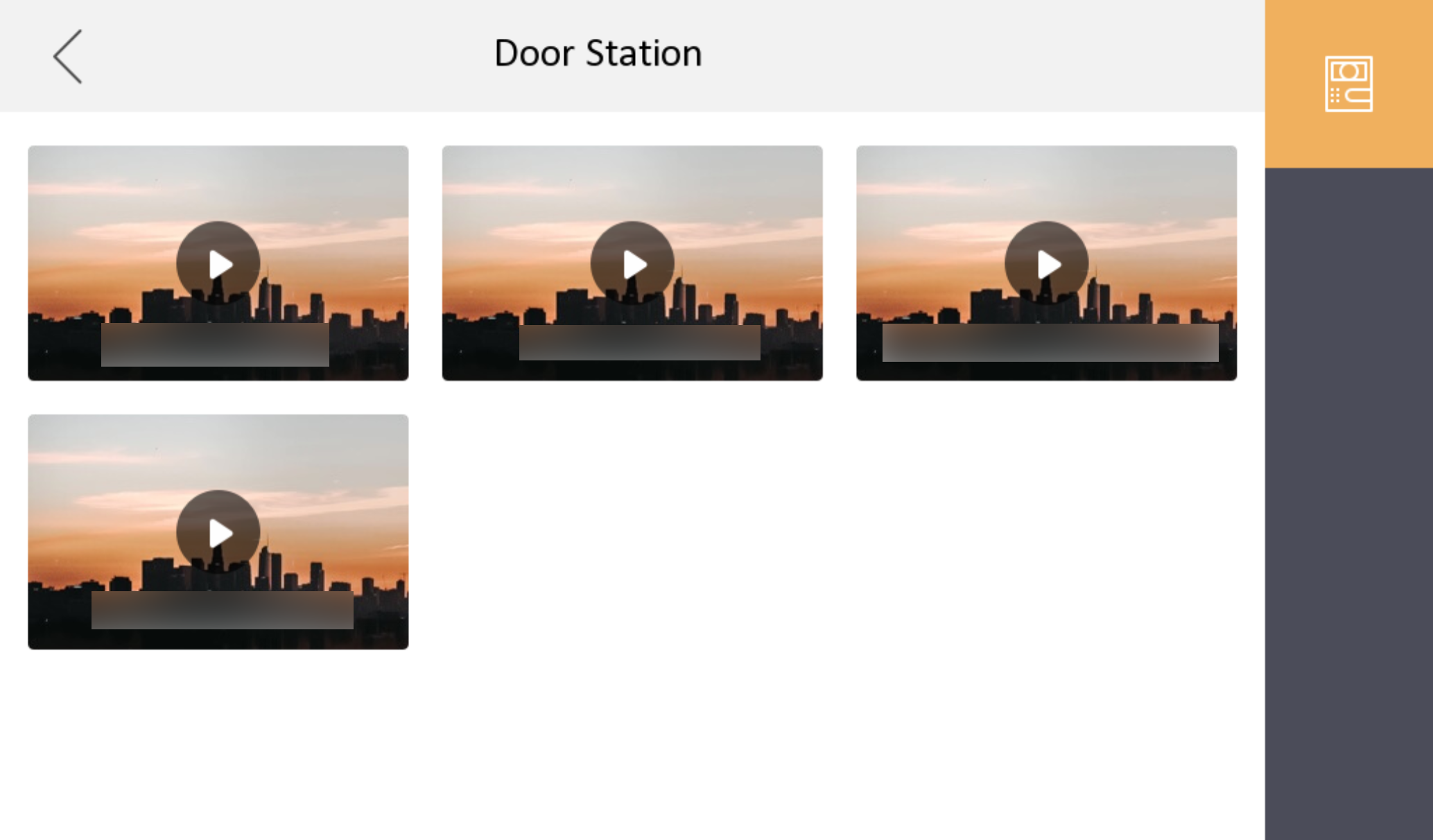
Tap Live View on the main page.
Figure 2 Live View
-
Tap
 to enter the live view page of
door station.
Note:
-
On the Call from Door Station page, there are 2 unlock buttons: Unlock 1, and Unlock 2. When you tap Unlock 1, the building gate will open by default. When you tap Unlock 2, the door station connected door will open.
-
On the Call from Door Station page, there are 1 capture button. You can tap the button to capture the picture via door station.
-
The indoor station can view live videos of at most 1 main door station + 16 sub door station +10 outer door station.
-