Add Remote Site Registered to Central System
If the Remote Sites have been registered to the Central System and the Central System also enabled the receiving site registration function, the registered Remote Sites will display in the site list. You can add them to the Central System by entering user names and passwords.
-
The Remote Site must be registered to the Central System by entering the Central System's network parameters (see Set Network Parameters for details).
-
Make sure the receiving site registration function has been enabled on the Central System. (see Set Network Parameters for details).
Perform this task when you need to add the site which has registered to the Central System.
-
When adding Remote Site, the site's cameras and logical area information are imported to the Central System by default.
-
When you perform the following steps, the progress of the whole task will be displayed on the upper right side.
-
On the top navigation bar, select
 > Security Monitoring > Video.
-
Enter the Add Remote Site page.
-
If no Remote Site added, click Add Site to enter the Add Remote Site page.
-
If you have already added Remote Site, click
 on the left to enter the
Add Remote Site page.
on the left to enter the
Add Remote Site page.
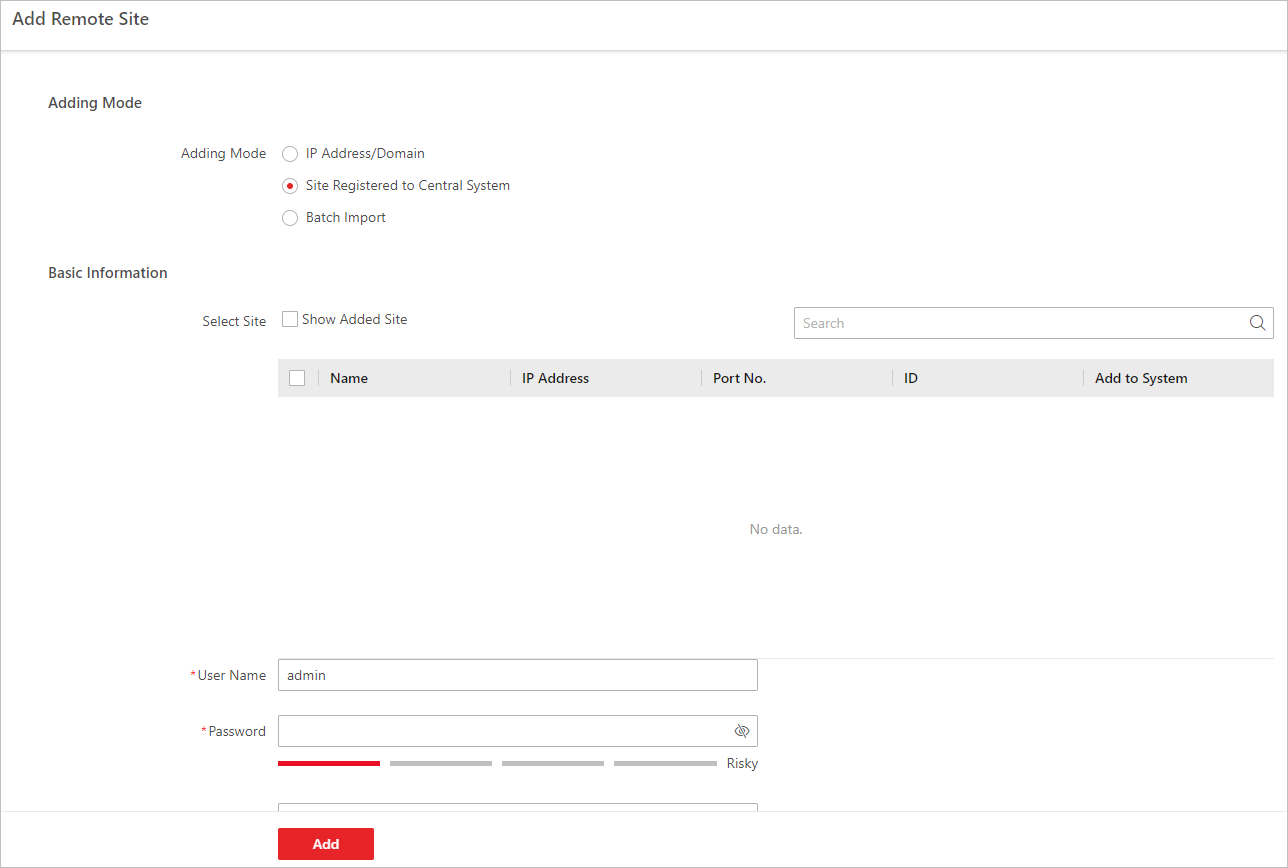 Figure 1 Add Remote Site
PageNote:
Figure 1 Add Remote Site
PageNote:If you did not set the NTP server which is used for synchronizing the time between the SYS and the NTP server, a message will be displayed on the top of this page. If you need, click the button to go to the System Configuration page.
-