Add an Entrance/Exit Control Device
An entrance/exit control device is used for managing the entrance or exit of a parking lot, especially that of an unattended parking lot. After a vehicle gets a ticket or card from an entrance/exit control device, the device will control the barrier gate to open and let the vehicle enter. After the vehicle returns the ticket or card, the device will allow the vehicle to exit. Besides, if an entrance/exit control device issues cards instead of tickets, its guidance screen is configurable, which means you can configure the information displayed on it.
-
On the top navigation bar, select
 > Basic Management > Device
to enter the device management module,
> Basic Management > Device
to enter the device management module,
-
Click Add to enter the Add Entrance/Exit Control Device
page.
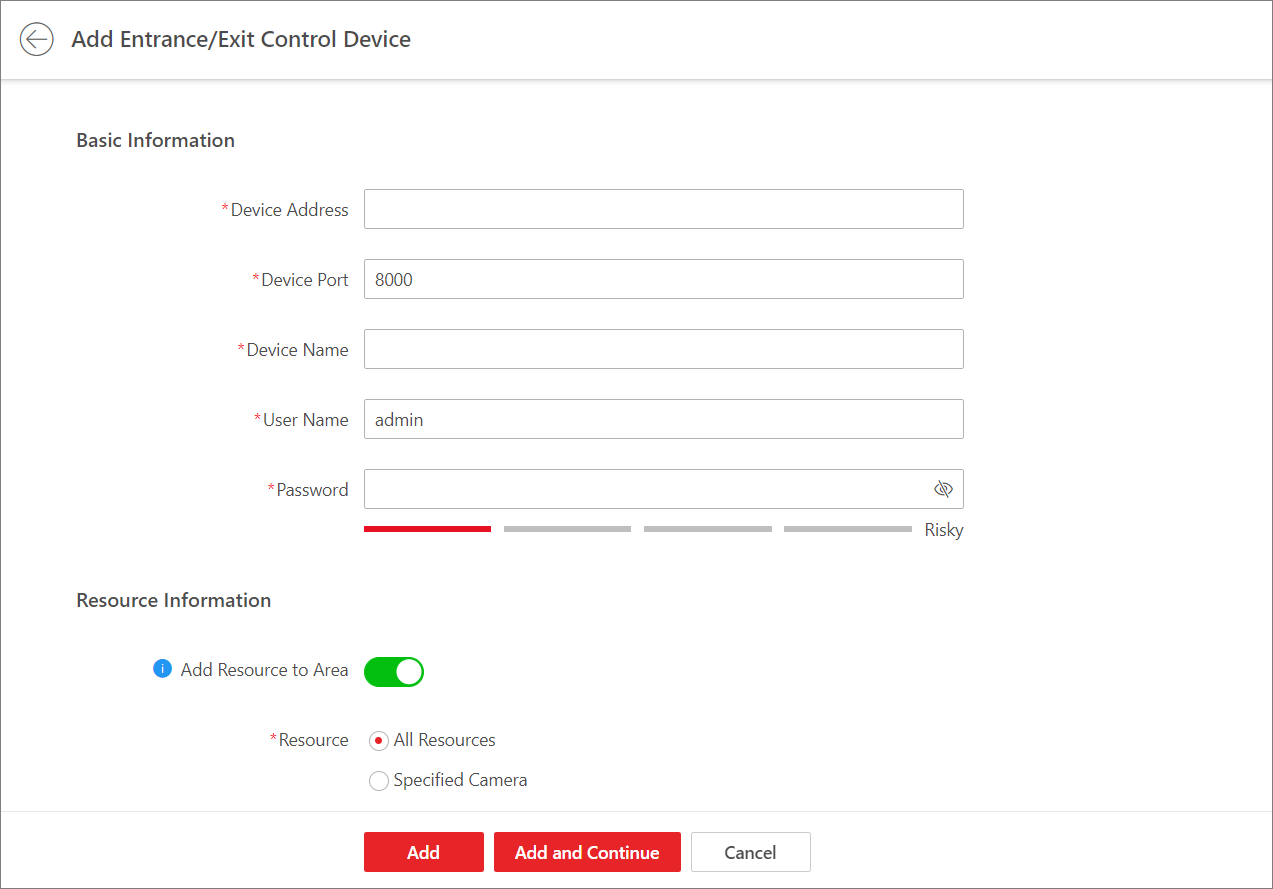 Figure 1 Add Entrance/Exit
Control Device Page
Figure 1 Add Entrance/Exit
Control Device Page - Optional:
Perform the following operations.
Option Description Edit Entrance/Exit Control Device
In the Device Name column, click the name of an entrance/exit control device to edit it.
Delete Entrance/Exit Control Device
Select one or multiple entrance/exit control devices and click Delete to delete them.
Configure Entrance/Exit Control Device Remotely
In the Operation column, click
 to configure the
entrance/exit control device remotely.
to configure the
entrance/exit control device remotely.Refresh Device Information
In the Operation column, click
 to refresh the
entrance/exit control device's information.
to refresh the
entrance/exit control device's information.Search for Device
Enter a keyword in the search box and click
 to search for a
specific device.
to search for a
specific device.