Back Up Remote Site's Database to Central System
After adding the Remote Site, you can back up the database of the Remote Site to the Central System. The database backup can be performed according to the configured schedule or immediately. In case of the data deletion or corruption following a natural or human-induced disaster, you can recover the data to ensure the business continuity.
-
On the top navigation bar, select
 > Security Monitoring > Video.
-
In the site list on the left, click the Remote Site name to view its details.
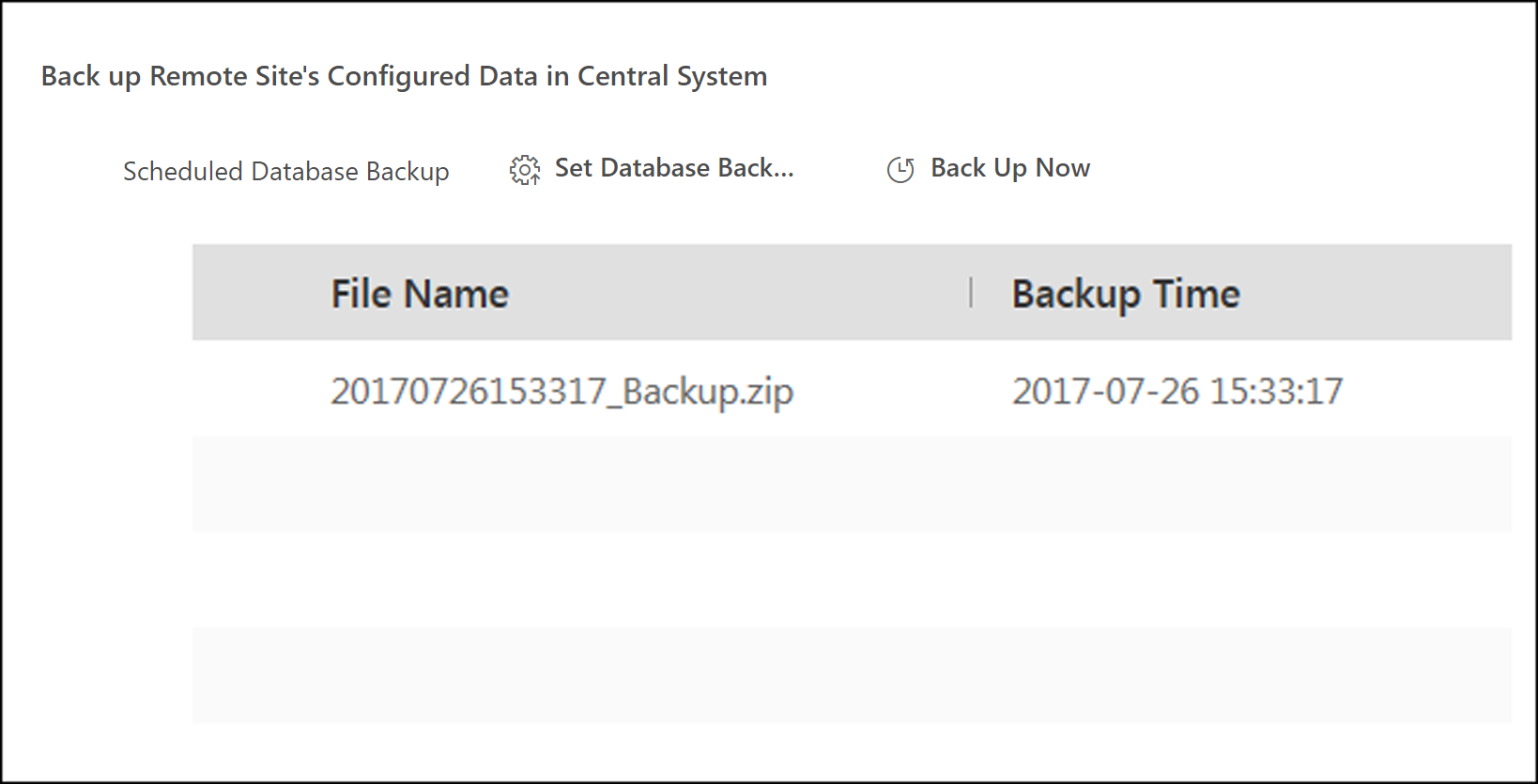 Figure 1 Back Up Remote Site
Database in Central System
Figure 1 Back Up Remote Site
Database in Central System - Optional:
Set the backup parameters and enable scheduled database backup if needed to
back up the Remote Site's database regularly.
-
Click Set Database Backup to open the Set
Database Backup dialog.
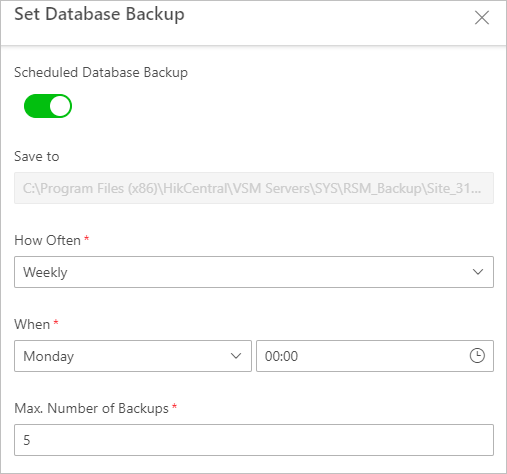 Figure 2 Set Database
Backup
Figure 2 Set Database
Backup
-
Click Set Database Backup to open the Set
Database Backup dialog.
The backup file (including manual backup and scheduled backup) will display in the list, showing the file name and backup time.