Add Remote Sites in a Batch
When you want to add multiple Remotes Sites at a time for convenience, you can edit the predefined template by entering the sites' parameters and import the template to the Central System to add them.
-
When adding Remote Site, the site's cameras and logical area information are imported to the Central System by default.
-
When you perform the following steps, the progress of the whole task will be displayed on the upper right side.
-
On the top navigation bar, select
 > Security Monitoring > Video.
-
Enter the Add Remote Site page.
-
If no Remote Site added, click Add Site to enter the Add Remote Site page.
-
If you have already added Remote Site, click
 on the left to enter the
Add Remote Site page.
on the left to enter the
Add Remote Site page.
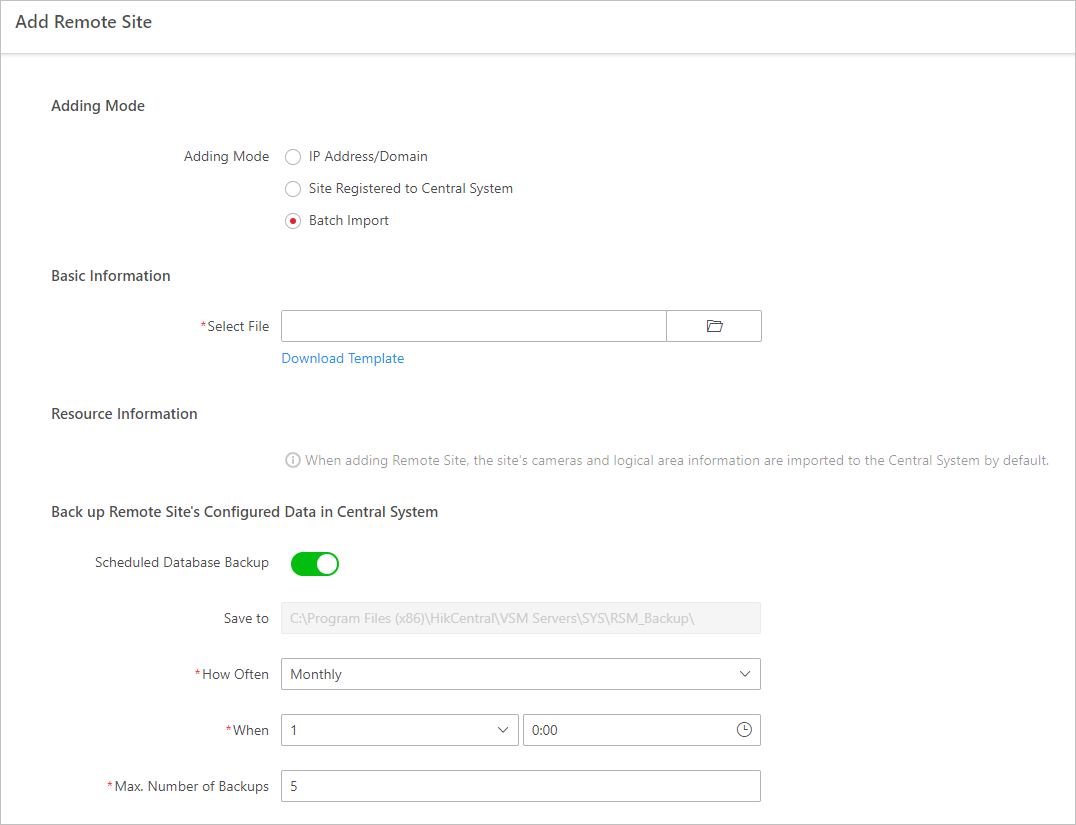 Figure 1 Add Remote Site Note:
If you did not set the NTP server which is used for synchronizing the time between the SYS and the NTP server, a message will be displayed on the top of this page. If you need, click the button to go to the System Configuration page.
-
-
Click
 and select the template
file.
and select the template
file.