Add Email Template for Event and Alarm Linkage
You can set email templates (including specifying the recipient, email subject, and content) for event and alarm linkage. When the event or alarm is triggered, the platform can send email as the linkage action to the designate recipient regularly according to the predefined email template.
Before adding the email template, you should set the sender's email account first. See Configure Email Account for details.
-
In the top of top left corner of Home page, select
 > Basic Management > System.
-
Click Add to enter the Add Email Template page.
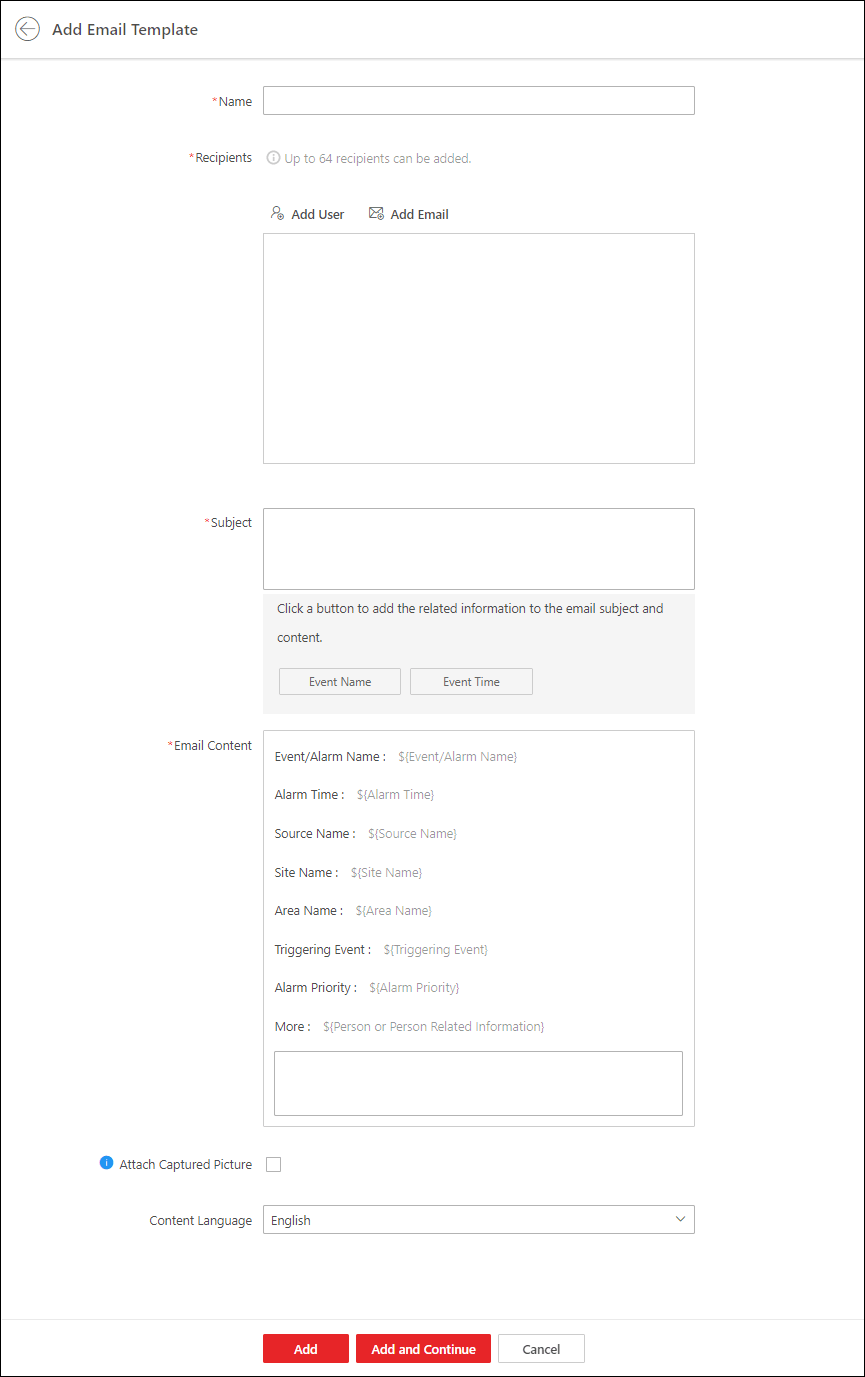 Figure 1 Add Event and Alarm
Email Template
Figure 1 Add Event and Alarm
Email Template -
Perform the following operation(s) after adding the email template:
Option Description Edit Template
Click
 in the Operation
column to edit template details.
in the Operation
column to edit template details. Delete Template
Click
 in the Operation
column to delete the template.
in the Operation
column to delete the template.Delete All Templates
Click Delete All to delete all the added templates.