Add Email Template for Sending Report Regularly

You can set email templates (including specifying the recipient, email subject, and content) for sending the report regularly, so that the platform can send the report as an email attachment to the designated recipient regularly according to the predefined email template.

Before adding the email template, you should set the sender's email account first. See Configure Email Account for details.

  1. In the top-left corner of the Web Client, select > Basic Management > System.
  2. On the left navigation pane, click Email > Scheduled Report Email Template.
  3. Click Add to enter the Add Email Template page.
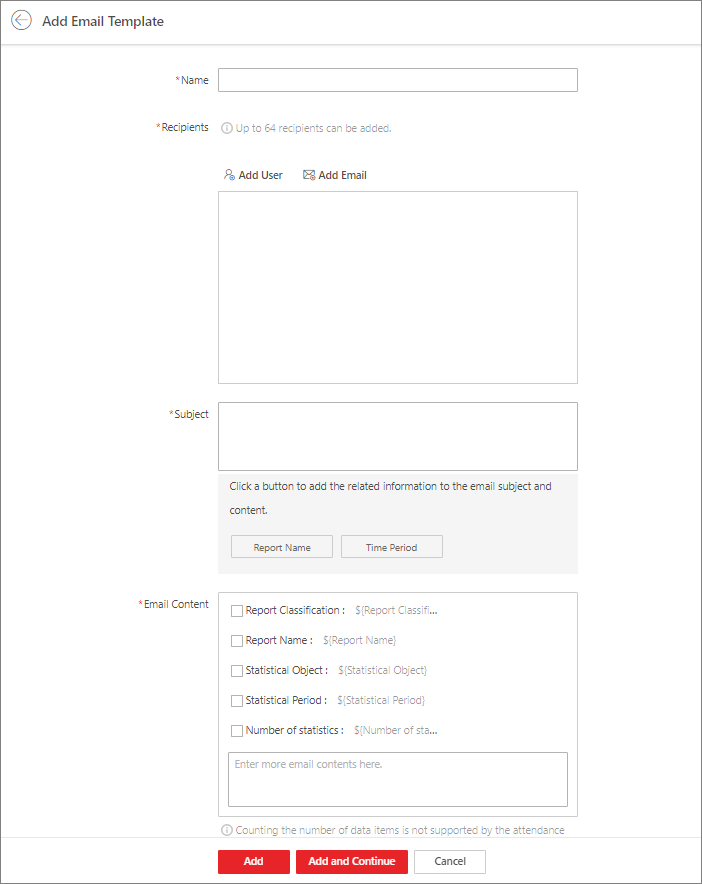
    Figure 1 Add Email Template for Sending Reports Regularly
  4. Enter the required parameters.
    Name

    Create a name for the template.

    Recipients
    • Click Add User and select the person's email, which is configured when adding the person.

    • Click Add Email and enter the recipient email address to send the email to.

      Note:

      You can enter multiple recipients and separate them by ";".

    Subject

    Enter the email subject as desired. You can also click buttons below to add the related information to the subject.

    Email Content

    Define report contents to be sent. In the Email Content field, check the content type(s) (i.e., Report Classification, Report Name, Statistical Object, Statistical Period, and Number of Statistics) to add the related information to the content and enter more detailed contents in the text box to complete the design of report contents.

    Note:

    If you add the time period to the email subject or add the statistical period to the email content, and the email application (such as Outlook) and the platform are in different time zones, the displayed period may have some deviations.

  5. Finish adding the email template.
    • Click Add to add the template and go back to the email template list page.

    • Click Add and Continue to add the template and continue to add other templates.

    The email template will be displayed in the email template list.

  6. Optional: Perform the following operation(s) after adding the email template.
    Option Description

    Edit Template

    Click in the Operation column to edit template details.

    Delete Template

    Click in the Operation column to delete the template.

    Delete All Templates

    Click Delete All to delete all the added templates.