Report Card Loss
If a person cannot find her/his card, you can report card loss via the platform to freeze the access levels related to the card.
-
On the top navigation bar, select
 > Basic Management > Person.
- Optional:
On
the Filter pane, click
 and set more conditions to search
for persons for whom you want to report card loss.
and set more conditions to search
for persons for whom you want to report card loss.
-
Click the name of the person in the person list to enter the basic information
page, and then click Credential Management to expand the
Add Credential panel.
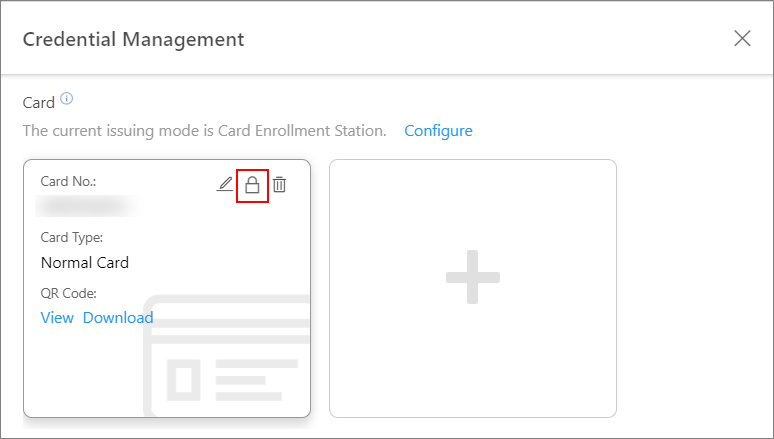 Figure 1 Add Credential
Panel
Figure 1 Add Credential
Panel -
In the Card area, move the cursor onto the lost card and then click
 .
.
- Optional:
Move the cursor onto the lost card and then click
 to cancel the card loss report.
Note:
to cancel the card loss report.
Note:You need to delete all the temporary cards before you can cancel the card loss report.
The card's access level will be active and the original biometric credentials (such as fingerprints and face information) will be linked to this card again.
- Optional:
Select the persons in the person list, move the cursor onto
 on the top, and then click Report
Loss on the top to batch report loss of multiple cards.
on the top, and then click Report
Loss on the top to batch report loss of multiple cards.