Add Departments
When there are a large number of persons managed in the platform, you can put the persons into different departments. For example, you can group employees of a company to different departments.
-
On the top navigation bar, select
 > Basic Management > Person.
-
Click
 at the top of the department
list to enter the Add Department page.
at the top of the department
list to enter the Add Department page.
-
Set the department information, including the parent department, department
name, and description.
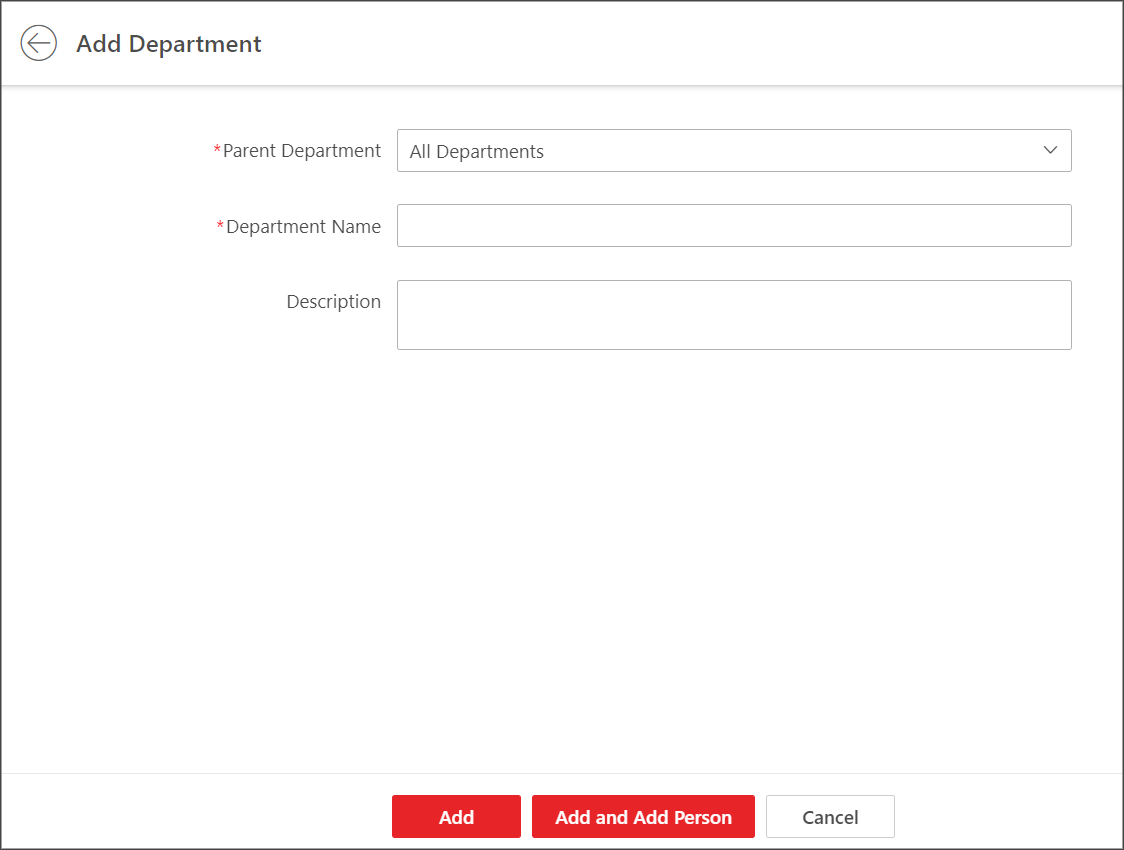 Figure 1 Add Department
 - Optional:
If your HikCentral Professional License
contains the permission to access the Access Control module, set parameters of
authentication via PIN code.
-
Click
 to open the Set
Authentication via PIN Code window.
to open the Set
Authentication via PIN Code window.
-
Click
- Optional:
Perform the following operations after adding departments.
Option Description Edit Department
Select a department, and click
 at the top of the
department list to edit the parent department, department name, or
remarks.
at the top of the
department list to edit the parent department, department name, or
remarks.Delete a Department
Select a department and click
 at the top of the
department list to delete the selected one.Note:
at the top of the
department list to delete the selected one.Note:The root department cannot be deleted.
Delete All Departments
Click
 beside
  at the top of the
department list to delete all added departments.
at the top of the
department list to delete all added departments.