Print Cards
After adding persons to the platform, you can print their information onto blank physical cards. If you have set credential information (e.g., virtual card information) for the persons, the credential information will be linked to the physical cards once the physical cards are printed. For example, in the scenario of employee management, you can print physical cards as the employee ID badges, which can be used by your employees as the credentials for access authentication at the access points of your company.
-
Make sure you have added the supported printers to the platform. For details, see Set Printer.
-
Make sure you have added card templates to the platform. For details, see Set Card Template.
-
On the top navigation bar, select
 > Basic Management > Person.
-
Click
 to open the Print Card
window.
to open the Print Card
window.
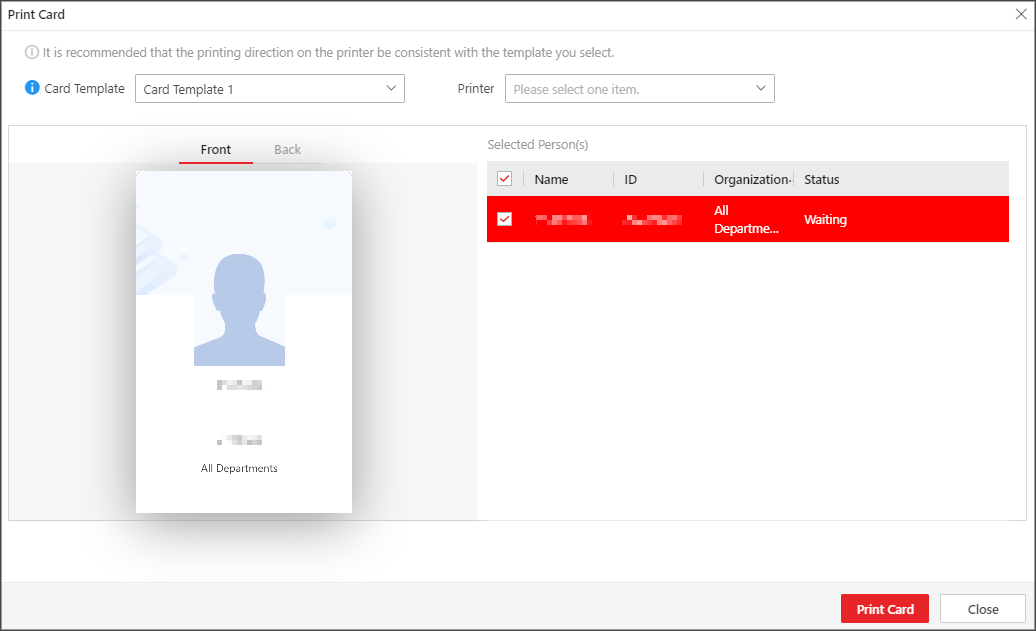 Figure 1 Print Card
Window
Figure 1 Print Card
Window
If you have not manually added card information for the persons, batch issue card information to them. Otherwise the persons cannot use the physical cards for access authentication. See Batch Issue Cards to Persons for details.