You can search for server
logs of
the current site or Remote Sites, which contain error logs,
warning logs and information logs. Server logs contain historical users and server
activities. You can search for the logs and then check the details.
-
On the top navigation bar, select . Then select on the left.
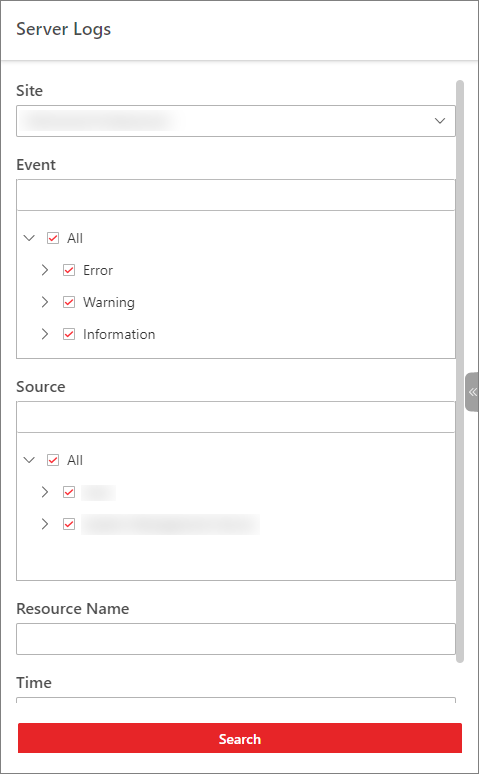 Figure 1 Search for Server
Logs
Figure 1 Search for Server
Logs
-
In Site, select the current site or
a Remote Site.
-
In
Event, select one or multiple log types and sub
types.
Note:
Error logs record failures or errors. Warning logs record
license expiration events. Information logs refer to other general logs
which record successful or unknown operation results.
-
In Source, select user and server to set the
source of the logs that you want to search for.
- Optional:
In Resource Name, enter the name of a resource
to search the logs of the resource.
-
In Time, select the time range of this
search.
Note:
You can select Custom Time Interval to
set a precise start time and end time.
-
Click Search.
All matched logs are listed with details on the right.
- Optional:
Check
all or specific logs, click Export,
and then select a file format (i.e., Excel or CSV) to download the searched logs
as a single file to your local PC.
 > Basic Management > Maintenance. Then select on the left.