Search for Call-Back Status of Resource
You can search for the call-back status of cameras on the current site. In search results, you can view the camera name, storage type, recording copy-back rate, etc.
-
On the top, select
 > Basic Management > Maintenance.
-
Select on the left.
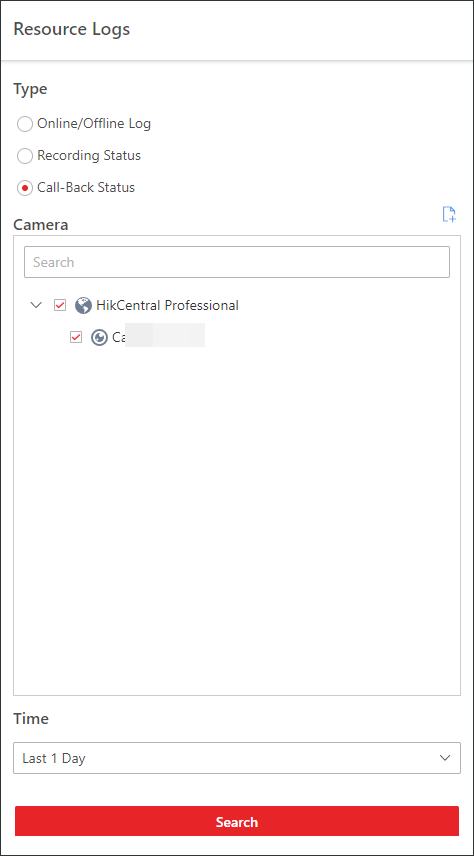 Figure 1 Search for Resource
Call-Back Status
Figure 1 Search for Resource
Call-Back Status -
Click
 to show the area list of the current site and then
select the cameras whose logs are to be searched for.
to show the area list of the current site and then
select the cameras whose logs are to be searched for.
- Optional:
Modify your selection in the selected camera list.
Option Description Remove a Camera
Click
and then click
 to remove a camera
from the list.
to remove a camera
from the list.Remove All Cameras
Click
and then click
 to remove all
cameras in the list.
to remove all
cameras in the list.