Search for Online/Offline Logs of Device
You can search for the online/offline logs of encoding devices, security inspection devices, and on-board devices. The online/offline logs provide information on the current device status (online or offline), latest offline time, total offline duration, etc.
-
On the top, select
 > Basic Management > Maintenance > System Log.
-
Select Device Logs on the left.
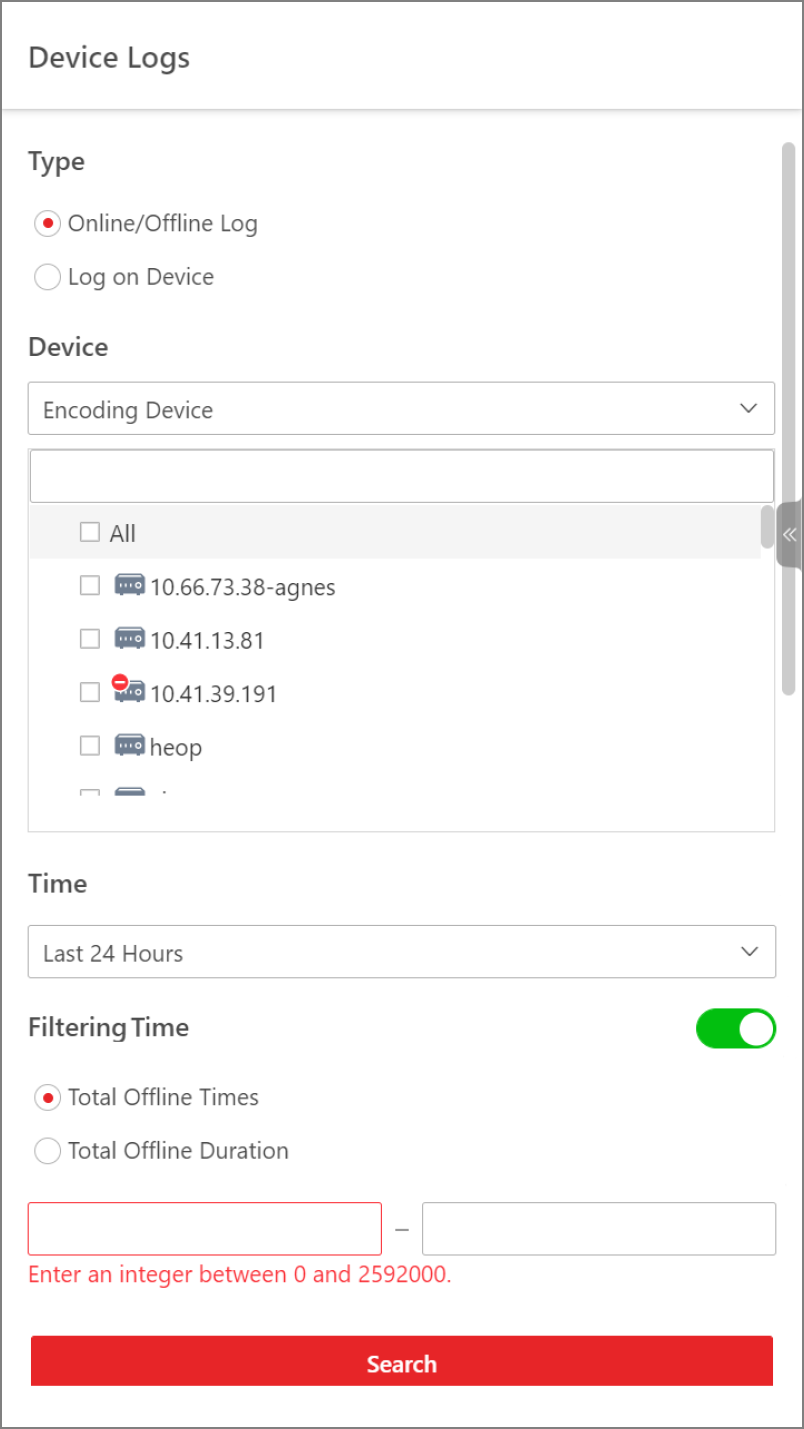 Figure 1 Search for Device Online/Offline Logs
 - Optional:
Perform further operations after searching for device logs.
Option Description View Offline History
Click on device name to view history online duration (displayed as a line chart) and status (displayed as a list) of the device.
You can perform the following operations.-
Filter Data: Select a time period and a status (online, offline or all) from the drop-down lists respectively to filter the data.
-
View Details: Move the cursor to the line chart to view the detailed offline and online duration at each time point.
View Device Logs
Click
 in the Operation
column to view the logs stored on the device.
in the Operation
column to view the logs stored on the device.Export Logs
Click Export, and then select a file format and a report type to download the searched logs as a single file to your local PC.
-