Add Interactive Flat Panel by Device Serial No.

You can add the interactive flat panel (referred to as device in the following pages) to the platform by entering the device serial number, the authentication code, etc.

  1. On the top navigation bar, select > Basic Management > Device to enter the device management page.
  2. On the top, select Device.
  3. On the left navigation pane, click Device and Server > Interactive Flat Panel.
  4. Click Add to enter the Add Interactive Flat Panel page.
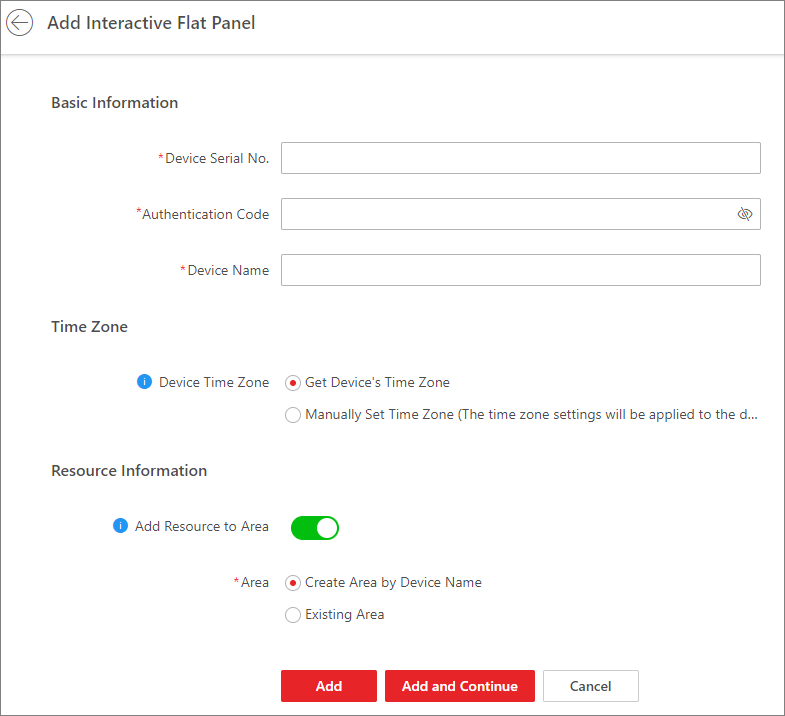
    Figure 1 Add Interactive Flat Panel
  5. Set the basic information.
    Device Serial No.

    Enter the device serial No.

    Authentication Code

    Enter the authentication code of the device.

    Note:

    The authentication code should contain 8 to 16 characters, including at least two of the following categories: upper case letters, lower case letters, and digits.

    Device Name

    Name for the device, which can be used to describe the device function and location.

  6. Optional: Set the time zone of the device.
    • Select Get Device's Time Zone to get the time zone of the device.

    • Select Manually Set Time Zone to manually set the time zone of the device and the settings will be applied to the device automatically.

  7. Optional: Switch on Add Resource to Area to import the resources of the added devices to an area.
    Note:

    You can create a new area by the device name or select an existing area. Also, you can click Add to add new area(s). For details, refer to Add an Area for Current Site.

  8. Finish adding the device.
    • Click Add to add the current device and back to the device list page.

    • Click Add and Continue to add the current device and continue to add other devices.

  9. Optional: Perform the following operations.
    Option Description

    Delete Device

    Select one or more devices, and click Delete to delete the selected devices.

    Set Time Zone

    Select one or more devices, and click Time Zone to configure the time zone of the selected devices.

    You can select Get Device's Time Zone or Manually Set Time Zone as needed.

    Search Device

    Enter keywords in the upper right corner to search for the target device(s).

    Edit Device

    Click a device to edit its basic information and time zone settings if needed.

Register the interactive flat panel online: Enter the IP address of the platform, device name, registration port No. (7660 by default), and the authentication code on the Integrated Control App on the device. Then the device will be added to the platform automatically.